You have an idea for a perfect image, but you don’t have the photography skills or the budget for a graphic designer. It’s a common problem that stops creators and marketers in their tracks. Fortunately, the solution is here, and it’s more accessible than ever.
In 2026, you can create stunning, unique images from simple text descriptions and edit them professionally without spending a dime.
This guide will show you exactly how to do it. We’ll walk through the simple process of generating original images with AI and then refining them with powerful, free online tools. You’ll learn how to turn your ideas into visual realities in just a few minutes.
What Are AI Image Generators?
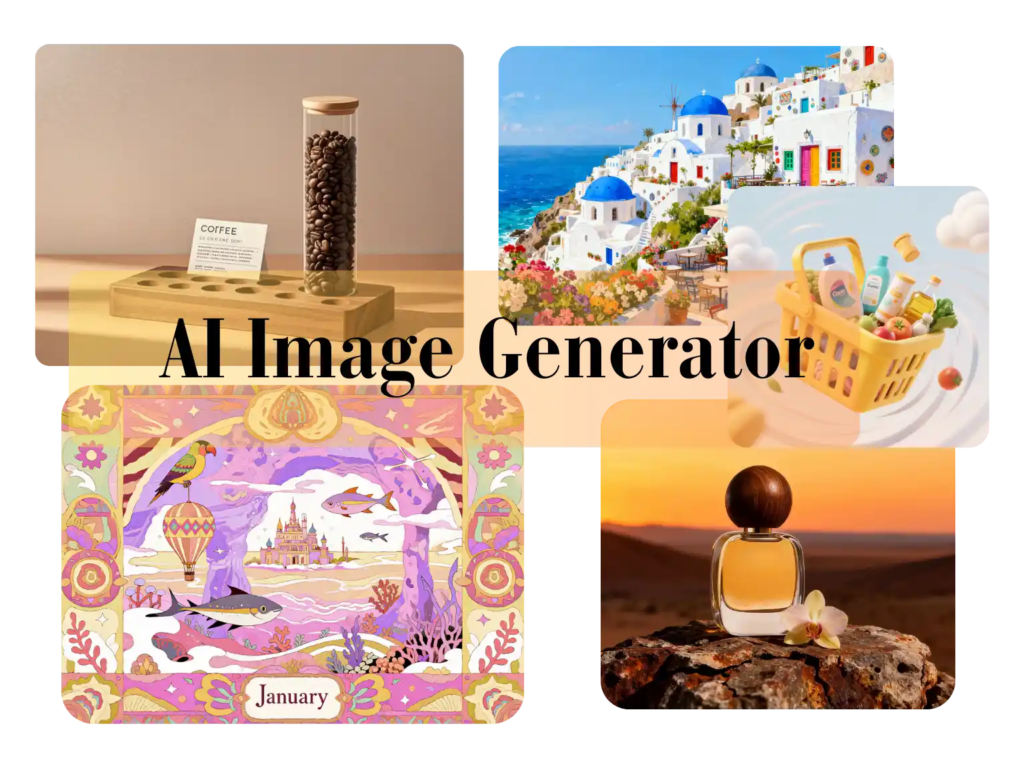
AI image generators are tools that create original pictures from written descriptions, often called “prompts.” You simply type what you want to see, and the AI builds an image based on your words. It analyzes massive datasets of existing images and text to understand concepts, styles, and objects.
The benefits are huge:
* Speed: Create custom images in seconds, not hours or days.
* Cost: You can generate visuals for free, saving money on stock photos or design fees.
* Creativity: Bring any concept to life, no matter how imaginative. You’re not limited by your own artistic skills.
* Uniqueness: Every image is new, giving your content a fresh and original look.
How to Generate AI Images in 3 Simple Steps
Creating images with AI might sound complicated, but it’s actually a straightforward process. It all comes down to choosing a good tool, writing a clear prompt, and then generating your visual.
Step 1: Choose a Powerful and Free Generator
Your journey starts with selecting the right platform. You need a tool that is easy to use, produces high-quality results, and doesn’t require a credit card to get started. A great generator provides a clean interface where you can focus on your ideas.
For a seamless experience, you need a powerful Text to Image AI that can translate your words into beautiful visuals without a steep learning curve. The best options offer a variety of styles and give you enough control to bring your vision to life accurately. Look for a tool that gets you from concept to creation quickly.
Step 2: Write a Clear and Descriptive Prompt
The prompt is the most important part of the process. It’s your instruction to the AI. The more detailed your prompt, the better the result will be.
A weak prompt: “A dog.”
Result:
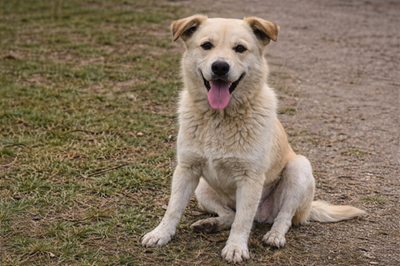
This is too vague. The AI might generate a cartoon, a photo, a puppy, or an old dog.
A strong prompt: “A photorealistic golden retriever puppy sitting in a field of green grass, happy expression, bright morning sunlight.”
Result:
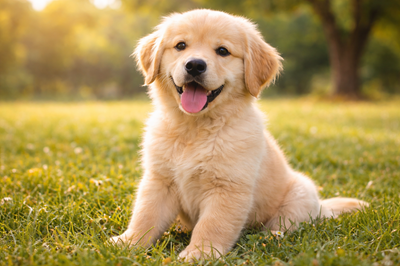
This prompt gives the AI specific details to work with:
* Subject: Golden retriever puppy
* Setting: A field of green grass
* Action/Mood: Sitting with a happy expression
* Style: Photorealistic
* Lighting: Bright morning sunlight
When writing your prompts, think about these elements:
* Subject: What is the main focus of the image? (e.g., “a vintage red sports car,” “an astronaut”)
* Style: What should it look like? (e.g., “digital art,” “pencil sketch,” “photograph,” “3D render”)
* Environment: Where is the subject? (e.g., “on a winding mountain road,” “floating in space”)
* Lighting: How is the scene lit? (e.g., “soft evening light,” “dramatic studio lighting,” “neon glow”)
* Color: Are there specific colors you want to see? (e.g., “vibrant blues and purples,” “a muted, earthy color palette”)
* Composition: How should the shot be framed? (e.g., “close-up portrait,” “wide-angle landscape”)
Step 3: Generate and Refine
Once you have your prompt, hit the “Generate” button and watch the AI work its magic. The tool will give you one or more images based on your description.
Often, the first result is good but not perfect. Don’t worry, this is part of the creative process. You can refine your image by:
* Editing your prompt: Add more detail or change a few words to steer the AI in a different direction. For example, if the dog looks too serious, add “smiling” or “playful” to your prompt.
* Generating again: Most tools will produce a slightly different image each time you click generate, even with the same prompt. Try it a few times to see different variations.
The Best Way to Edit Your AI Images Online
Generating an image is just the first step. To make your visuals truly professional, you’ll often need to make a few edits. You might want to remove a distracting object, change the background, or adjust the colors. In the past, this required complex software like Photoshop. Today, you can do it all from your browser.
Using a Free AI Image Editor Online is the perfect next step after creating your image. These tools use AI to simplify complex editing tasks into single clicks. For example, you can instantly remove the background from a product photo, erase an unwanted person from a scene, or enhance the lighting without needing any technical skills.
This combination of an AI generator and an AI editor gives you a complete, end-to-end workflow for creating polished visual content for free.
Common edits you can perform with an AI editor:
* Background Removal: Instantly create a transparent background for logos, product shots, or portraits.
* Object Removal: Erase unwanted elements from your image cleanly.
* Image Upscaling: Increase the resolution of your AI-generated image so it looks sharp on any screen.
* Color and Light Adjustments: Fine-tune the brightness, contrast, and saturation to make your image pop.
Advanced Tips for Creating Better AI Images
Once you’ve mastered the basics, you can use a few advanced techniques to get even better results. These tips will give you more control over the final output.
Understand Different Art Styles
Specifying an art style is one of the easiest ways to influence the look and feel of your image. Experiment with keywords that describe different visual aesthetics.
* For realism: Use terms like “photorealistic,” “hyperrealistic,” “8K,” or “shot on a DSLR.”
* For digital art: Try “concept art,” “fantasy,” “sci-fi,” or mention specific artist styles like “in the style of Van Gogh.”
* For drawings: Use “pencil sketch,” “charcoal drawing,” or “line art.”
* For 3D: Add keywords like “3D render,” “Unreal Engine,” or “Octane render.”
Use Negative Prompts
A negative prompt tells the AI what you want to avoid. This is useful for removing common AI errors or unwanted elements. For instance, if you’re generating images of people, you might get results with poorly formed hands.
Example Negative Prompt: “poorly drawn hands, extra fingers, blurry, low quality”
By adding this, you guide the AI away from common mistakes and toward a more polished result.
Pay Attention to Aspect Ratio
The shape of your image matters. Are you creating a vertical image for a social media story, a wide image for a blog header, or a square image for a profile picture? Most AI image generators allow you to select the aspect ratio before you start.
* 1:1 (Square): Perfect for Instagram posts and profile pictures.
* 16:9 (Widescreen): Ideal for website banners, YouTube thumbnails, and desktop wallpapers.
* 9:16 (Vertical): Use this for Instagram Stories, TikTok videos, and mobile wallpapers.
Choosing the right aspect ratio from the start saves you from awkward cropping later.
Common Uses for AI-Generated Images
AI images aren’t just for fun; they are a practical tool for many applications.
Marketing and Social Media
Create eye-catching visuals for your social media posts, ads, and email newsletters. You can generate images that perfectly match your brand’s aesthetic without relying on generic stock photos.
Blog Posts and Website Content
Elevate your articles and web pages with unique header images, infographics, and illustrations. Custom visuals can make your content more engaging and shareable.
Personal Projects and Art
Explore your creativity without limits. Design custom phone wallpapers, create characters for a story you’re writing, or just make beautiful art for your own enjoyment.
Concept Art and Brainstorming
Quickly visualize ideas. If you’re a designer, you can generate concept art for a new product or character in seconds. This helps you iterate on ideas much faster than drawing them by hand.
Frequently Asked Questions (FAQ)
1. What is the best way to get started with AI image generation for free?
The best way is to choose a user-friendly tool that doesn’t require payment to start. Look for a platform with a simple interface where you can type a prompt and generate an image right away. This allows you to learn the basics of prompt writing without any pressure.
2. Can I use AI-generated images for my business?
This depends on the terms of service of the AI tool you use. Many free tools allow for commercial use, but it’s always important to check their specific policies. Generally, the images you create are yours to use, but you should verify the licensing rules.
3. How do I create realistic-looking people with AI?
To get realistic results, be very specific in your prompt. Mention details like age, expression, and clothing. Use keywords like “photorealistic,” “portrait photography,” and specify the type of camera lens (e.g., “85mm lens”). Adding a negative prompt to exclude things like “cartoon” or “painting” also helps.
4. Do I need to be an artist to use these tools?
Not at all. AI image generators are designed for everyone. Your creativity comes from your ideas and your ability to describe them in words. You don’t need any drawing, painting, or photography skills to create amazing images.
Start Creating Today
AI image generation has opened up a new world of creative possibility. It’s a powerful tool that allows anyone to produce high-quality, custom visuals in just a few clicks. By learning how to write effective prompts and using a free online editor to refine your work, you can create professional-grade images for any purpose.
Stop searching for the right stock photo and start creating the exact image you need. Dive in, experiment with different prompts, and see what you can bring to life.