If you’ve ever searched your own name and found a stranger, an old MySpace page, or nothing at all, you already understand the problem Add Me to Search was built to solve.
It’s Google’s tool for letting real people not just celebrities and CEOs claim a verified spot in search results.
This guide walks through everything you need to know: what a Google People Card actually is, who can create one, how to build and optimize yours, and how to fix it when something goes wrong.
What Is Add Me to Search?
Add Me to Search is a free Google feature that lets individuals create a short, public profile called a Google People Card that can appear when someone searches their name. It launched in 2020 and remains available today in a limited set of countries, primarily on mobile devices.
What Is a Google People Card?
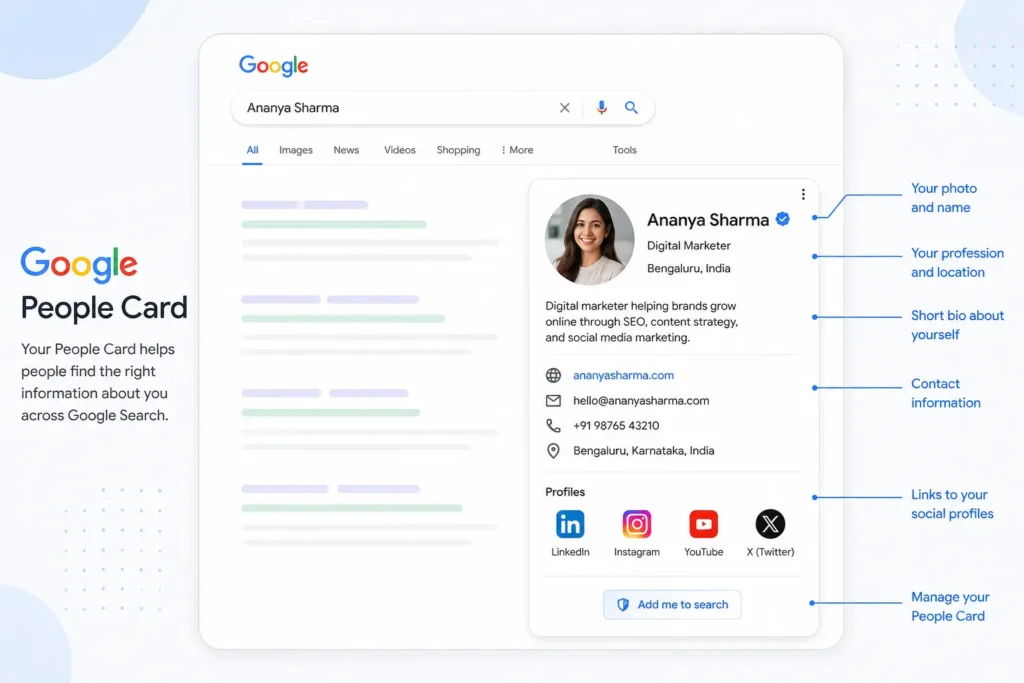
A Google People Card is a mini-profile that shows your photo, a short bio, your occupation, location, and links to your website or social profiles. It sits directly in the search results for your name, similar to a digital business card that Google hosts and indexes for you.
Unlike a personal website, you don’t need to build or host anything. Google handles the layout, indexing, and display. You just fill in the fields.
How People Cards Work
Once you create a People Card, Google associates it with your name and Google account. When someone searches that name and you match the intent Google infers for that search your card can appear in the results, usually near the top on mobile.
A few mechanics matter here:
- Your card is tied to your name, not a URL, so it competes directly with other people who share your name.
- Google decides when and whether to show it based on relevance and search intent, not on request.
- The card links out to your other profiles, so it works best as a hub rather than a replacement for your website or LinkedIn.
Who Should Create One?
Add Me to Search is most useful for people who don’t already have strong, controlled visibility on the first page of Google for their own name. That typically includes:
- Freelancers who want potential clients to find verified contact and portfolio links
- Students building an early professional footprint before they have a resume history
- Job seekers who want recruiters to see accurate information before an interview
- Entrepreneurs establishing credibility for a personal brand alongside a business
- Creators who need a central, trustworthy link between their name and their content
- Consultants who rely on referrals and want their name search to reinforce authority
If you already rank well for your name say, you have a strong personal site or a Knowledge Panel a People Card adds less value and, in some cases, isn’t available to you at all.
Add Me to Search vs Google Knowledge Panel vs Google Business Profile
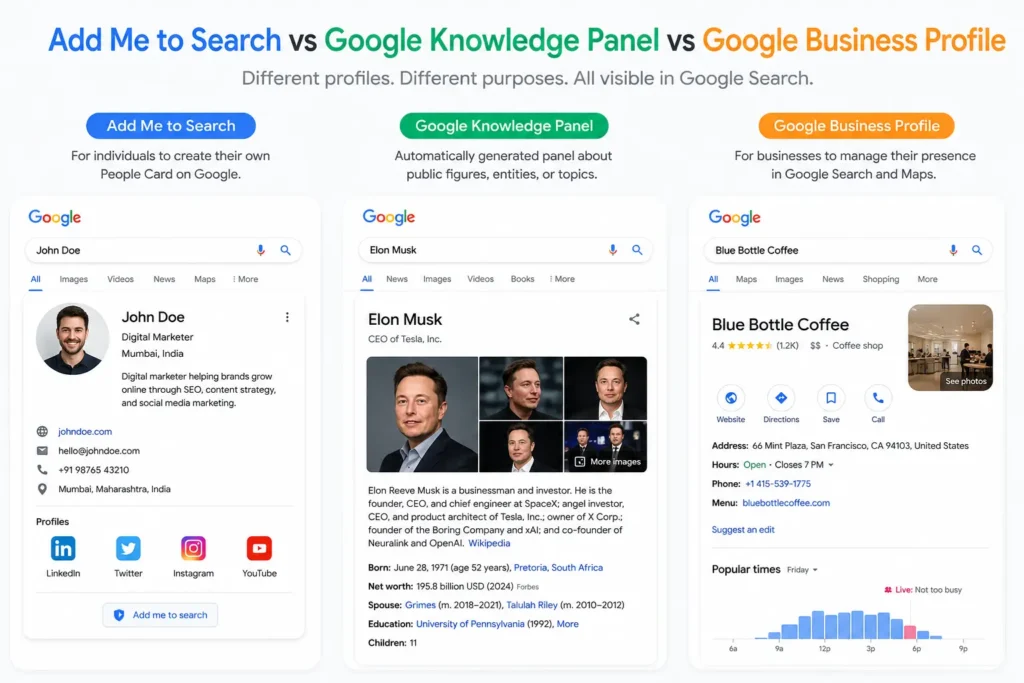
These three tools get confused constantly, and picking the wrong one wastes time. Here’s the distinction in plain terms.
Key Differences
A Google People Card is a self-created profile for an individual, built directly through Google Search on mobile. A Knowledge Panel is an information box Google generates automatically, usually for public figures, brands, or entities with enough independent, verifiable coverage across the web you don’t build it yourself. A Google Business Profile is a free listing for a business or location, showing hours, reviews, maps, and contact details, and it’s built for companies, not individuals.
Google doesn’t let you have both a People Card and a Knowledge Panel. If Google has already generated a Knowledge Panel for you, the People Card option won’t be available, because the two are designed to serve the same purpose for different types of people.
Which One Do You Need?
| Feature | Add Me to Search (People Card) | Knowledge Panel | Google Business Profile |
|---|---|---|---|
| Who it’s for | Individuals | Public figures, brands, notable entities | Businesses and locations |
| How it’s created | Self-created by the user | Auto-generated by Google | Self-created by a business owner |
| Cost | Free | Free (not requestable) | Free |
| Editable by you | Yes, anytime | No, only suggest edits | Yes, anytime |
| Requires notability/coverage | No | Yes | No |
| Shows reviews/hours | No | Sometimes | Yes |
| Best for | Personal branding, freelancers, job seekers | Celebrities, authors, well-covered professionals | Local businesses, shops, offices |
If you’re an individual without major media coverage, Add Me to Search is almost always the right starting point.
Who Can Use Add Me to Search?
Not everyone can create a People Card, and eligibility has narrowed since the feature first launched in 2020.
Eligibility Requirements
To create a card, you generally need:
- A personal Google account (not a business or brand account)
- A real, identifiable name the feature isn’t meant for pseudonyms or business names
- Access to the feature from a supported country
- A mobile device with the Google app or Google Search in a mobile browser
- A phone number for verification
Public figures who already have a Knowledge Panel, and businesses, are not eligible they’re expected to use the tools built for them instead.
Supported Countries
Add Me to Search launched in India, Kenya, Nigeria, and later South Africa, and availability has stayed concentrated in those markets rather than expanding broadly worldwide. If you’re outside these regions, the option to create a card may simply not appear, regardless of device or account settings. Coverage has shifted over time, so it’s worth checking directly in Google Search rather than relying on older articles.
Supported Languages
The feature has primarily supported English and Hindi. If your device or account language isn’t supported, the “Get Started” prompt may not appear even if you’re in an eligible country.
Google Account Requirements
You need to be signed in to a standard, personal Google account. Workspace accounts managed by an employer, or accounts flagged for policy violations, may not have access to the feature.
What Information Can You Add to Your People Card?
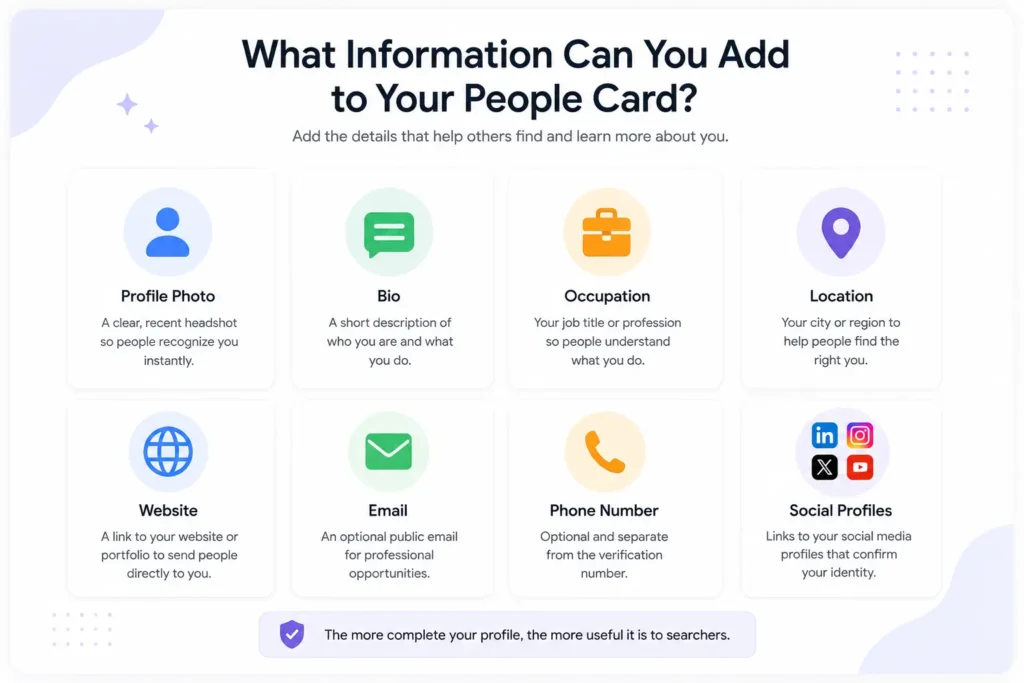
Your card is built from a fixed set of fields. You don’t need to fill in everything, but the more complete your profile, the more useful it is to searchers.
Profile Photo
A clear, recent headshot. This is the first thing people see, so avoid group photos, logos, or heavily filtered images.
Bio
A short description of who you are and what you do typically one to two sentences. This is your chance to answer “who is this person” in plain language.
Occupation
Your job title or profession. Be specific: “Freelance Graphic Designer” performs better for search intent than just “Designer.”
Location
Your city or region. This helps disambiguate you from people with the same name elsewhere and supports local relevance for freelancers and consultants.
Website
A link to your personal site or portfolio, if you have one. This is one of the highest-value fields because it sends direct traffic.
An optional public contact email. Useful for freelancers and job seekers, but only add an address you’re comfortable receiving cold outreach on.
Phone Number
Optional and separate from the verification number. Most people leave this blank unless they specifically want to be called.
Social Media Profiles
Links to platforms like LinkedIn, Instagram, X, or YouTube. These reinforce that the profile is really you, since they cross-reference identity across platforms.
How to Create an Add Me to Search People Card (Step-by-Step)
Creating a card takes about five minutes once you confirm the feature is available to you.
- Open Google Search on your mobile device. Use the Google app or a mobile browser like Chrome, signed in to your personal Google account.
- Search “Add Me to Search.” You can also try “add me to Google search.” If the feature is available in your region, a prompt will appear.
- Start creating your card. Tap “Get Started” to begin building your People Card.
- Verify your phone number. Google sends a one-time code by SMS to confirm you’re a real, unique person.
- Fill in your profile. Add your photo, bio, occupation, location, and any links you want to include.
- Preview your card. Check how it will look in search results before publishing.
- Publish your People Card. Once submitted, it can take anywhere from a few minutes to a day or more to appear in search results.
Quick checklist before you publish:
- [ ] Photo is clear and recent
- [ ] Bio is accurate and free of typos
- [ ] Occupation is specific
- [ ] At least one link (website or social profile) is included
- [ ] Location is correct
How to Optimize Your Google People Card
Creating a card is easy. Making it actually work for you takes a bit more thought.
Choose the Right Profile Photo
Use a photo that looks like you do in daily professional life not a filtered or outdated image. Consistency between your People Card photo and your LinkedIn or portfolio photo builds trust and helps people confirm they’ve found the right person.
Write an Effective Bio
Keep it specific. “I help small businesses grow through content marketing” tells a searcher more than “Marketing professional.” Lead with what you do and who you help, not with adjectives about yourself.
Add Relevant Social Profiles
Only link profiles you actively maintain. A dead Twitter account or an empty portfolio site does more harm than leaving the field blank.
Use Consistent Branding
Your name, job title, and photo should match across your People Card, LinkedIn, website, and other public profiles. Inconsistency makes it harder for both people and Google to confirm you’re the same person across platforms a concept closely tied to entity SEO.
Keep Information Updated
If you change jobs, cities, or your primary link, update your card. An outdated card can actively hurt your credibility if someone catches the mismatch.
Avoid Spam
Don’t stuff your bio with keywords, unrelated business promotions, or misleading claims. Google’s policies around spam and misleading content apply to People Cards, and violations can get a card removed.
Privacy Best Practices
Only include contact details you’re comfortable being public. Once a card is live, anyone who searches your name can see it so treat every field as fully public information, not something shared with a limited audience.
Optimization checklist:
- [ ] Photo matches your other professional profiles
- [ ] Bio answers “what do you do” in the first sentence
- [ ] Occupation is specific, not generic
- [ ] Only active, relevant social links included
- [ ] No promotional language or keyword stuffing
- [ ] Contact info is something you’re fine making public
- [ ] Card reviewed and refreshed every few months
How to Edit Your Google People Card
Editing works the same way you created the card, and you can do it anytime.
Update Information
Search “edit my people card” while signed in to the Google account you used to create it. Tap edit, make your changes, and save.
Change Your Photo
Open your card in edit mode, select the photo field, and upload a new image. Updates typically reflect in search within a short time.
Edit Contact Details
Website, email, and phone fields can be updated or removed the same way just be aware that removing your website or social links reduces how much value the card sends elsewhere.
How to Delete Your Google People Card
If you no longer want a public profile, deletion is straightforward.
Remove from Google Search
Search “edit my people card,” open your card, and select the delete option. Confirm the action when prompted.
Delete Permanently
Once confirmed, your card is removed from search results, generally within a short period. If you change your mind later, you’ll need to recreate it from scratch assuming the feature is still available to you at that time.
Why Your Add Me to Search Card Isn’t Showing
This is one of the most common frustrations with the feature. Usually it comes down to one of a handful of causes.
| Issue | Likely Cause | What to Do |
|---|---|---|
| Unsupported country | You’re outside a region where the feature is active | Confirm eligibility; a VPN won’t reliably fix visibility for other searchers |
| Verification failed | Phone number couldn’t be confirmed | Re-enter your number and retry the SMS code |
| Profile under review | New or edited cards can take time to process | Wait 24–48 hours before troubleshooting further |
| Google policy violations | Bio or fields flagged as spammy or misleading | Edit the card to remove promotional or false claims |
| Search index delay | Google hasn’t recrawled/indexed the update yet | Give it a few days; avoid repeated edits in the meantime |
| Duplicate profiles | Multiple cards exist for the same name/account | Delete duplicates and keep one active card |
| Phone number issues | Number already used for another account | Use a number tied only to your account |
| Google account problems | Account restrictions or suspensions | Resolve account issues directly with Google support |
If none of these apply and your card still isn’t appearing, it’s worth simply waiting and checking again, since availability and indexing can be inconsistent even for correctly built cards.
Common Add Me to Search Errors and Fixes
Cannot Create Card
Usually means the feature isn’t available for your country, language, or account type. Double-check by searching “add me to search” directly rather than relying on a bookmarked link.
Card Disappeared
This can happen after a policy review, an account issue, or simply a temporary indexing gap. Search “edit my people card” to see if the card still exists on the backend even though it’s not showing publicly.
No Edit Option
If you can’t find an edit option, confirm you’re signed in to the same Google account used to create the card. Using a different account is the most common cause of this issue.
Verification Problems
If SMS codes aren’t arriving, check for typos in the number, confirm you have signal, and try again after a few minutes rather than requesting repeated codes in quick succession.
Card Not Updating
Edits can take time to reflect in live search results. If changes still haven’t appeared after several days, verify the edit actually saved by reopening the edit screen.
Does Add Me to Search Help SEO?
This is the question most freelancers and consultants actually care about, so it’s worth answering directly: Add Me to Search can improve how you appear for searches of your own name, but it is not a general SEO tool and won’t improve rankings for your website or business.
SEO Benefits
A People Card gives you a controlled, verified result for name searches, which can push down outdated or irrelevant content. It also sends a direct link to your website or social profiles, which can support referral traffic even if it doesn’t directly move website rankings.
What It Doesn’t Do
It doesn’t affect your website’s ranking for keywords unrelated to your name, doesn’t function as a backlink for domain authority purposes, and doesn’t replace the need for a real website, portfolio, or content strategy.
Personal Branding Benefits
For freelancers and consultants, controlling the name search result is often more valuable than a small ranking boost elsewhere. Clients frequently search a person’s name before hiring, and a clean, accurate People Card reduces doubt at exactly that decision point.
Search Visibility
Because the card appears prominently in mobile search results, it can outrank older or unrelated content tied to your name old social posts, unrelated namesakes, or outdated bios.
Entity SEO Considerations
Broader search systems, including AI-driven summaries, increasingly rely on structured, verifiable signals to identify who a person is and what they do. A consistent name, photo, and set of linked profiles across your People Card and other platforms reinforces that you’re a single, identifiable entity which is a real, if modest, contributor to how confidently search systems represent you.
Best Practices for Maintaining Your People Card
Update Regularly
Treat your card like a resume header revisit it whenever your job title, city, or key links change.
Use Professional Information
Keep the tone and content appropriate for anyone who might see it, including clients, recruiters, and colleagues.
Protect Privacy
Avoid including a personal phone number or home address. Stick to information you’d be fine seeing on a business card.
Avoid Misleading Details
Don’t inflate titles or claim affiliations you don’t have. Beyond the ethical issue, inaccurate claims are also more likely to trigger a policy review.
Pros and Cons of Google People Cards
| Pros | Cons |
|---|---|
| Free to create and maintain | Only available in a limited set of countries |
| Appears prominently in name searches on mobile | Mobile-first; less consistent on desktop |
| Easy to edit or delete anytime | Requires phone verification, which some avoid |
| Sends direct traffic to your website/social links | Doesn’t affect broader SEO rankings |
| Helps distinguish you from namesakes | Card visibility and indexing can be inconsistent |
| No coding or hosting required | Not available if you already have a Knowledge Panel |
Frequently Asked Questions
What is Add Me to Search? Add Me to Search is a free Google feature that lets individuals create a People Card a short public profile with a photo, bio, and links that can appear in search results for their name.
Is Add Me to Search free? Yes. There’s no cost to create, edit, or delete a Google People Card.
Who can create a Google People Card? Individuals with a personal Google account in a supported country, using a mobile device, who don’t already have a Knowledge Panel.
Can businesses create a People Card? No. People Cards are for individuals only. Businesses should use Google Business Profile instead.
What countries support Add Me to Search? The feature has primarily been available in India, Kenya, Nigeria, and South Africa. Availability can change, so it’s best to check directly in Google Search.
Do I need a mobile device to create a card? Yes, the feature is built around mobile Google Search and the Google app rather than desktop browsers.
How long does it take for a People Card to appear in search? It can range from a few minutes to about a day, depending on verification and Google’s review process.
Can I have both a Knowledge Panel and a People Card? No. If you already have a Knowledge Panel, the People Card option won’t be available to you.
How do I edit my People Card? Search “edit my people card” while signed in to the Google account used to create it, then update and save your changes.
How do I delete my People Card? Search “edit my people card,” open your card, and choose the delete option to remove it from search.
Why isn’t my People Card showing up? Common causes include unsupported region, failed phone verification, pending review, indexing delays, or duplicate profiles.
Does Add Me to Search improve my website’s SEO? Not directly. It improves visibility for searches of your name specifically, but doesn’t affect general website rankings.
Can I add more than one social media link? Yes, you can typically add multiple relevant social profiles alongside your website.
Is my information on a People Card public? Yes. Anything you add is visible to anyone who searches your name, so avoid including sensitive personal details.
What happens if I violate Google’s policies with my card? Your card may be removed or hidden from search results until the issue is corrected.
Can I use a nickname instead of my legal name? The feature is intended for real, identifiable names rather than pseudonyms, though display preferences can vary by account.
Will my People Card show on desktop search? The feature is primarily mobile-focused, so visibility on desktop search can be limited or inconsistent.
Can I create a People Card if I already rank well for my name? Yes, as long as you’re otherwise eligible a strong existing web presence doesn’t block eligibility, though it may reduce how much added value the card provides.
What should I do if verification codes aren’t arriving? Double-check your phone number for errors, ensure you have signal, and wait a few minutes before requesting another code.
Can I recreate a People Card after deleting it? Yes, as long as the feature remains available for your account and region at the time.
Final Thoughts
Add Me to Search won’t replace a personal website, and it won’t move the needle on broad SEO rankings. What it does well is narrower and, for a lot of freelancers, job seekers, and consultants, more immediately useful: it gives you a verified, editable presence for the exact search that matters most your own name.
If you’re eligible, building a People Card takes minutes and costs nothing. The real work is in keeping it accurate, professional, and consistent with the rest of your online presence, so that anyone who searches your name finds exactly the impression you want them to.