Your website can look perfectly fine and still be slow on phones, hidden from Google, or full of broken links. You won’t see these problems by clicking around your own pages. You need a test.
That’s why people search for a Google website grader. They want a quick, free way to find out what’s wrong and what to fix first.
Here’s the catch: Google doesn’t have one official tool with that name. It has several free tools, and each one checks a different part of your site.
This guide explains which ones to use, adds seven other free tools worth knowing, and shows you how to turn the results into a short fix list.
10 free website grader tools to check your website
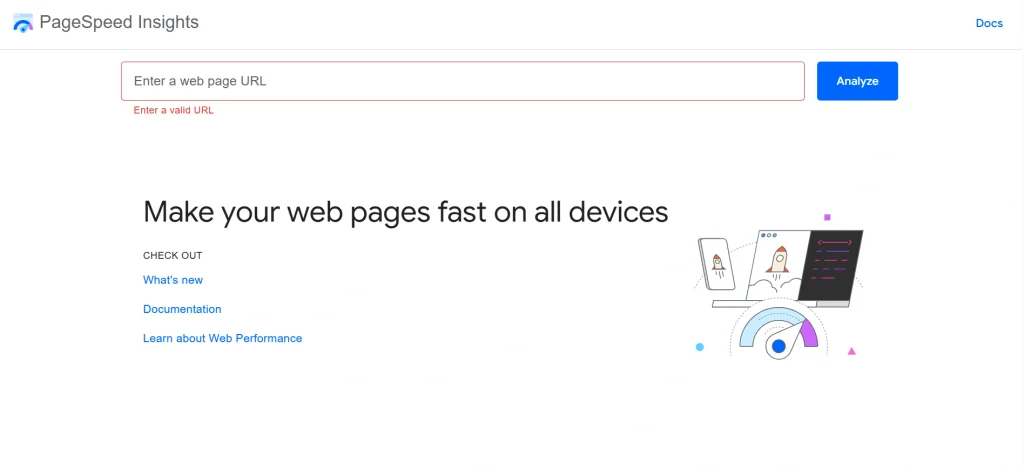
1. Google PageSpeed Insights
Best for: speed and Core Web Vitals.
Paste a URL and PageSpeed Insights gives you separate reports for mobile and desktop. Each report has two kinds of data, and the difference matters.
Field data comes from real Chrome users who visited the page over the past 28 days. Lab data comes from a simulated test run by Lighthouse right now. Field data tells you what visitors actually experience. Lab data helps you debug.
Below the scores, you’ll see “Opportunities” and “Diagnostics.” These are specific suggestions, like compressing images or removing unused JavaScript.
Limits: it tests one URL at a time. Low-traffic pages may have no field data at all.
Use it if: you want to check page speed and Core Web Vitals. It’s the best place to start.
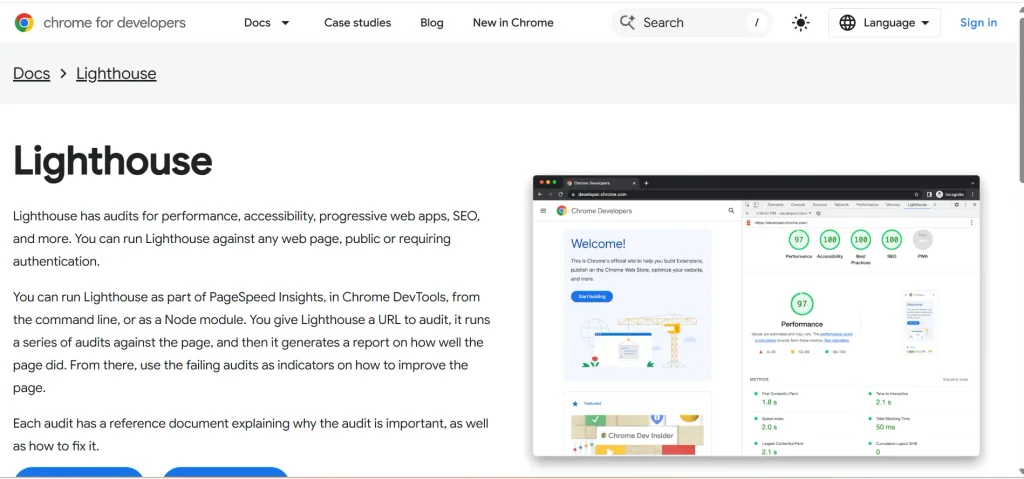
2. Google Lighthouse
Best for: a broader single-page audit.
Lighthouse runs inside Chrome. Open DevTools, find the Lighthouse tab, and run a report. It scores four areas out of 100: Performance, Accessibility, Best Practices and SEO.
PageSpeed Insights uses Lighthouse for its lab data, so the performance results overlap. The difference is workflow. PageSpeed Insights is a quick web check. Lighthouse lets you test pages behind a login, on your staging site, or while you’re building.
Limits: results vary with your computer, extensions and network. Run it in an incognito window for cleaner numbers.
Use it if: you build or edit your own site and want to test changes before they go live.
3. Google Search Console
Best for: seeing how Google treats your site.
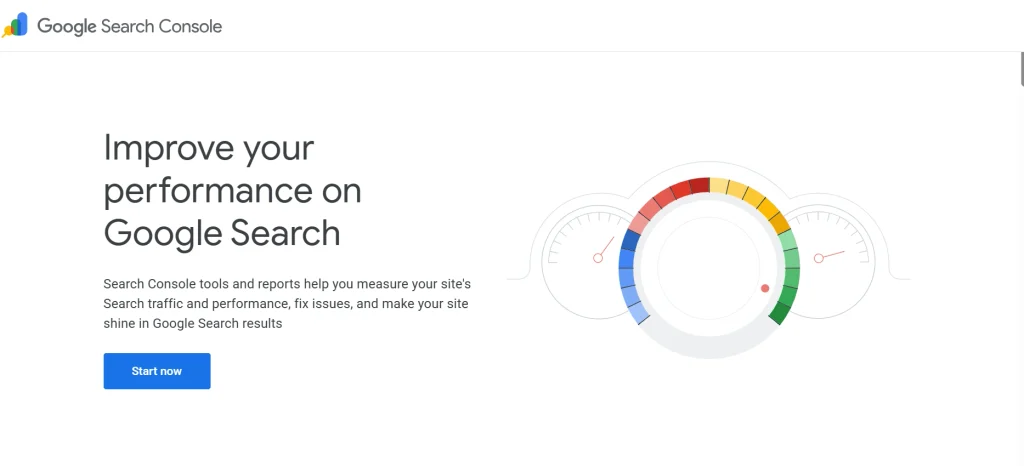
Search Console is the closest thing Google has to an official website health dashboard. It shows which pages are indexed, which aren’t and why. It also reports the searches that bring people to you, plus impressions, clicks and click-through rate (CTR).
The URL Inspection tool lets you check any single page. You can see whether Google has indexed it and how Google last crawled it. The Core Web Vitals report groups your pages by real-user performance.
Limits: you must verify that you own the site. It also won’t give you a single score.
Use it if: you own a site and care about search traffic. Nearly every site should have it set up.
4. HubSpot Website Grader
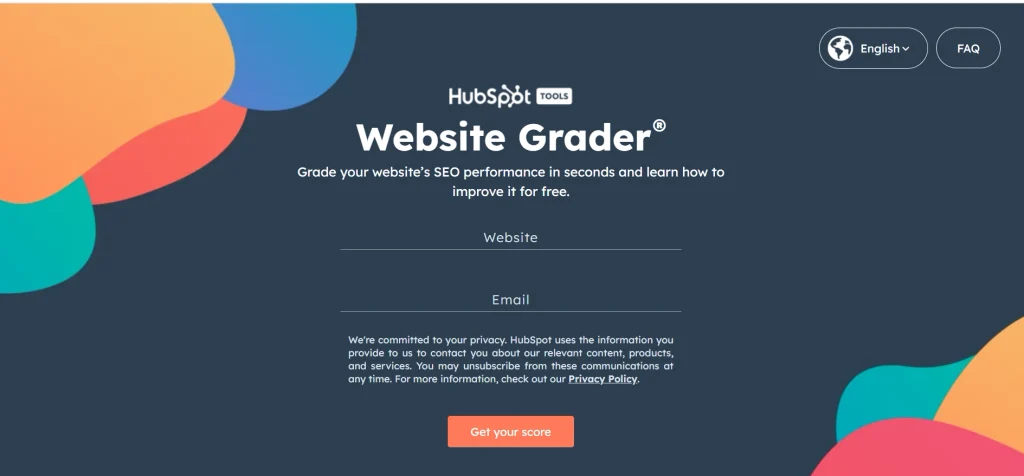
Best for: a simple, beginner-friendly grade.
HubSpot’s grader takes a URL and returns an overall score with notes on performance, SEO, mobile and security. It’s a good first pass if technical reports make your eyes glaze over.
Limits: the score is proprietary, and the tool is a lead-generation product for HubSpot. It’s still free to use, but expect some follow-up marketing if you give your email.
Use it if: you’re not technical and want a quick overview before diving deeper.
5. Screaming Frog SEO Spider
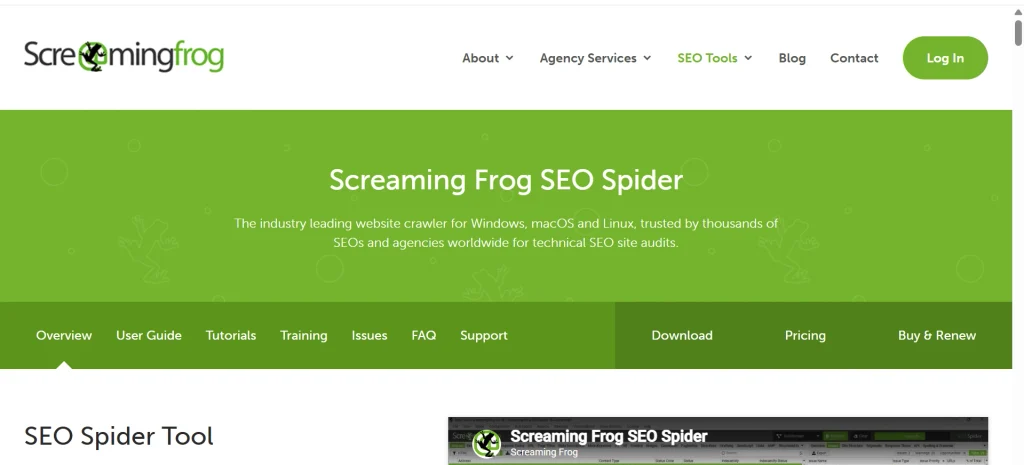
Best for: crawling your whole site.
The other tools mostly test one page. Screaming Frog crawls many, the way a search engine would. It finds broken links, redirect chains, missing titles and meta descriptions, duplicate content, and canonical tag problems.
The free version of this desktop app crawls up to 500 URLs. A paid license removes that cap.
Limits: it has a learning curve. The first crawl can feel like opening a spreadsheet with 40 columns.
Use it if: your site has more than a handful of pages and you suspect technical issues.
6. W3C Markup Validation Service
Best for: checking HTML for errors.
The W3C validator checks your page’s code against web standards. Broken markup can cause odd display bugs, and some errors confuse search engines or assistive tools. You can read more on Wikipedia.
Limits: plenty of sites that rank well have validation warnings. Fix errors that cause real problems, and don’t lose sleep over every warning.
Use it if: a page looks different across browsers, or you’ve just had a developer rebuild your templates.
7. GTmetrix
Best for: seeing exactly what slows a page down.
GTmetrix’s strength is the waterfall chart. It lists every file your page loads, in order, with timing for each. That makes it easy to spot a 4 MB image or a slow third-party script.
A free account lets you pick from a limited set of test locations and browsers. More options need a paid plan.
Limits: one URL at a time, and test options are restricted on the free tier.
Use it if: PageSpeed Insights says your page is slow but you can’t tell why.
8. SEO Site Checkup
Best for: quick on-page and technical SEO checks.
This tool runs a long list of checks on a URL and sorts the results into pass, warning and fail. It’s useful for catching basics like missing titles, weak headings or a missing sitemap.
Limits: the free version restricts how many checks you can run. The advice is generic, so treat it as a prompt for investigation and not a final verdict.
Use it if: you want a fast SEO sanity check on a new page.
9. Nibbler
Best for: an overall quality snapshot.
Nibbler tests a site against several categories, including accessibility, SEO, content and technology, and gives a score for each. It’s a handy second opinion alongside HubSpot’s grader. Check the tool’s site for the current number of free tests, since limits like this change.
Limits: like other all-in-one graders, it gives broad pointers and not deep diagnosis.
Use it if: you want a general quality score without learning developer tools.
10. Sucuri SiteCheck
Best for: a free security scan.
Sucuri SiteCheck scans your public pages for known malware, checks blacklist status with major security services, and flags outdated software. It’s quick and needs no account.
Limits: it only sees what’s public. It can’t inspect your server files or logins, so a clean result doesn’t guarantee you’re safe.
Use it if: you run WordPress or another CMS and want a regular check for hacks.
Table
| # | Tool | Best for | Main checks | Free level |
| 1 | Google PageSpeed Insights | Speed and Core Web Vitals | Performance, real-user data | Free, no login |
| 2 | Google Lighthouse | Single-page audit | Performance, SEO, accessibility, best practices | Free, built into Chrome |
| 3 | Google Search Console | Search visibility | Indexing, queries, Core Web Vitals | Free, requires site verification |
| 4 | HubSpot Website Grader | Beginners | Performance, SEO, mobile, security | Free, asks for an email in some cases |
| 5 | Screaming Frog SEO Spider | Technical SEO | Crawling, links, metadata, canonicals | Free up to 500 URLs |
| 6 | W3C Markup Validation Service | HTML errors | Markup validity | Free |
| 7 | GTmetrix | Speed diagnostics | Waterfall, requests, load timing | Free with limits |
| 8 | SEO Site Checkup | Quick SEO checks | On-page and technical SEO | Free with limits |
| 9 | Nibbler | Overall quality | SEO, accessibility, content, technology | Free with limits |
| 10 | Sucuri SiteCheck | Security | Malware, blacklists, outdated software | Free |
Free-tier details change. Before you rely on a limit, check the tool’s own site.
Does Google have an official Google website grader?
No. There is no product called “Google Website Grader.” The phrase is something people type when they want a Google-made score for their site.
What Google does offer is a set of separate tools. Each one answers a different question about your site.
1. What people usually mean by “Google website grader”
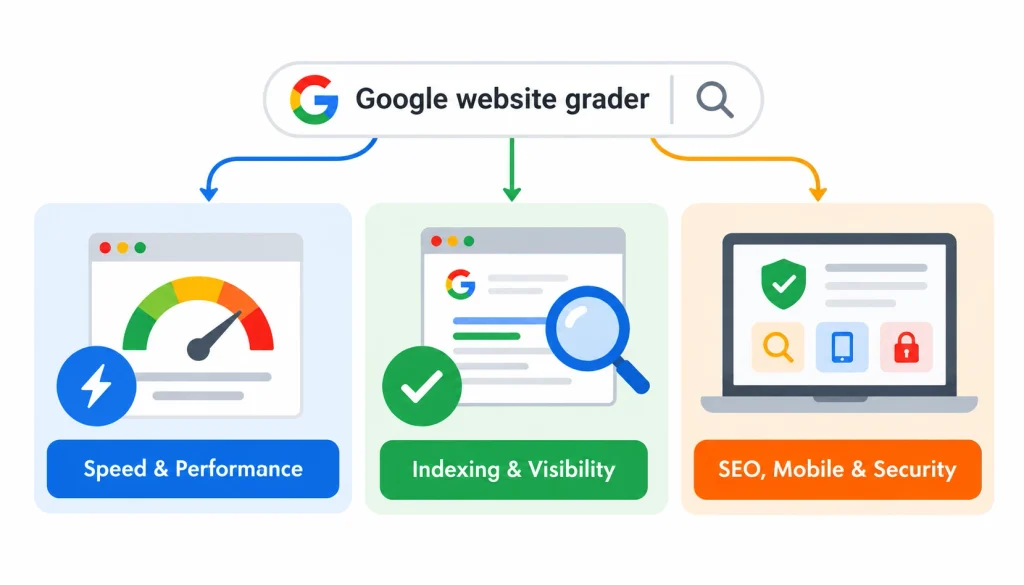
Most searchers want one of three things:
- A speed and performance score for a page.
- A check of whether Google can find and index their pages.
- A general health report covering SEO, mobile and security.
No single Google tool does all three. That’s why you’ll combine a few of them.
2. Google tools you can use instead
Google PageSpeed Insights tests how fast a single page loads and shows Core Web Vitals. It’s free, needs no login, and lives at pagespeed.web.dev.
Google Lighthouse is an auditing tool built into Chrome DevTools. It scores a page for performance, accessibility, best practices and SEO. You can read how it works on Wikipedia’s Lighthouse page.
Google Search Console shows how your site performs in Google Search. It reports indexing problems, search queries, clicks and impressions. See the Google Search Console overview for background.
Google Analytics (GA4) isn’t a grader at all. It tells you what visitors do once they arrive, which helps you decide which problems cost you the most.
3. Google tools vs. third-party website graders
Google’s tools are accurate for what they measure, and they come straight from the company that runs the search engine. But they’re built for developers and site owners who already know what they’re looking for.
Third-party graders, like HubSpot’s, wrap everything into one friendly score. They’re easier for beginners, though their scores are proprietary. A 78 on one tool means nothing on another.
What does a website grader check?
A website grader is an online tool that evaluates a website for performance, SEO, mobile usability, accessibility, security and technical quality. It usually produces a score or report with recommendations for fixing the problems it finds.
Here are the areas most graders cover.
1. Website performance
This is how fast your page loads and responds. Google measures it with three Core Web Vitals, which you can read about on Wikipedia:
- LCP (Largest Contentful Paint): how long the main content takes to appear.
- INP (Interaction to Next Paint): how quickly the page reacts when someone taps or clicks. It replaced First Input Delay in March 2024.
- CLS (Cumulative Layout Shift): how much the page jumps around while loading.
TTFB (Time to First Byte) is also worth watching. It shows how quickly your server starts responding.
2. SEO
This covers page titles, meta descriptions, headings, internal links, structured data and whether pages can be indexed. Think of it as checking that search engines can read and understand your pages. The basics are explained on Wikipedia’s search engine optimization page.
3. Mobile usability
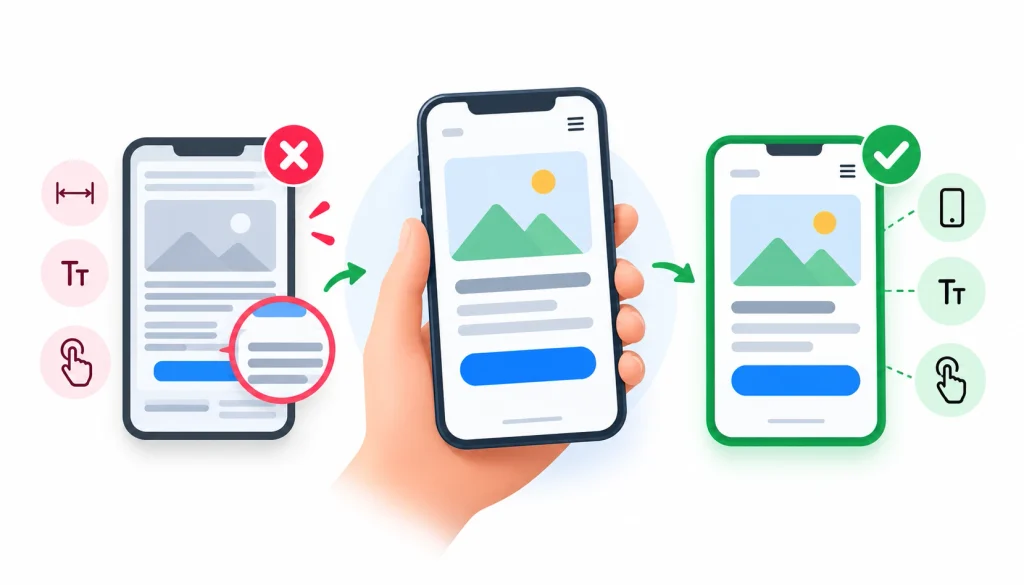
Google uses the mobile version of your pages for indexing and ranking. Tiny buttons, text that needs zooming and content wider than the screen all count against you.
4. Accessibility
This checks whether people using screen readers, keyboards or other assistance can use your site. Most tools measure against the Web Content Accessibility Guidelines (WCAG).
5. Security
Security checks look at HTTPS, SSL/TLS certificates, malware signs, blacklist status and outdated software.
6. Technical health
Here you’ll find broken links, redirect chains, HTTP status codes, canonical tags, your robots.txt file and your XML sitemap.
7. User experience and conversions
Graders can’t fully measure this. They can tell you a button is too small. They can’t tell you your checkout form confuses people. For that, you need real behavior data from GA4 or a free session-recording tool, while a professional website development service can help address usability, responsiveness, performance, and functionality issues. For that, you need real behavior data from GA4 or a free session-recording tool.
How to grade your website for free, step by step
Here’s a workflow you can finish in an afternoon.
- Pick your most important pages. Test your homepage, your top service or product pages, your best landing page and your highest-traffic blog posts. Don’t just test the homepage. Problems often hide deeper.
- Run PageSpeed Insights. Test each page on mobile first. Write down your LCP, INP and CLS.
- Run Lighthouse. Check the SEO and accessibility scores, which PageSpeed Insights doesn’t focus on.
- Check Search Console. Look at the Pages report for indexing problems and the Core Web Vitals report for real-user data.
- Crawl the site. Run Screaming Frog and sort for 404 errors, redirect chains, missing titles and duplicate content. If the crawl reveals widespread technical problems, a technical SEO service can help identify and resolve issues affecting crawlability, indexing, site structure, and search performance.
- Check mobile usability. Open your site on an actual phone. Tap every button. Fill in your own contact form.
- Validate HTML and structured data. Use the W3C validator and Google’s Rich Results Test for any schema markup you’ve added.
- Check security. Confirm HTTPS works on every page, then run Sucuri SiteCheck.
- Review user behavior. Look at GA4 for pages with high exit rates. A free tool like Microsoft Clarity can show where people get stuck.
- Build a prioritized fix list. Sort everything using the framework below, fix the top items, and retest.
What is a good website grader score?
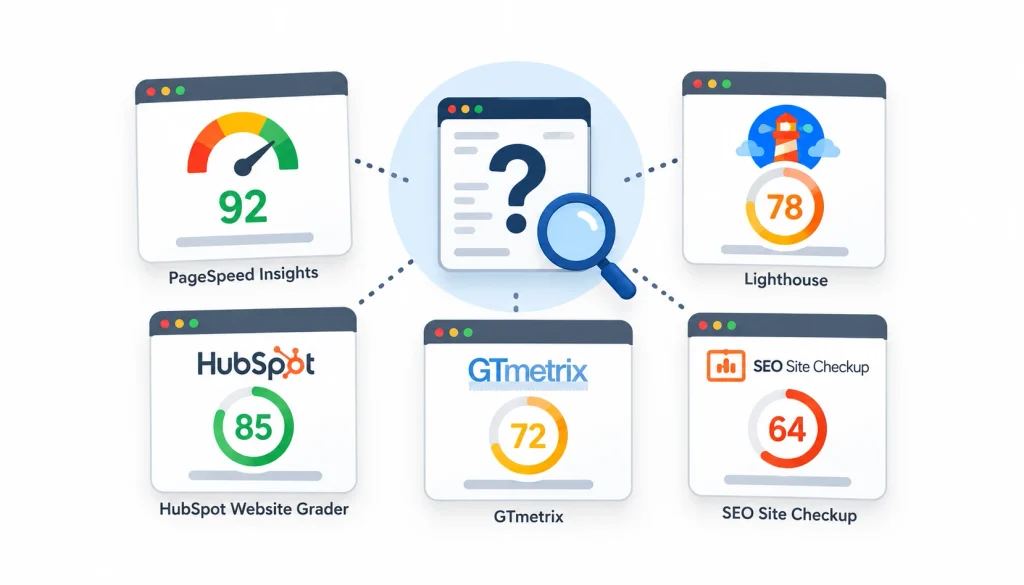
There’s no universal answer. Each tool uses its own scale, so a score only makes sense within the tool that produced it.
For Lighthouse and PageSpeed Insights, the color bands are:
| Score | Rating |
| 90 to 100 | Good (green) |
| 50 to 89 | Needs improvement (orange) |
| 0 to 49 | Poor (red) |
These bands apply to Lighthouse-based scores only. HubSpot, Nibbler and others use different methods, so don’t compare across tools.
Is a perfect PageSpeed score of 100 necessary?
No. Going from 92 to 100 can take a lot of work with little benefit to visitors. A page scoring 85 that loads quickly for real users is in better shape than a 100 that was tuned only for the test.
Google’s own Core Web Vitals thresholds are a better target. A page is rated “good” when it meets these, measured on real-user data:
| Metric | Good | Needs improvement | Poor |
| LCP | 2.5 seconds or less | 2.5 to 4 seconds | Over 4 seconds |
| INP | 200 ms or less | 200 to 500 ms | Over 500 ms |
| CLS | 0.1 or less | 0.1 to 0.25 | Over 0.25 |
Google publishes the details at web.dev/vitals.
Why scores differ between tools
Tools test from different locations, on different devices, with different network settings. Even the same tool gives slightly different numbers each run. Look at trends over several tests, not one result.
How to read Core Web Vitals results
Largest Contentful Paint (LCP)
LCP measures how long it takes the biggest visible element to load. That’s usually a hero image or a large headline. Slow LCP most often comes from oversized images, slow servers or render-blocking code.
Interaction to Next Paint (INP)
INP measures how quickly your page responds when someone taps, clicks or types. Heavy JavaScript is the usual cause. If a menu takes a beat to open after you tap it, INP is probably the reason.
Cumulative Layout Shift (CLS)
CLS measures unexpected movement. You’ve felt it when you go to tap a link and the page jumps, so you hit an ad instead. Images without set dimensions and late-loading banners are common causes.
Why field data and lab data can disagree
Lab data is one simulated visit under fixed conditions. Field data is the real experience of many visitors, on all sorts of phones and connections. If your lab score looks great but field data fails, trust the field data. It reflects your actual audience.
What to fix when Core Web Vitals fail
Start with the metric that’s furthest from “good.” Poor LCP? Compress and resize your main image. Poor CLS? Set width and height on images and reserve space for ads. Poor INP? Cut back third-party scripts and heavy JavaScript.
Which free website grader should you use?
You don’t need all ten. Pick by the problem you’re trying to solve.
| If you want to… | Start with… |
| Check page speed | PageSpeed Insights |
| Check Core Web Vitals | PageSpeed Insights, then Search Console |
| Audit SEO basics on one page | Lighthouse |
| See whether Google has indexed a page | Search Console (URL Inspection) |
| Crawl a whole site for broken links | Screaming Frog |
| Find HTML errors | W3C Validator |
| Find what’s slowing a page | GTmetrix |
| Scan for malware | Sucuri SiteCheck |
| Get a simple beginner score | HubSpot Website Grader |
| Get an overall quality check | Nibbler |
If you want the shortest path, use PageSpeed Insights, Search Console and Lighthouse. Add the others when those three point to a problem you need to dig into.
How to prioritize website grader issues
After a few tests, you’ll have a long list. Most people either panic or ignore it. A simple ranking prevents both.
Critical: fix immediately
- The site is down or throws errors.
- HTTPS is broken or the browser shows a security warning.
- Important pages are blocked from crawling or marked noindex by mistake.
- A conversion path is broken, like a contact form that doesn’t submit.
High priority: fix this week or this sprint
- Core Web Vitals rated poor on key pages.
- Large numbers of pages not indexed.
- Many broken internal links.
- Serious mobile problems, like content that can’t be read without zooming.
Medium priority: schedule it
- Missing or duplicate titles and meta descriptions.
- Unoptimized images.
- Duplicate content and canonical issues.
- Weak internal linking.
Low priority: fix when convenient
- Minor validator warnings.
- Cosmetic suggestions.
- Tiny performance gains that add little for real users.
A good rule: if an issue affects many pages or blocks visitors from doing something, move it up. If it only changes a number in a report, move it down.
Example: turning a website grade into an action plan
Here’s a fictional but realistic case. Say a local bakery has a five-page website built on WordPress. The owner runs PageSpeed Insights on the homepage and sees this.
Before
- Mobile performance score: 61
- LCP: 4.1 seconds
- CLS: 0.24
- A Screaming Frog crawl finds six broken links on the menu page.
- Three pages have no meta description.
- The “Order now” button sits below a large banner on phones.
What the owner fixes, in order
- The 3 MB hero photo is the LCP element. She resizes it and converts it to a modern format. This is the biggest win.
- She sets fixed dimensions on images and the announcement banner to stop the layout shifting.
- She repairs the six broken links.
- She writes meta descriptions for the three pages.
- She moves the “Order now” button higher on mobile.
After
She retests. Mobile performance climbs to the high 80s, LCP drops under 2.5 seconds, and CLS falls to 0.05. She doesn’t chase 100. She checks Search Console a few weeks later to see whether the field data improved, since that takes time to update.
The lesson: one oversized image caused most of the pain. Fixing the cause helped more than tweaking the score.
Common website grader mistakes to avoid
Chasing a perfect score. Fix problems that affect people. A score is only a measurement.
Testing only the homepage. Your product pages, blog posts and forms may be slower or broken.
Treating every warning as equal. Many suggestions have tiny effects. Use the priority framework.
Using only one tool. Each tool sees a different slice. A speed tool won’t find indexing problems.
Ignoring real-user data. Lab tests are good for debugging, but field data shows what visitors feel.
Skipping mobile. Most people visit on phones, and Google indexes the mobile version.
Not measuring the business effect. Faster pages are good, but check whether leads, sales or sign-ups changed.
Assuming a tool replaces expert review. Automated tools miss context, like whether your content matches what searchers want.
Website grader vs. full website audit
A grader is a quick health check. A full audit is a deeper investigation. For businesses that need help turning audit findings into an ongoing SEO strategy, affordable digital marketing services can combine technical SEO, on-page optimization, content, and other growth activities
| Website grader | Full website audit |
| Automated | Automated checks plus human analysis |
| Takes minutes | Takes days or weeks |
| Gives scores | Gives recommendations tied to your goals |
| Good for spotting problems | Good for deciding what to do about them |
| Usually tests one page | Can cover the whole site and strategy |
| Limited context | Considers search intent and business goals |
For a small site, free tools may be all you need. For a large site, an e-commerce store or a site with traffic problems you can’t explain, a human audit is worth the cost.
Free website audit checklist
Copy this list and tick items off as you go.
Performance
- Page speed checked on key pages
- Core Web Vitals checked
- Mobile performance tested
- Large images compressed
Technical SEO
- Site crawled
- Broken links fixed
- Redirect chains checked
- Canonical tags reviewed
- robots.txt reviewed
- XML sitemap submitted in Search Console
On-page SEO
- Titles unique and descriptive
- Meta descriptions written
- One H1 per page
- Internal links added
- Structured data tested
User experience
- Mobile layout works on a real phone
- Navigation is clear
- Forms submit correctly
- Calls to action are visible
- Text is readable
Security
- HTTPS works on every page
- SSL certificate is valid
- Malware scan clean
- Software and plugins updated
Frequently asked questions about Google website grader
What is Google Website Grader?
It’s a phrase people use for Google’s free website testing tools, mainly PageSpeed Insights, Lighthouse and Search Console. Google doesn’t offer a single tool under that name.
Does Google have an official website grader?
No. Google offers separate tools that each check part of your site’s health, such as speed, indexing and accessibility.
Is Google Website Grader free?
The Google tools people usually mean are all free. PageSpeed Insights, Lighthouse and Search Console cost nothing to use.
What is the best free website grader?
For most people, PageSpeed Insights is the best starting point because it’s fast and needs no signup. Pair it with Search Console for indexing and search data.
How can I check my website SEO for free?
Run Lighthouse for page-level SEO checks, use Search Console for indexing and search performance, and crawl your site with Screaming Frog’s free version for up to 500 URLs.
How can I check my website speed for free?
Enter your URL in PageSpeed Insights. Use GTmetrix if you need to see which files slow the page down.
What is a good website score?
On Lighthouse and PageSpeed Insights, 90 to 100 is rated good. Other graders use their own scales, so compare scores only within the same tool.
What real site owners say
If you want to see how practitioners talk about these tools, the communities at r/SEO, r/TechSEO and r/webdev are worth browsing. A common theme: people recommend ignoring obsessive score-chasing and focusing on real-user data. Treat any single comment as opinion, and check claims against Google’s own documentation.
Final verdict
There is no single Google website grader, but you can build a good one yourself in about an hour. Start with PageSpeed Insights for speed, Search Console for indexing and search data, and Lighthouse for a broader single-page check. Those three are free and come from Google.
When they point to a specific problem, add the right specialist. Use Screaming Frog for broken links and crawl issues, GTmetrix for slow-loading files, the W3C validator for markup errors and Sucuri for security.
Test, rank the issues by how many people they affect, fix the top ones, and test again. That cycle does more for your site than any score.