Slow DNS lookup can be fixed by changing your DNS server, clearing your DNS cache, and restarting your router. These simple steps improve DNS response time and help websites load faster.
If you’re facing slow DNS lookup issues, the problem is usually caused by a slow DNS provider, outdated cache, or network delays, all of which can be resolved with quick fixes explained below.
What Is DNS Lookup and Why Is It Slow?
DNS lookup is the process of converting a website name into an IP address so your browser can load the site. When you type a URL, your system asks a DNS server to find the correct IP address for that domain.
This step directly affects website loading speed. If the DNS lookup is slow, your browser has to wait before it can even start loading the page. Even a small delay here can make the entire site feel slow.
Quick example:
- You enter:
example.com - DNS lookup converts it to:
93.184.216.34 - Your browser then connects to that IP and loads the website
If this lookup takes too long, the page takes longer to start loading, which is why fixing slow DNS lookup is important for faster browsing.
Common Causes of Slow DNS Lookup
Slow DNS lookup usually happens due to issues with your DNS server, cache, or network setup. Understanding the root cause helps you fix the problem faster and choose the right solution.
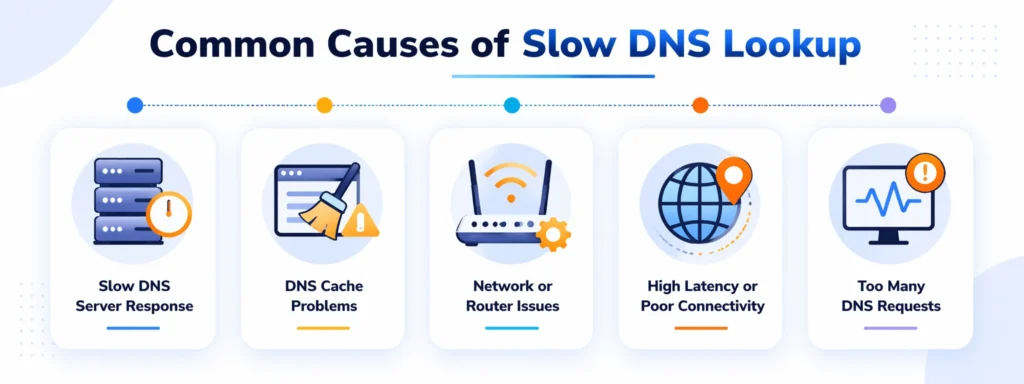
1. Slow DNS Server Response
If your ISP’s DNS server is slow, every lookup request takes longer to resolve. This is one of the most common reasons for slow DNS lookup, especially during peak usage times.
2. DNS Cache Problems
Your system stores DNS records to speed up future requests. But if the cache becomes outdated or corrupted, it can slow down lookups or even cause delays in loading websites.
3. Network or Router Issues
A misconfigured router or network settings can delay DNS requests. Problems like incorrect DNS settings or outdated router firmware can affect how quickly lookups are processed.
4. High Latency or Poor Connectivity
If the DNS server is far from your location or your internet connection has high latency, it increases the time needed to complete a DNS lookup.
5. Too Many DNS Requests
Excessive background apps or misbehaving software can increase DNS requests, which may slow down resolution in some cases.
How to Fix Slow DNS Lookup (Quick Fixes)
If you’re facing slow DNS lookup, start with these quick fixes. In most cases, changing DNS settings, clearing cache, or restarting your network can resolve the issue immediately.
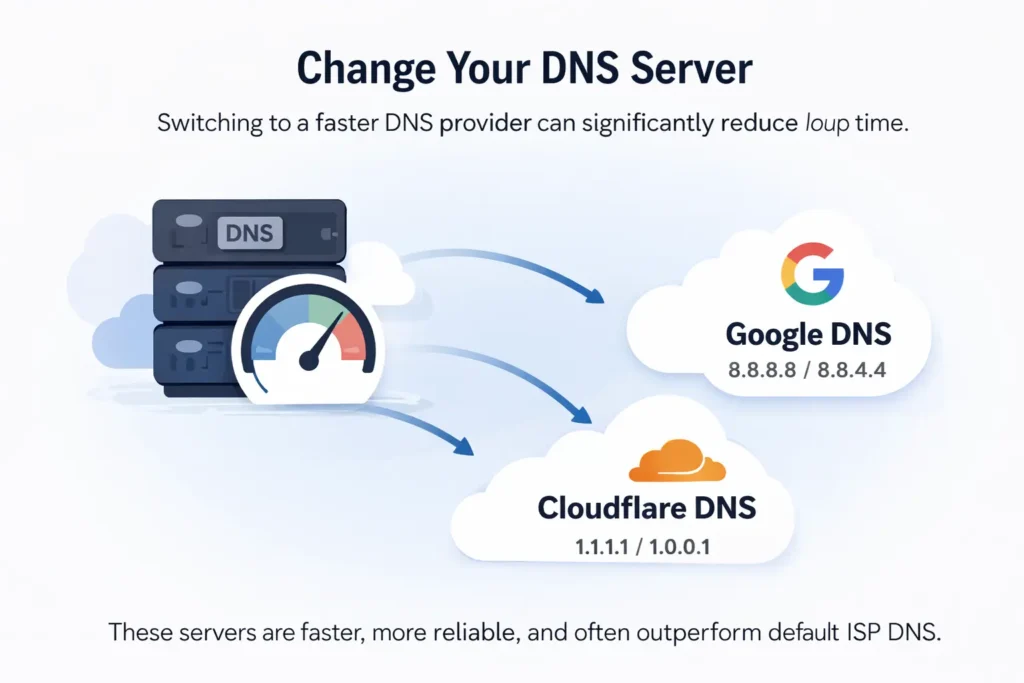
1. Change Your DNS Server
Switching to a faster DNS provider can significantly reduce lookup time.
Popular options:
- Google DNS → 8.8.8.8 / 8.8.4.4
- Cloudflare DNS → 1.1.1.1 / 1.0.0.1
These servers are faster, more reliable, and often outperform default ISP DNS.
2. Clear DNS Cache
Clearing your DNS cache removes outdated or corrupted records and forces fresh lookups.
Windows:
- Open Command Prompt
- Run:
ipconfig /flushdns
Mac:
- Open Terminal
- Run:
sudo dscacheutil -flushcache; sudo killall -HUP mDNSResponder
3. Restart Your Router
Restarting your router refreshes network connections and clears temporary issues.
Why it works:
- Clears temporary network states and refreshes connections
- Fixes minor network glitches
- Re-establishes a clean connection
4. Disable Unused Network Adapters
Multiple active adapters (Wi-Fi, Ethernet, VPN) can create conflicts and slow DNS resolution.
What to do:
- Go to Network Settings
- Disable unused adapters
- Keep only the one you are using
5. Flush Browser Cache
Browsers store DNS and site data, which can sometimes cause delays.
Chrome / Edge:
- Open Settings
- Go to Privacy & Security
- Click Clear browsing data
- Select cached files and clear
This ensures your browser fetches fresh DNS data and loads sites faster.
Note: Browsers may also store DNS information separately from your system DNS cache, so clearing both can help fix slow DNS lookup issues.
Advanced Fixes for Persistent DNS Issues
If quick fixes don’t resolve slow DNS lookup, the issue may be deeper in your system or network setup. These advanced steps help fix long-term or recurring DNS problems.
a.) Update Network Drivers
Outdated or incompatible network drivers can slow down DNS resolution and cause connection issues.
What to do:
- Open Device Manager
- Locate your network adapter
- Update the driver to the latest version
Updated drivers improve compatibility and ensure your system handles DNS requests efficiently.
b.) Disable IPv6 (if causing issues)
In some cases, IPv6 can conflict with DNS settings and slow down lookups.
When to try this:
- If websites load slowly despite other fixes
- If your network doesn’t fully support IPv6
What to do:
- Go to Network Settings
- Open adapter properties
- Uncheck Internet Protocol Version 6 (IPv6)
Only disable IPv6 for testing, as it is an important modern internet protocol
c.) Optimize Router Settings
Your router plays a key role in DNS performance. Poor configuration can delay DNS requests.
What to check:
- Set a fast DNS provider (Google or Cloudflare) in router settings
- Enable DNS forwarding if available
- Update router firmware to the latest version
This helps improve response time across all devices on your network.
d.) Check for Malware or Background Apps
Some apps or malware generate excessive DNS requests, slowing down your system.
What to do:
- Run a full system scan with antivirus software
- Check Task Manager for unusual network activity
- Close unnecessary background apps
Reducing hidden DNS usage can significantly improve lookup speed.
Best DNS Servers for Faster Browsing
Choosing a fast DNS provider is one of the easiest ways to fix slow DNS lookup and improve website loading speed. Here are some of the most reliable and widely used DNS servers:
| DNS Provider | Speed | Security | IP Address |
|---|
| Google DNS | Fast | Good | 8.8.8.8 / 8.8.4.4 |
| Cloudflare | Very Fast | High | 1.1.1.1 / 1.0.0.1 |
| OpenDNS | Reliable | High | 208.67.222.222 / 208.67.220.220 |
Quick Recommendation
- Use Cloudflare (1.1.1.1) if you want the fastest response times and strong privacy
- Use Google DNS (8.8.8.8) for a stable and widely supported option
- Use OpenDNS if you want added security and filtering features
Switching to one of these DNS providers can significantly reduce DNS lookup time and make browsing faster and more reliable.
How to Test DNS Speed
Testing your DNS speed helps you identify whether slow DNS lookup is the real issue and which DNS server performs best for your setup.
Use Command-Line Tools (nslookup, ping)
You can quickly test DNS response time using built-in tools.
1. Using nslookup
- Open Command Prompt (Windows) or Terminal (Mac)
- Run:
nslookup google.com
- Check the “Query time” in milliseconds
2. Using ping
- Run:
ping google.com
Ping measures network latency, not DNS lookup time, but it can help identify overall connection delays after DNS resolution.
Use Online DNS Speed Test Tools
If you prefer an easier method, use online tools to compare DNS providers.
Popular options:
- DNSPerf
- Namebench
- Google Admin Toolbox
These tools:
- Test multiple DNS servers
- Show response times
- Help you choose the fastest DNS for your location
What Is a Good DNS Response Time?
- Under 20 ms is generally considered fast, but ideal response time can vary depending on your location and network conditions.
- 20–50 ms → Good (normal performance)
- 50–100 ms → Slow (needs improvement)
- Above 100 ms → Poor (fix recommended)
If your DNS lookup time is high, switching to a faster DNS provider like Google or Cloudflare can significantly improve browsing speed.
How to Prevent Slow DNS Lookup in Future
Once you fix slow DNS lookup, the next step is to prevent it from happening again. A few simple habits can keep your DNS performance fast and stable over time.
Use a Reliable DNS Provider
Stick with trusted DNS services instead of default ISP DNS.
Best options:
- Google DNS (8.8.8.8)
- Cloudflare DNS (1.1.1.1)
These providers offer faster response times and better reliability.
Keep Your System Updated
Outdated systems and drivers can slow down DNS resolution.
Make sure to:
- Update your operating system regularly
- Keep network drivers up to date
- Update your browser
This ensures better compatibility and performance.
Regularly Clear DNS Cache
Over time, cached DNS records can become outdated or corrupted.
What to do:
- Flush DNS cache occasionally
- Clear browser cache when needed
This helps your system fetch fresh and accurate DNS data.
Monitor Network Performance
Keep an eye on your network to catch issues early.
You can:
- Check DNS response times periodically
- Monitor internet speed and latency
- Identify unusual background activity
Regular monitoring helps you avoid slow DNS lookup issues before they affect your browsing.
FAQs (People Also Ask Optimization)
1. Why is my DNS lookup taking so long?
Slow DNS lookup usually happens due to a slow DNS server, outdated cache, or network issues. Switching to a faster DNS and clearing cache often fixes it.
2. How do I speed up DNS resolution?
- Change to a faster DNS provider (Google or Cloudflare)
- Clear DNS cache
- Restart your router
- Disable unused network adapters
- Update network settings
3. Is changing DNS safe?
Yes, changing DNS is safe as long as you use trusted providers like Google DNS or Cloudflare.
4. What is the fastest DNS server?
Cloudflare (1.1.1.1) and Google DNS (8.8.8.8) are among the fastest and most reliable DNS servers.
5. Can DNS affect internet speed?
Yes, DNS affects how quickly a website starts loading. Slow DNS lookup increases initial load time, even if your internet speed is fast.
Conclusion
There’s no single fix for slow DNS lookup that works for everyone. The right solution depends on your network, device, and DNS provider.
A good starting point is:
- Change your DNS server (Google or Cloudflare)
- Clear your DNS and browser cache
- Restart your router
From there, test different setups and monitor performance. The goal is simple, find the configuration that gives you the fastest and most consistent DNS response for your daily use.