Finding the right image online is no longer limited to typing a few keywords into a search box. Modern image search tools now use visual recognition, AI, filters, and reverse search technology to help users discover better and more accurate results.
Whether you want to identify an unknown object, find the original source of a photo, locate similar products, or improve research, using the right image search techniques can save time and deliver better results.
What Are Image Search Techniques?
Image search techniques are methods used to find, identify, and discover images more accurately using keywords, reverse image search, filters, AI visual tools, metadata, and search operators.
These techniques help users locate image sources, find similar visuals, verify authenticity, and improve search accuracy across platforms like Google Images and TinEye.
These methods are useful for:
- Finding the original source of an image
- Discovering visually similar photos
- Searching products using images
- Detecting duplicates or fake images
- Improving SEO and content research
- Finding copyright-free visuals
Using the right technique can turn a broad image search into a faster and more targeted process.
In this guide, you will learn 15 practical image search techniques, useful tools, and methods that help beginners and advanced users search smarter.
1. Use Reverse Image Search
Reverse image search is one of the most useful image search techniques because it lets you search using an image instead of text. Rather than typing keywords, you upload a photo or paste an image URL, and the search engine scans visual patterns to find matching or similar images across the web.
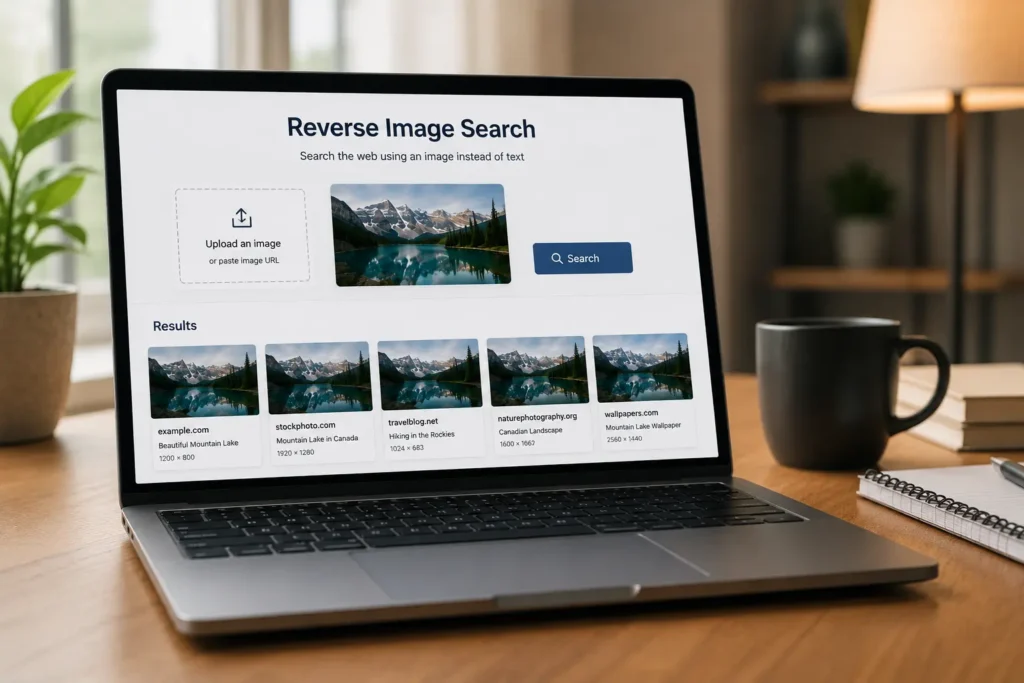
This method is useful when you have an image but do not know where it came from, who created it, or whether modified versions exist online.
Common uses of reverse image search include:
- Finding the original source of an image
- Discovering higher-quality versions
- Detecting duplicate or stolen content
- Verifying whether an image is real or edited
- Identifying products, landmarks, people, or objects
- Finding websites that use the same image
Popular tools that support reverse image search include:
- Google Images – good for general image matching and visual discovery
- TinEye – useful for tracking image origins and duplicates
- Bing Visual Search – helpful for product and object searches
- Yandex Images – often effective for facial and visual matching
How to use reverse image search
- Open your preferred image search tool
- Click the camera or upload icon
- Upload an image or paste its URL
- Review matching images and related results
- Use filters or crop the image if needed for better accuracy
Example: If you find an unknown product image on social media, you can upload it to a reverse image search tool and quickly locate online stores, product details, or the original creator.
Quick tip: Crop unnecessary background elements before searching. A focused image often produces more accurate results.
Detailed Guide: Reverse image Search
2. Crop Images Before Searching
Many image searches fail because the picture contains too many elements. Backgrounds, people, logos, or unrelated objects can confuse search engines. Cropping helps focus the search on the exact subject you want to identify.

This technique is useful when:
- finding a product inside a larger image
- identifying a specific object
- removing distracting backgrounds
- improving reverse image search accuracy
Example
Suppose a room photo contains a sofa, lamp, carpet, and wall art. If you want to identify only the lamp, crop the image around it before uploading. Search tools can then focus on the correct object instead of the entire scene.
Quick tip
Crop tightly around the main subject and remove unnecessary areas for more precise results.
3. Search with Image URLs
If an image is already available online, you do not always need to download and upload it for a search. Many image search tools allow users to paste the image URL directly. This saves time and helps search engines analyze the original version of the image from its source.
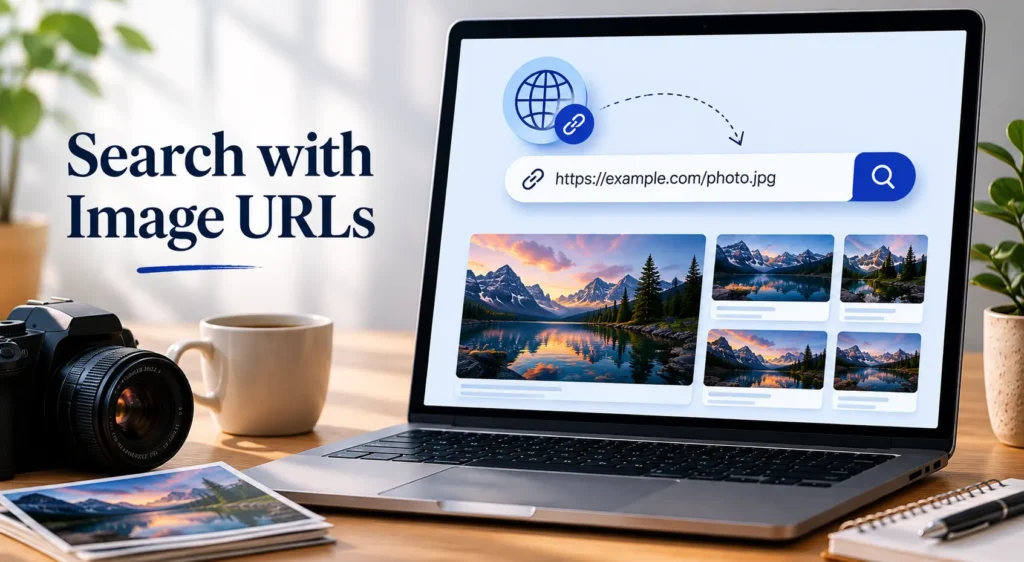
Searching with image URLs works well when you find an image on a website, blog, news article, or social media page and want to learn more about it.
This technique can help you:
- Find the original image source
- Discover similar or duplicate images
- Identify where an image appears online
- Locate higher-resolution versions
- Verify whether an image has been reused elsewhere
How to search using an image URL
- Find the image online
- Right-click the image and copy its image address or URL
- Open your preferred image search tool
- Select the option to paste an image link
- Paste the URL and start the search
Example
Suppose you find a product photo in a blog post but want to know where it originally came from. Instead of downloading the image, copy its URL and search directly. You may find the original website, product pages, or other sites using the same image.
Quick tip: Make sure you copy the direct image URL and not just the page URL. The image link usually ends with formats such as .jpg, .png, or .webp.
4. Use Advanced Filters
Advanced filters help narrow image search results and remove irrelevant content. Instead of browsing through hundreds of images, you can apply filters that tell search engines exactly what type of image you want.
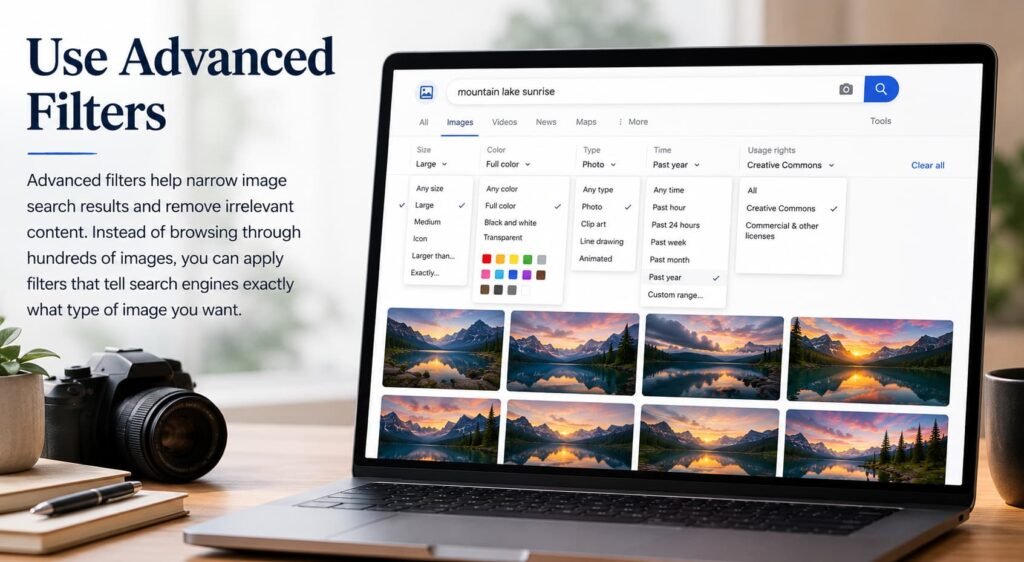
This technique is useful when searching for specific image sizes, colors, dates, formats, or usage rights.
Advanced filters can help you:
- Find high-resolution images
- Search for recent images only
- Locate copyright-friendly visuals
- Find transparent images or specific formats
- Narrow results by color or size
- Improve search accuracy
Common filters available in image search tools include:
| Filter | Purpose |
|---|---|
| Size | Find large, medium, or exact dimensions |
| Color | Search by dominant color |
| Type | Photos, illustrations, GIFs, or icons |
| Time | Find recently uploaded images |
| Usage Rights | Locate reusable or licensed images |
| File Format | JPG, PNG, SVG, WEBP, etc. |
You can use advanced filtering on tools like:
How to use advanced image filters
- Search for an image normally
- Open the image search tools or filter menu
- Select filters based on your goal
- Refine results further if needed
Example
Suppose you need a large transparent logo for a presentation. Searching only for the brand name may return random images. Applying filters for transparent background and large size can quickly remove irrelevant results and surface more useful options.
Quick tip: Combine multiple filters together. For example, using large + transparent + recent often produces much cleaner results than using only one filter.
5. Try Multiple Search Engines
No single image search engine indexes the entire web. Each platform uses its own database, algorithms, and image recognition technology, which means the same search can produce very different results across different tools.
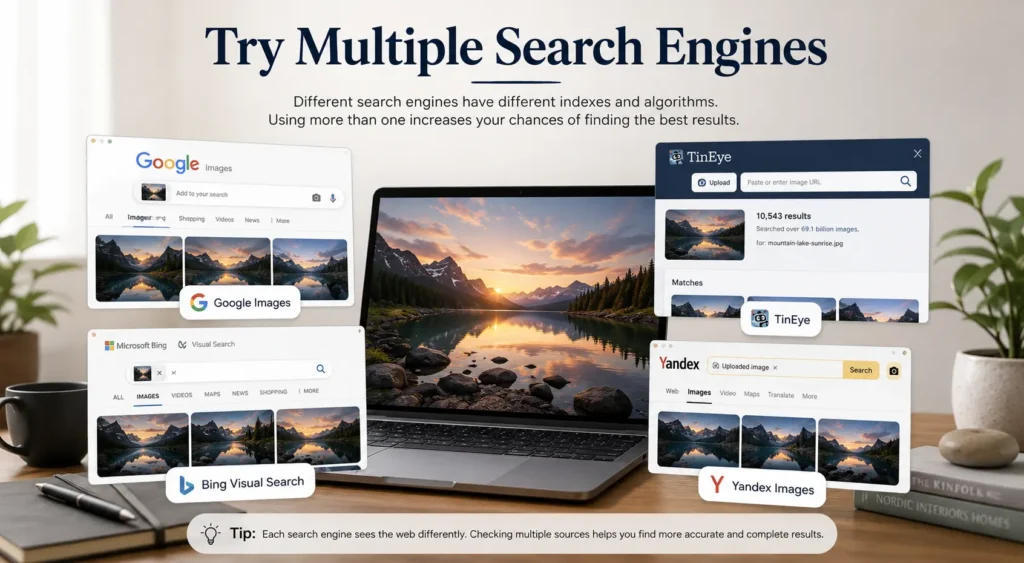
If you cannot find what you are looking for on one platform, trying another search engine can often uncover additional images, sources, or matches that were missed.
Using multiple search engines can help you:
- Find more image matches
- Discover original image sources
- Locate higher-quality versions
- Improve reverse image search results
- Identify products more accurately
- Verify image authenticity
Some of the most popular image search engines include:
| Search Engine | Best For |
|---|---|
| Google Images | General image searches and visual discovery |
| TinEye | Finding image origins and duplicates |
| Bing Visual Search | Product and shopping searches |
| Yandex Images | Strong visual matching and facial recognition |
| Pinterest Lens | Fashion, home decor, and style inspiration |
How to use multiple search engines effectively
- Start with your preferred image search tool
- Review the initial results
- If the results are incomplete, try the same image on another platform
- Compare matches, sources, and related images
- Combine findings to get a more complete picture
Example
Suppose you are trying to identify a rare product from a photo. Google Images may show visually similar products, while TinEye may reveal where the image first appeared online. Yandex might find additional matches that neither of the other tools detected.
Quick tip: When conducting important research, avoid relying on a single search engine. Comparing results from two or three platforms often uncovers information that would otherwise be missed.
6. Use AI-Powered Visual Search
AI-powered visual search goes beyond traditional image matching by understanding the content of an image. Instead of looking only for exact copies, AI can recognize objects, products, landmarks, text, colors, shapes, and even relationships between different elements within an image.

This makes visual search one of the most effective image search techniques for finding relevant results when exact matches do not exist.
AI-powered visual search can help you:
- Identify unknown objects
- Find visually similar products
- Recognize landmarks and locations
- Discover related images based on appearance
- Search using photos taken from a smartphone
- Find shopping options for products seen in images
Unlike traditional reverse image search, AI tools can understand what is inside an image rather than simply finding duplicates.
Popular AI visual search tools include:
| Tool | Best For |
|---|---|
| Google Lens | General object, product, and landmark recognition |
| Bing Visual Search | Product discovery and shopping |
| Pinterest Lens | Fashion, design, and home decor inspiration |
| Google Images | Visual matching and related image discovery |
How to use AI-powered visual search
- Open a visual search tool
- Upload an image or use your device camera
- Let the AI analyze the image
- Review identified objects, products, or locations
- Explore related visual results and recommendations
Example
Imagine you see a stylish jacket in a social media photo but do not know the brand. By uploading the image to Google Lens, the AI can identify similar jackets, suggest stores selling them, and even show products with matching styles and colors.
Why AI visual search is different
Traditional reverse image search looks for identical or similar images. AI-powered visual search understands the content of the image itself. This allows it to find relevant results even when exact image matches are unavailable.
7. Search with Metadata
Metadata is information stored within an image file that provides details about the image itself. Depending on how the image was created, metadata may include the date it was taken, camera model, GPS location, author information, copyright details, file format, and other technical data.
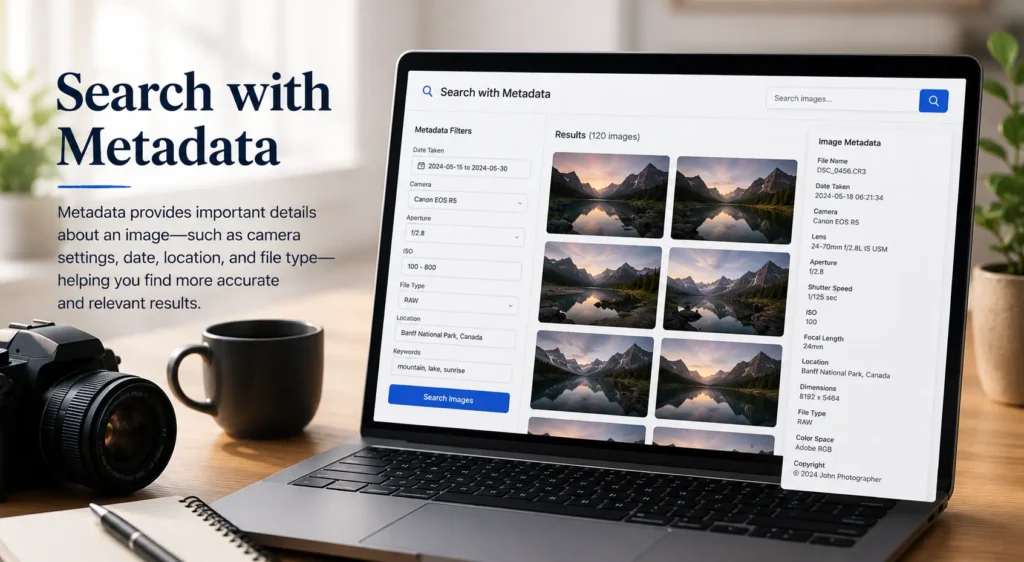
Searching with metadata can help uncover valuable information that is not visible in the image itself. It is particularly useful when trying to verify an image’s origin, identify a photographer, or gather clues about where and when a photo was taken.
Metadata-based searches can help you:
- Find the creator of an image
- Verify image authenticity
- Identify where a photo was taken
- Discover copyright information
- Locate similar images using file details
- Support image verification and research
Common metadata fields include:
| Metadata Type | Information Provided |
|---|---|
| EXIF Data | Camera settings, date, and device details |
| GPS Coordinates | Location where the image was captured |
| Copyright Information | Ownership and licensing details |
| File Format | JPG, PNG, WEBP, TIFF, etc. |
| Creation Date | When the image was originally created |
How to use metadata for image research
- Download the image if permitted
- Open a metadata viewer or image properties panel
- Review available EXIF and file information
- Use discovered details to refine your search
- Search for photographer names, locations, or image identifiers
Example
Suppose you find a landscape photograph online with no source listed. By examining its metadata, you may discover GPS coordinates, a photographer’s name, or camera information. These details can then be used to find the original publication or verify the image’s authenticity.
Limitations of metadata
Not all images contain metadata. Many social media platforms and websites remove metadata when images are uploaded to protect privacy and reduce file size. In such cases, other techniques like reverse image search or AI-powered visual search may be more effective.
Quick tip: Use metadata as a supporting technique rather than relying on it alone. Combining metadata analysis with reverse image search often produces the most reliable results.
8. Search by Color
Color filters can help narrow image search results when color is an important part of what you are looking for. Instead of viewing thousands of unrelated images, you can limit results to a specific color and quickly find visuals that match your needs.
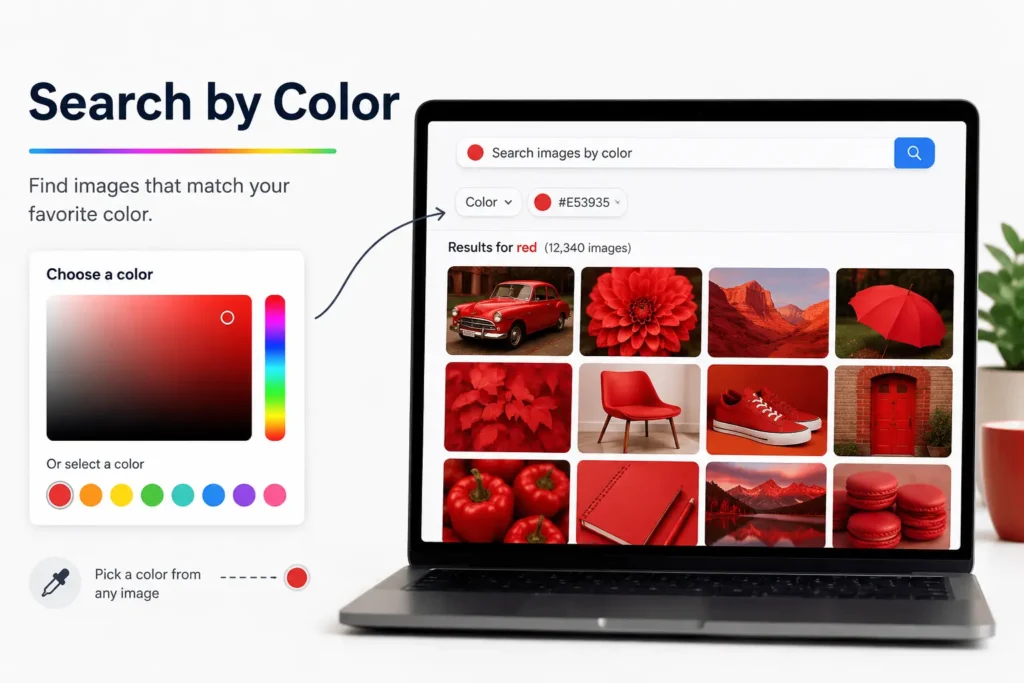
This technique is especially useful for designers, marketers, content creators, and shoppers who need images with a particular color scheme.
Searching by color can help you:
- Find images that match a brand’s colors
- Discover design inspiration
- Locate products in a specific color
- Create visually consistent content
- Filter out irrelevant search results
- Find backgrounds, icons, and illustrations faster
Most major image search platforms offer color filtering options, including:
- Google Images
- Bing Visual Search
Common color filters include:
| Color Filter | Example Use Case |
|---|---|
| Red | Find red clothing, logos, or products |
| Blue | Search for blue-themed designs or backgrounds |
| Green | Locate nature images or eco-friendly branding visuals |
| Black | Find minimalist designs or dark-themed graphics |
| White | Search for clean backgrounds and product photos |
| Transparent | Find logos, icons, and graphics without backgrounds |
How to search images by color
- Perform a normal image search
- Open the image search filter options
- Select the desired color
- Review the refined results
- Combine with other filters for greater accuracy
Example
Suppose you are designing a website that uses a blue color scheme. Instead of searching through thousands of generic background images, you can apply a blue color filter to find visuals that match your design requirements.
When to use color search
Color filtering works best when visual appearance is more important than the exact subject. It is particularly effective for:
- Graphic design projects
- Brand asset research
- Social media content creation
- Product searches
- Presentation design
Quick tip: Combine color filters with keywords such as “office background,” “modern furniture,” or “travel photography” to get highly targeted results that match both the subject and color you need.
9. Search by File Type
Searching by file type helps you find images in a specific format rather than browsing through every available image. Different file formats serve different purposes, and filtering by file type can help you locate images that are better suited for design, development, printing, or content creation.
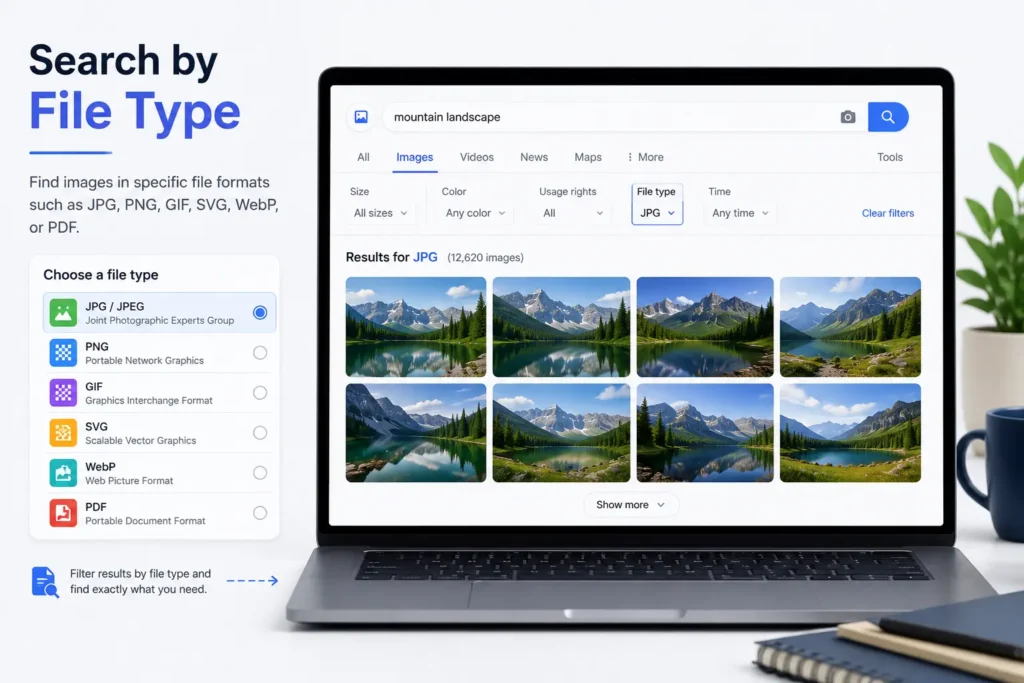
This technique is particularly useful when you need high-quality graphics, transparent images, vector files, or web-optimized visuals.
Searching by file type can help you:
- Find transparent logos and graphics
- Locate vector-based images
- Download high-quality images for printing
- Discover web-friendly image formats
- Reduce time spent filtering irrelevant results
- Access images suited for specific projects
Common image file types include:
| File Type | Best Used For |
|---|---|
| JPG/JPEG | Photographs and general web images |
| PNG | Images with transparent backgrounds |
| SVG | Logos, icons, and scalable graphics |
| WEBP | Fast-loading web images |
| GIF | Animated images |
| TIFF | High-quality printing and professional photography |
How to search by file type
- Enter your image search query
- Use the search engine’s file type filter if available
- Alternatively, use search operators such as:
filetype:pngfiletype:svgfiletype:webp
- Review results matching the selected format
Example
Suppose you need a company logo with a transparent background for a presentation. Instead of searching for “company logo,” you can search for:
company logo filetype:png
This often returns PNG files that support transparency, making them easier to use in designs and presentations.
When file type search is most useful
- Finding transparent logos and icons
- Downloading vector graphics for design projects
- Locating print-quality images
- Searching for optimized web assets
- Finding animated GIFs
Quick tip: If you need a logo, illustration, or icon that can be resized without losing quality, prioritize SVG files. For transparent graphics, PNG is usually the best option.
10. Use Search Operators
Search operators are special commands that help refine image searches and produce more targeted results. Instead of relying on broad keywords, operators allow you to tell search engines exactly what to look for, making it easier to find specific images, websites, formats, or sources.
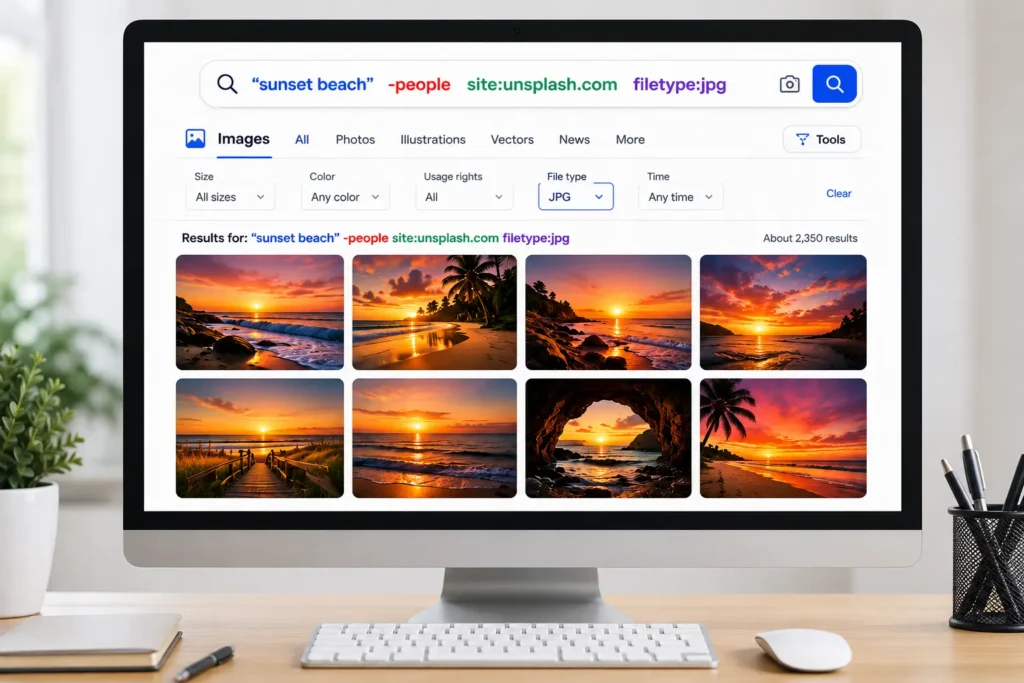
This technique is especially useful for researchers, SEO professionals, content creators, and anyone looking for highly specific image results.
Using search operators can help you:
- Find images from a specific website
- Locate images in a particular format
- Discover images related to a specific topic
- Reduce irrelevant search results
- Find original image sources faster
- Conduct more advanced image research
Common Search Operators for Image Searches
| Operator | Purpose | Example |
|---|---|---|
site: | Search images from a specific website | site:wikipedia.org mountain images |
filetype: | Find specific image formats | logo filetype:png |
intitle: | Search pages with keywords in the title | intitle:"travel photography" |
| Quotes (“”) | Search an exact phrase | "golden retriever puppy" |
| Minus (-) | Exclude unwanted terms | jaguar -car |
Practical Examples
Find images from a specific website
If you want images only from National Geographic:
wildlife photography site:nationalgeographic.comFind transparent logos
nike logo filetype:pngFind vector graphics
business icon filetype:svgExclude unwanted results
If you are searching for images of the animal jaguar rather than the car brand:
jaguar -carHow to Use Search Operators Effectively
- Start with a basic image search.
- Identify what needs refining.
- Add one or more operators.
- Review the results.
- Combine operators for even greater accuracy.
For example:
modern office site:unsplash.com filetype:jpgThis search looks for office-related images specifically from Unsplash in JPG format.
Best Use Cases for Search Operators
- SEO competitor research
- Finding copyright-friendly images
- Locating logos and graphics
- Searching specific image formats
- Finding images from trusted websites
- Academic and professional research
Quick tip: Combine search operators with other techniques in this guide, such as advanced filters and reverse image search. Using multiple methods together often produces much better results than relying on a single search approach.
11. Combine Image and Text Searches
One of the most effective image search techniques is combining visual search with descriptive keywords. While image search tools can identify objects, products, and locations, adding text helps narrow the results and improve accuracy.
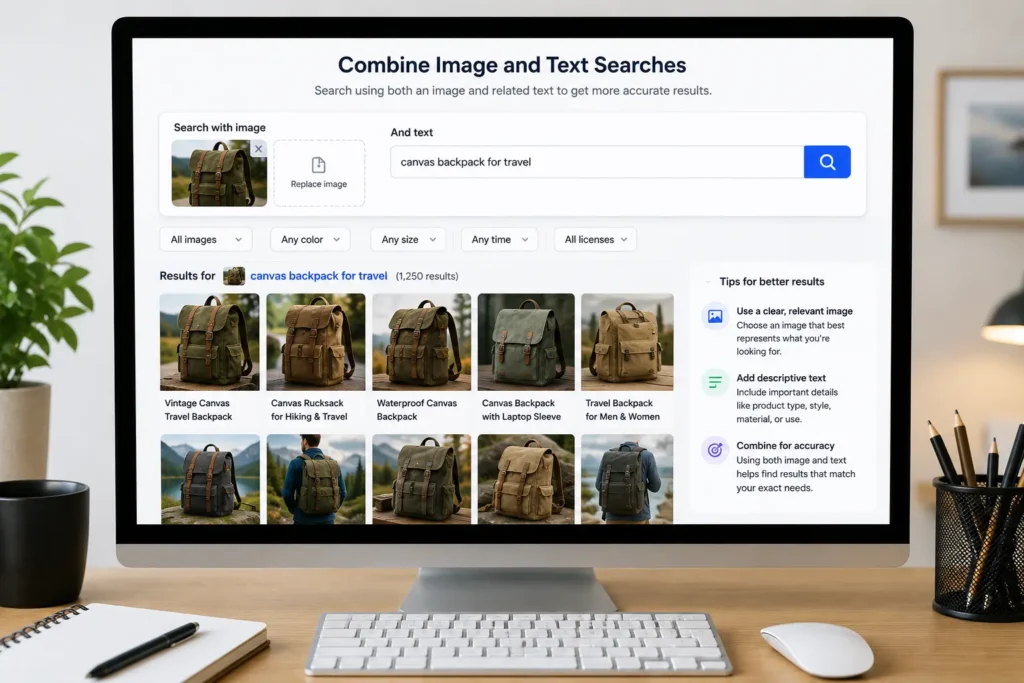
This approach works particularly well when an image search returns too many broad matches or when you already know some details about what you are looking for.
Combining images and text can help you:
- Find exact products faster
- Identify objects with similar appearances
- Discover specific locations or landmarks
- Narrow down visual search results
- Improve shopping and research searches
- Reduce irrelevant matches
How Image and Text Search Work Together
Image search provides visual information such as:
- Colors
- Shapes
- Objects
- Patterns
- Text within images
Text search adds context such as:
- Brand names
- Product categories
- Locations
- Dates
- Features
- Descriptions
When combined, search engines can produce much more precise results.
Examples
| Image Search Result | Additional Text | Improved Search Intent |
|---|---|---|
| Running shoes | “men’s trail running shoes” | More targeted product matches |
| Building photo | “Paris landmark” | Faster location identification |
| Flower image | “purple wildflower” | More accurate plant recognition |
| Furniture photo | “mid-century modern sofa” | Better shopping results |
How to Combine Image and Text Searches
- Upload an image to a visual search tool.
- Review the initial results.
- Add descriptive keywords related to the image.
- Refine the search using filters if needed.
- Compare the updated results.
Example
Suppose you upload a photo of a backpack. The search engine may identify it as a backpack and show similar products. By adding keywords such as “waterproof hiking backpack” or “travel backpack 40L,” you can significantly improve the relevance of the results.
When to Use This Technique
This method is especially useful for:
- Product research
- Online shopping
- Travel planning
- Plant and animal identification
- Interior design inspiration
- Academic and professional research
Quick tip: Start with the image alone, then gradually add specific keywords such as brand names, colors, materials, locations, or product features. This step-by-step approach often delivers the most accurate results.
12. Search Similar Products Visually
Visual product search allows you to find products using an image instead of a product name. This technique is useful when you see an item online, in a photo, or on social media but do not know its brand, model, or where to buy it.
Modern visual search tools use AI to analyze a product’s shape, color, design, patterns, and other features to find similar or matching items across the web.
Searching for similar products visually can help you:
- Find products without knowing their names
- Compare prices across different stores
- Discover alternative brands
- Find similar styles and designs
- Locate discontinued or hard-to-find products
- Shop directly from images
Popular tools for visual product search include:
- Google Lens
- Bing Visual Search
- Pinterest Lens
How to Search for Similar Products
- Upload a product image or use your camera.
- Let the visual search tool analyze the image.
- Review visually similar products.
- Apply filters such as brand, color, price, or category.
- Compare options from different retailers.
Examples
Fashion: Upload a photo of a jacket to find similar styles from multiple brands.
Furniture: Search for a sofa from a home design photo and discover matching products available online.
Electronics: Identify a gadget from an image and find product listings, specifications, and reviews.
Home Decor: Locate similar lamps, rugs, artwork, or accessories seen in inspiration photos.
Why Visual Product Search Is Useful
Traditional searches require you to know what a product is called. Visual search removes that barrier by allowing the image itself to become the search query.
For example, if you see a pair of sneakers on social media but have no idea about the brand, uploading the image can help you find the exact model or similar alternatives within seconds.
Best Practices
- Use clear, high-resolution images.
- Crop out unrelated objects and backgrounds.
- Focus on a single product whenever possible.
- Try multiple visual search tools for broader results.
- Add descriptive keywords if the initial results are too broad.
Quick tip: If visual search finds products that are similar but not identical, combine the image search with details such as color, material, brand, or product type to narrow the results and find a closer match.
13. Find Original Image Sources
Finding the original source of an image is one of the most valuable image search techniques. Images are often copied, reposted, edited, and shared across multiple websites, making it difficult to determine where they first appeared.
Whether you are verifying information, checking copyright ownership, researching content, or fact-checking a viral image, identifying the original source can provide important context and credibility.
Finding an image’s original source can help you:
- Verify authenticity
- Identify the creator or photographer
- Check copyright and licensing information
- Find the highest-quality version
- Trace how an image spread across the web
- Detect misinformation and fake content
Best Tools for Finding Original Sources
| Tool | Best For |
|---|---|
| TinEye | Tracking image origins and oldest appearances |
| Google Images | Finding visually similar and related pages |
| Google Lens | Identifying image context and related content |
| Yandex Images | Discovering additional image matches |
How to Find the Original Source of an Image
- Upload the image to a reverse image search tool.
- Review matching websites and image results.
- Sort results by oldest appearance when possible.
- Compare publication dates across different websites.
- Look for the earliest credible source.
- Verify ownership through photographer credits, metadata, or official websites.
Example
Suppose you come across a viral landscape photo on social media with no attribution. A reverse image search may reveal that the image was originally published years earlier on a travel photography website and later reposted by hundreds of accounts.
This allows you to:
- Confirm the image is genuine
- Credit the original creator
- Access the highest-quality version
- Understand the image’s history
Common Challenges
Finding the true original source is not always easy because:
- Images may be edited or cropped
- Metadata may have been removed
- Older webpages may no longer exist
- Multiple websites may publish the same image on the same day
In these situations, using multiple search engines and combining reverse image search with metadata analysis often produces the best results.
Best Practices
- Start with reverse image search.
- Check several search engines instead of relying on one.
- Look for the oldest indexed version.
- Verify information using trusted sources.
- Compare image versions to identify edits or modifications.
Quick tip: When using TinEye, sort results by “Oldest” whenever possible. This is often the fastest way to identify where an image first appeared online and trace its origin.
14. Verify Image Authenticity
With millions of images shared online every day, not every photo is genuine. Images can be edited, manipulated, taken out of context, or generated using AI. Verifying image authenticity helps determine whether an image is real, where it originated, and whether it accurately represents the event, person, or subject being claimed.
This technique is especially important for journalists, researchers, marketers, students, and anyone who relies on visual information.
Verifying image authenticity can help you:
- Detect fake or misleading images
- Confirm the original source
- Identify edited or manipulated photos
- Verify the date and location of an image
- Check whether an image has been used out of context
- Distinguish real photos from AI-generated content
Key Methods for Verifying an Image
| Method | Purpose |
|---|---|
| Reverse Image Search | Find earlier versions and original sources |
| Metadata Analysis | Review creation dates, locations, and camera details |
| Visual Inspection | Look for editing inconsistencies |
| Cross-Reference Sources | Compare with trusted websites |
| AI Detection Tools | Identify signs of AI-generated content |
| Context Verification | Confirm the image matches the claimed event or location |
How to Verify an Image’s Authenticity
- Perform a reverse image search.
- Look for the earliest known publication.
- Check whether the image appears on trusted websites.
- Examine metadata if available.
- Compare multiple versions of the image.
- Verify the claimed date, location, and context.
- Use AI-detection tools when necessary.
Common Signs of Manipulated Images
- Unnatural shadows or lighting
- Distorted backgrounds
- Blurry edges around people or objects
- Repeated patterns in the image
- Mismatched reflections
- Missing or altered details
- Inconsistent proportions
Example
Suppose a social media post claims that a photo was taken during a recent natural disaster. A reverse image search may reveal that the same image was originally published several years earlier for a completely different event.
In this case, the image itself may be real, but the context being presented is misleading.
AI-Generated Images and Verification
As AI image generators become more advanced, distinguishing between real and generated images is becoming increasingly difficult. Some AI-generated images may contain subtle clues such as:
- Unrealistic hands or fingers
- Distorted text
- Inconsistent facial features
- Unusual reflections
- Repetitive background details
Because these indicators are not always obvious, combining visual inspection with reverse image search and source verification provides the most reliable results.
Best Practices
- Never trust an image based on appearance alone.
- Verify images through multiple sources.
- Check publication dates carefully.
- Look for the original creator whenever possible.
- Confirm that the image matches the claimed context.
Quick tip: An image can be authentic but still be used misleadingly. Always verify both the image itself and the story attached to it before drawing conclusions or sharing it with others.
Best Tools for Image Search Compared
While image search techniques can improve your results, choosing the right tool is equally important. Each image search platform has its own strengths, databases, and search capabilities. Some excel at finding image sources, while others are better for product discovery, facial matching, or visual inspiration.
The best approach is often to use multiple tools, especially when conducting research, verifying images, or searching for hard-to-find content.
| Tool | Best For | Key Strength | Potential Limitation |
|---|---|---|---|
| Google Images | General image searches | Massive image index and strong visual search capabilities | May not always find the earliest image source |
| TinEye | Source discovery | Excellent for finding duplicates and tracking image origins | Smaller image database than Google |
| Bing Visual Search | Product searches | Strong product recognition and shopping results | Fewer image matches for niche topics |
| Yandex Images | Facial and visual matching | Often finds visually similar images missed by other tools | Interface may be unfamiliar to some users |
| Pinterest Lens | Design and style inspiration | Excellent for fashion, home decor, and creative ideas | Less effective for source verification |
Google Images
Google Images is the most widely used image search platform and is ideal for general image discovery. It supports keyword searches, reverse image search, advanced filters, and AI-powered visual search through Google Lens.
Best for:
- General image searches
- Finding similar images
- Product discovery
- Research and content creation
TinEye
TinEye specializes in reverse image search and source tracking. It is particularly useful when you need to determine where an image first appeared online or identify websites that use the same image.
Best for:
- Finding original image sources
- Detecting duplicate images
- Copyright monitoring
- Image verification
Bing Visual Search
Bing Visual Search focuses heavily on object recognition and shopping-related searches. It can identify products within an image and provide links to retailers selling similar items.
Best for:
- Shopping by image
- Product identification
- Visual product comparisons
Yandex Images
Yandex has earned a strong reputation for visual matching and often returns results that differ from Google and Bing. It can be particularly effective when searching for people, faces, landmarks, or visually similar images.
Best for:
- Facial matching
- Visual similarity searches
- Hard-to-find image matches
Pinterest Lens
Pinterest Lens is designed around visual discovery rather than source tracking. It helps users find products, outfits, furniture, decor ideas, and other visually related content.
Best for:
- Fashion inspiration
- Interior design ideas
- Creative projects
- Product discovery
Which Image Search Tool Should You Use?
The answer depends on your goal:
| Goal | Recommended Tool |
|---|---|
| Find the original source of an image | TinEye |
| Search for visually similar images | Google Images |
| Shop using a photo | Bing Visual Search |
| Find difficult image matches | Yandex Images |
| Discover design and style ideas | Pinterest Lens |
Pro Tip: For the most accurate results, start with Google Images or Google Lens, then verify your findings using TinEye and Yandex. Since each platform indexes images differently, using multiple tools often uncovers results that a single search engine might miss.
Real Examples of Image Search Techniques
Understanding image search techniques is easier when you see how they work in real-world situations. The examples below show how different methods can help users identify products, verify information, and locate original image sources more effectively.
Quick Overview
| Goal | Technique Used | Result |
|---|---|---|
| Find the original source of a photo | Reverse image search | Located the original publisher |
| Identify an unknown product | AI visual search | Found the product and retailer |
| Verify a potentially misleading image | Multi-engine image search | Confirmed the image’s true context |
Case Study 1: Finding the Original Source of a Photo
The Situation
A blogger discovers a beautiful mountain photograph shared across multiple websites but cannot determine who originally took the image.
Technique Used
- Reverse image search
- Image URL search
- Source verification
Process
The blogger uploads the image to:
- TinEye
- Google Images
TinEye reveals that the image first appeared on a travel photography website several years earlier.
Result
The blogger:
- Identifies the original photographer
- Finds the highest-quality version
- Properly credits the creator
- Avoids potential copyright issues
Key Lesson
Reverse image search is often the fastest way to trace an image back to its original source.
Case Study 2: Identifying an Unknown Product
The Situation
A shopper sees a stylish office chair in a social media post but has no information about the brand or model.
Technique Used
- AI-powered visual search
- Product matching
Process
The shopper uploads the image to:
- Google Lens
- Bing Visual Search
The tools analyze the chair’s shape, materials, and design features.
Result
The search returns:
- Exact product matches
- Similar chair models
- Multiple retailers selling the product
- Price comparison options
Key Lesson
Visual search can identify products even when you do not know the product name.
Case Study 3: Verifying a Viral Image
The Situation
A social media post claims that a dramatic flood photo was taken during a recent natural disaster.
Technique Used
- Reverse image search
- Multi-engine verification
- Context checking
Process
The image is searched using:
- Google Images
- TinEye
- Yandex Images
The results reveal that the same photo appeared in news reports several years earlier and was related to a completely different event.
Result
The image itself is genuine, but the claim attached to it is false.
The user successfully:
- Identifies misinformation
- Finds the original publication
- Verifies the true context
Key Lesson
Always verify both the image and the story connected to it.
Case Study 4: Finding Higher-Quality Versions of an Image
The Situation
A designer finds a low-resolution logo that becomes blurry when enlarged.
Technique Used
- Reverse image search
- File type search
Process
The designer searches for the logo and filters results for PNG and SVG formats.
Result
The search uncovers:
- High-resolution PNG files
- Scalable SVG versions
- Official brand assets
Key Lesson
Combining reverse image search with file type filtering can help locate better-quality image versions.
Case Study 5: Discovering Similar Design Inspiration
The Situation
An interior designer likes the style of a living room shown in a photo and wants similar design ideas.
Technique Used
- Visual search
- Color search
- Related image discovery
Process
The image is uploaded to:
- Pinterest Lens
- Google Lens
The tools identify furniture styles, color schemes, and related room designs.
Result
The designer discovers:
- Similar room layouts
- Matching furniture
- Alternative decor ideas
- New design inspiration
Key Lesson
Visual search is not only useful for identification, it is also a powerful discovery tool.
What These Examples Show
Although each example uses a different technique, they all follow the same principle: using visual information to uncover insights that would be difficult to find through keywords alone. Whether your goal is research, shopping, verification, or inspiration, combining multiple image search techniques often produces the most accurate and useful results.
Image Search Best Practices Checklist
Using the right image search techniques is important, but following a few best practices can make your searches faster, more accurate, and more reliable. Whether you are searching for products, verifying images, conducting research, or finding design inspiration, this checklist will help you get better results every time.
Beyond that, using tools like Add Me to Search can make you or your brand easier to find, giving users quicker access to your profile and visual information right within search results.
Before You Search
Use the Highest-Quality Image Available
Clear, high-resolution images provide more visual information for search engines to analyze.
Best practice:
- Use original images when possible
- Avoid blurry or heavily compressed files
- Choose images with good lighting
Crop the Image to the Main Subject
Removing unnecessary background elements helps search tools focus on what matters.
Best practice:
- Crop out distractions
- Center the object you want to identify
- Remove text overlays if possible
Start with the Simplest Method
Not every search requires advanced techniques.
Best practice:
- Try a standard image search
- Use reverse image search
- Apply advanced methods if needed
During the Search
Use Multiple Search Engines
Different platforms often return different results.
Combine Visual Search with Keywords
Adding text can help refine broad image search results.
Best practice:
Use details such as:
- Brand names
- Colors
- Locations
- Product categories
- Materials
For example:
Instead of searching only with an image of a chair, add keywords such as:
“ergonomic black office chair”
Use Filters Whenever Possible
Filters reduce irrelevant results and improve accuracy.
Best practice:
Filter by:
- Size
- Color
- Date
- File type
- Usage rights
Try AI-Powered Visual Search
AI tools can identify objects, products, landmarks, and other image elements more effectively than traditional searches.
When Verifying Images
Verify the Original Source
Never assume the first result is the original image.
Best practice:
- Check multiple sources
- Compare publication dates
- Look for creator credits
- Use reverse image search
Review Metadata When Available
Metadata can reveal useful information about an image’s history.
Best practice:
Look for:
- Creation date
- Camera details
- GPS location
- Copyright information
Check the Context, Not Just the Image
An image may be genuine but used in a misleading way.
Best practice:
Confirm:
- When the image was taken
- Where it was taken
- Whether it matches the claimed event
For SEO and Content Creation
Check Copyright and Licensing
Finding an image does not automatically give you permission to use it.
Best practice:
Verify:
- Usage rights
- Attribution requirements
- Licensing terms
Search for Higher-Quality Versions
The first image you find is not always the best version available.
Best practice:
- Use reverse image search
- Search by file type
- Look for PNG, SVG, or high-resolution versions
Ultimate Image Search Checklist
Before finishing your search, make sure you have:
| Checklist Item | Complete |
|---|---|
| Used a clear, high-quality image | ✓ |
| Cropped unnecessary background elements | ✓ |
| Tried reverse image search | ✓ |
| Used more than one search engine | ✓ |
| Added keywords when necessary | ✓ |
| Applied advanced filters | ✓ |
| Verified the original source | ✓ |
| Checked metadata if available | ✓ |
| Confirmed image authenticity | ✓ |
| Reviewed copyright and licensing terms | ✓ |
Pro Tip
The most effective image searches rarely rely on a single technique. For the best results, combine reverse image search, AI-powered visual search, advanced filters, and source verification. Using multiple methods together often reveals information that a single search tool might miss.
How AI Is Changing Image Search
Artificial intelligence is transforming image search from simple image matching into a smarter system that understands what is actually inside a picture. Traditional image search relied heavily on keywords, file names, and exact image matches. AI-powered search can now recognize objects, products, locations, text, colors, and visual relationships within an image.
As a result, users can find more relevant results even when they do not know what to search for.
From Keyword Search to Visual Understanding
In the past, image search engines depended largely on surrounding text, image titles, and metadata to determine relevance.
Today, AI can analyze visual elements such as:
- Objects
- People
- Animals
- Landmarks
- Text within images
- Colors and patterns
- Product features
This allows search engines to understand an image’s content rather than relying solely on written descriptions.
Example
Instead of searching for:
“brown leather office chair with metal legs”
you can simply upload a photo, and AI can identify the chair and find similar products.
AI-Powered Visual Search
Modern visual search tools use computer vision and machine learning to identify what appears in an image.
Popular AI-powered platforms include:
- Google Lens
- Google Images
- Bing Visual Search
- Pinterest Lens
These tools can:
- Recognize products
- Identify landmarks
- Translate text from images
- Find visually similar content
- Suggest related searches
Smarter Product Discovery
One of the biggest impacts of AI has been on visual shopping.
Instead of searching by product name, users can upload a photo and discover:
- Exact product matches
- Similar products
- Alternative brands
- Price comparisons
- Online retailers
Example
If you see a pair of shoes in a social media post, AI visual search can identify similar models and show where they are available for purchase.
This creates a more natural shopping experience because users search with images rather than words.
Multisearch: Combining Images and Text
AI has introduced a new way to search called multisearch.
Multisearch combines:
- An image
- A text query
This allows users to refine searches with additional context.
Example
You can upload a picture of a dining table and search:
“similar table in black”
or
“same style but smaller size”
The search engine uses both the image and text to produce more precise results.
Better Object Recognition
AI systems can now recognize individual objects inside complex images.
Instead of analyzing the entire image, visual search tools can focus on specific items.
Example
A living room photo may contain:
- A sofa
- A lamp
- A rug
- Wall art
AI can isolate and identify each object separately, making product discovery much more accurate.
Improved Image Search Accuracy
AI helps reduce many of the limitations of traditional image search.
Benefits include:
- Better visual matching
- More relevant results
- Faster identification
- Improved product searches
- Enhanced image recommendations
Even when exact copies do not exist online, AI can often find visually similar alternatives.
AI and Image Verification
AI is also helping users evaluate image authenticity.
Advanced systems can assist with:
- Detecting manipulated images
- Identifying AI-generated content
- Finding duplicate images
- Tracing image origins
- Verifying context
However, AI should be used alongside reverse image search and source verification for the most reliable results.
Challenges and Limitations
Although AI has significantly improved image search, it is not perfect.
Common limitations include:
- Misidentifying objects
- Inaccurate product matches
- Difficulty recognizing heavily edited images
- Challenges with low-quality photos
- Limited understanding of image context
For this reason, it is often best to combine AI-powered search with other techniques covered in this guide.
The Future of AI Image Search
Image search is moving beyond simple image matching toward a more interactive experience. Future AI systems are expected to provide:
- More accurate visual recognition
- Real-time camera-based searches
- Better product recommendations
- Improved image verification
- More personalized search results
- Deeper integration with virtual assistants
As AI continues to evolve, searching with images may become just as common as searching with text.
Key Takeaway
AI is changing image search by enabling search engines to understand visual content rather than simply matching images or keywords. Whether you are identifying products, finding image sources, verifying authenticity, or discovering inspiration, AI-powered visual search makes image discovery faster, smarter, and more accurate than ever before.
FAQs
1. Why Do Search Engines Return Different Image Results?
Different image search engines use different databases, indexing methods, and ranking algorithms. As a result, the same image or keyword search can produce different results across platforms.
For example:
- Google Images focuses on relevance and overall web coverage.
- TinEye specializes in image origins and duplicate detection.
- Yandex Images is often strong at visual similarity matching.
- Bing Visual Search performs well for product-related searches.
This is why an image that appears immediately on one platform may not show up on another.
Best practice: Use multiple image search engines when accuracy and completeness are important.
2. Can Reverse Image Search Detect AI-Generated Images?
Not directly. Reverse image search tools are designed to find matching or similar images online, not determine whether an image was created by AI.
However, reverse image search can still help with verification by:
- Finding the earliest known version of an image
- Revealing whether the image appears on trusted websites
- Identifying reused or modified versions
- Providing clues about the image’s origin
To evaluate whether an image may be AI-generated, combine reverse image search with:
- Visual inspection
- Metadata analysis
- Source verification
- AI image detection tools
Tip: If an image has no previous online history and contains unusual visual details, it may require additional verification.
3. Which Image Search Tool Works Best?
The best tool depends on your goal.
| Goal | Recommended Tool |
|---|---|
| General image search | Google Images |
| Finding original image sources | TinEye |
| Product identification | Google Lens |
| Shopping by image | Bing Visual Search |
| Visual matching and facial recognition | Yandex Images |
| Fashion and design inspiration | Pinterest Lens |
For the most accurate results, many professionals use a combination of tools rather than relying on a single platform.
4. Can I Search Using Part of an Image?
Yes. Most modern image search tools allow you to crop an image before searching or select a specific object within the image.
This technique is useful when:
- The image contains multiple objects
- You want to identify a specific product
- The background is causing irrelevant results
- Only a small section of the image matters
Example
Imagine a living room photo that contains:
- A sofa
- A lamp
- A coffee table
- Wall art
If you only want information about the lamp, crop the image around the lamp before searching. This helps the search engine focus on the correct object and usually improves accuracy.
Tip: The more focused the image, the better the search results tend to be.
5. Is Reverse Image Search Free?
Most popular image search tools offer free image search features.
Free options include:
Some specialized tools may offer premium features for advanced monitoring, copyright tracking, or bulk image analysis.
6. How Can I Find the Original Source of an Image?
The most effective method is to perform a reverse image search using multiple tools.
A typical process is:
- Upload the image to a reverse image search tool.
- Review matching websites.
- Compare publication dates.
- Look for photographer or creator credits.
- Verify information using trusted sources.
Tools such as TinEye are particularly useful because they can often identify older appearances of an image online.
7. Why Is My Reverse Image Search Not Finding Matches?
There are several possible reasons:
- The image is newly uploaded.
- The image has been heavily edited.
- The image has been cropped or resized.
- The image is low quality.
- The search engine has not indexed the image yet.
To improve results:
- Use a higher-quality version.
- Crop the image to the main subject.
- Try multiple search engines.
- Combine visual search with keywords.
8. Can Image Search Help With SEO?
Yes. SEO professionals use image search to:
- Find image backlink opportunities
- Discover websites using their images
- Research competitors
- Identify duplicate content
- Find original image sources
- Locate higher-quality visual assets
Image search can be a valuable tool for both content creation and link-building research.
9. What Is the Difference Between Reverse Image Search and Visual Search?
Although the terms are often used interchangeably, they are not exactly the same.
| Reverse Image Search | Visual Search |
|---|---|
| Finds matching or similar images | Understands image content using AI |
| Focuses on image relationships | Focuses on object recognition |
| Useful for source discovery | Useful for product and object identification |
| Often used for verification | Often used for shopping and discovery |
Modern tools such as Google Lens combine both approaches to provide more comprehensive results.
10. What Is the Most Effective Image Search Technique?
There is no single technique that works best in every situation.
For most users, the most effective approach is to combine:
- Reverse image search
- AI-powered visual search
- Advanced filters
- Multiple search engines
- Source verification
Using these methods together typically delivers the most accurate and reliable image search results.