How to flush DNS quickly:
- Windows: Open Command Prompt → run
ipconfig /flushdns - Mac: Open Terminal → run
sudo dscacheutil -flushcache; sudo killall -HUP mDNSResponder - Chrome: Go to
chrome://net-internals/#dns→ click Clear host cache
Flushing DNS removes stored domain records and forces your system to fetch fresh data, helping fix DNS errors and improve website loading speed.
What Does Flushing DNS Mean?
Flushing DNS means clearing the stored records your system uses to quickly connect to websites. These records are saved in something called a DNS cache.
What is DNS cache?
When you visit a website, your system saves its IP address so it doesn’t have to look it up again next time. This makes browsing faster because it skips the lookup step.
Why does your system store DNS records?
Your device stores DNS records to:
- Reduce loading time
- Avoid repeated DNS requests
- Improve browsing performance
Instead of asking a DNS server every time, your system uses the saved record.
What happens when you flush DNS?
When you flush DNS:
- All saved DNS records are deleted
- Your system requests fresh data from DNS servers
- Any outdated or incorrect entries are removed
This helps fix issues like:
- Websites not loading
- Wrong site versions showing
- DNS-related errors
🔹 Example
- Before flushing DNS:
Your system uses an old IP address stored in cache - After flushing DNS:
Your system performs a fresh DNS lookup and gets the updated IP address
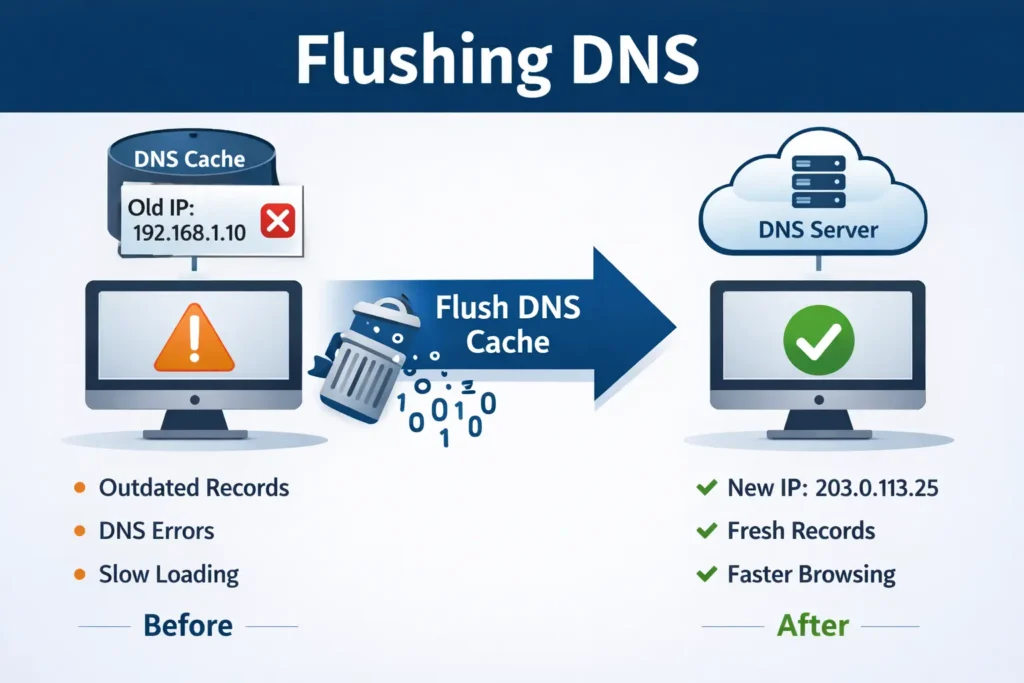
In simple terms, flushing DNS forces your system to “start fresh” when connecting to websites, which helps resolve many common browsing issues.
Why You Should Flush DNS
Flushing DNS is a simple step that can fix many common browsing problems. It clears outdated records and forces your system to fetch fresh data, which improves reliability and performance.
Fix Website Not Loading Issues
Sometimes a website doesn’t open even though your internet is working fine. This often happens when your system is using an old or incorrect IP address stored in the DNS cache.
Flushing DNS removes that outdated entry and helps your system connect to the correct server.
Resolve DNS Errors
Errors like:
- DNS_PROBE_FINISHED_NXDOMAIN
- Server not found
- DNS lookup failed
are often caused by corrupted or stale DNS cache.
Flushing DNS resets these records and helps resolve such errors quickly.
Improve Website Loading Speed
If your DNS cache contains incorrect or slow routes, it can delay the time it takes to start loading a website.
Flushing DNS ensures your system gets the most up-to-date and fastest route to the website, improving initial load time.
Clear Outdated or Corrupt Cache
Websites change servers or update their IP addresses. If your system still uses old cached data, it can lead to:
- Wrong website versions
- Broken pages
- Connection issues
Flushing DNS clears these outdated entries and ensures accurate connections.
Security & Privacy Benefits
In some cases, DNS cache can be manipulated by malware or unwanted software. This can redirect you to incorrect or unsafe websites.
Flushing DNS helps:
- Flushing DNS may remove suspicious cached entries, but it does not replace antivirus or malware protection.
- Restore safe and correct DNS resolution
Real-World Scenarios
Scenario 1: Website Not Updating
You recently updated your website or DNS settings, but your system still shows the old version.
Reason: Your device is using cached DNS data
Fix: Flush DNS to load the updated version
Scenario 2: Internet Working but Some Sites Won’t Open
Your internet is fine, but a few websites refuse to load or show DNS errors.
Reason: Corrupt or outdated DNS cache
Fix: Flushing DNS refreshes the records and restores access
Flushing DNS is a quick fix that often solves issues without needing advanced troubleshooting.
When Should You Flush DNS?
You don’t need to flush DNS regularly, but it becomes useful when you face specific issues related to website access or DNS resolution. Here are the most common situations where flushing DNS helps:
Website Changed but Not Updating
If a website has recently updated its server or DNS settings, your system may still use old cached data.
Result:
- You see the old version of the site
- Changes don’t appear
Fix:
Flushing DNS forces your system to fetch the updated IP address.
DNS Errors (e.g., DNS_PROBE Issues)
Errors like:
- DNS_PROBE_FINISHED_NXDOMAIN
- Server not found
- DNS lookup failed
are often caused by outdated or corrupt DNS cache.
Fix:
Flushing DNS clears these records and resolves the error.
Slow DNS Lookup
If websites take time to start loading, DNS resolution might be delayed due to stale or incorrect cache entries.
Fix:
Flushing DNS ensures fresh lookups and can improve initial loading speed.
Switching DNS Providers
If you switch to a faster DNS like:
- Google DNS
- Cloudflare
your system may still rely on old cached records.
Fix:
Flush DNS to start using the new DNS provider immediately.
Network Troubleshooting
When diagnosing internet issues, flushing DNS is one of the first steps.
It helps:
- Eliminate cache-related problems
- Ensure accurate DNS resolution
- Simplify troubleshooting
Quick Tip
If your internet is working but something feels off (slow loading, errors, outdated pages), flushing DNS is a quick and safe step to try before deeper fixes.
How to Flush DNS on Windows
Flushing DNS on Windows is quick and works the same on both Windows 10 and Windows 11. It clears the DNS cache and forces your system to fetch fresh records.
Windows 11 / 10 Steps
Follow these steps:
- Press Windows + S and search for Command Prompt
- Right-click and select Run as administrator
- In the command window, type:
ipconfig /flushdns
- Press Enter
Confirmation Message
If successful, you’ll see:
Successfully flushed the DNS Resolver Cache.
This means your DNS cache has been cleared and your system will now use fresh DNS lookups.
Alternative: Using PowerShell
You can also flush DNS using Windows PowerShell:
- Press Windows + X → select Windows Terminal (Admin) or PowerShell (Admin)
- Run the same command:
ipconfig /flushdns
- Press Enter
Quick Tip
If you’re troubleshooting network issues, combine this step with:
- Restarting your browser
- Clearing browser cache
- Restarting your router
This ensures all cached data is refreshed properly.
How to Flush DNS on Mac
Flushing DNS on macOS clears cached DNS records and forces your system to fetch fresh data. The command may vary slightly by macOS version, but for most modern systems, it’s straightforward.
macOS (Latest Versions)
Follow these steps:
- Open Terminal (Press
Command + Space→ type Terminal) - Enter the following command:
sudo dscacheutil -flushcache; sudo killall -HUP mDNSResponder
- Press Enter
- Enter your Mac password when prompted (you won’t see it while typing)
What Happens Next
- There is usually no confirmation message
- DNS cache is cleared silently
- Your system will now perform fresh DNS lookups
Older macOS Versions (Optional)
For older macOS versions, commands may differ slightly:
- macOS Yosemite (10.10): sudo discoveryutil mdnsflushcache; sudo discoveryutil udnsflushcaches
- macOS Mavericks (10.9): sudo killall -HUP mDNSResponder
Quick Tip
If DNS issues persist after flushing:
- Restart your browser
- Restart your Mac
- Check your DNS settings
This ensures all cached and network-related data is refreshed properly.
How to Flush DNS on Linux
On Linux, flushing DNS depends on the service your system uses. Most modern systems use systemd-resolved, while others may use nscd or dnsmasq.
Using systemd-resolved
This is common on newer distributions like Ubuntu.
- Open Terminal
- Run:
sudo systemd-resolve --flush-caches (old)

Newer systems use:
sudo resolvectl flush-caches (modern)
Using nscd (Name Service Cache Daemon)
If your system uses nscd:
- Open Terminal
- Run:
sudo systemctl restart nscd
Using dnsmasq
If dnsmasq is managing DNS caching:
- Open Terminal
- Run:
sudo systemctl restart dnsmasq
Quick Tip
If you’re not sure which service your system uses:
- Try the commands above one by one
- Or restart your system to clear DNS cache completely
Flushing DNS on Linux is quick and helps resolve many network and DNS-related issues.
How to Flush DNS in Browsers
Browsers can store their own DNS cache, separate from your system. Clearing it ensures your browser fetches fresh DNS data and avoids loading outdated records.
1. Google Chrome DNS Flush
Follow these steps:
- Open Chrome
- In the address bar, enter: chrome://net-internals/#dns
- Click Clear host cache
In newer Chrome versions, DNS cache clearing may be limited. Restarting the browser or system achieves the same effect.
2. Microsoft Edge
Edge uses the same Chromium engine as Chrome, so the steps are identical:
- Open Edge
- Enter in the address bar: edge://net-internals/#dns
- Click Clear host cache
3. Firefox
Unlike some browsers, Mozilla Firefox provides a built-in option to clear DNS cache directly from its internal settings.
Method: Clear DNS Cache in Firefox
Follow these steps:
- Open Firefox
- In the address bar, type:
about:networking#dns - Press Enter
- Click the “Clear DNS Cache” button
What This Does
- Removes stored domain-to-IP mappings inside Firefox
- Forces the browser to perform fresh DNS lookups
- Helps resolve issues like:
- Websites not loading
- Outdated site versions
- DNS-related errors
Quick Tip
If issues persist after clearing DNS cache:
- Restart Firefox
- Flush system DNS as well
This ensures both browser-level and system-level DNS data are fully refreshed.
How to Flush DNS on Router
Some routers may cache DNS entries, depending on the model and firmware.
If that cache becomes outdated or incorrect, it can affect all devices connected to your network.
Why Router Cache Matters
Even if you flush DNS on your computer, your router can still serve old DNS records.
This can cause:
- Websites not loading on multiple devices
- Old versions of sites appearing
- DNS errors across the network
Flushing DNS at the router level ensures a complete refresh for all devices.
Steps to Flush DNS on Router
1. Restart Your Router (Easiest Method)
- Turn off the router
- Wait 10–30 seconds
- Turn it back on
This clears temporary cache and refreshes DNS
2. Access Router Admin Panel
- Open a browser
- Enter your router IP (commonly
192.168.1.1or192.168.0.1) - Log in using admin credentials
3. Clear DNS Cache (If Supported)
Some routers allow manual DNS clearing.
Look for options like:
- DNS settings
- Cache settings
- Network tools
Click Clear Cache or similar option (varies by router model)
Quick Tip
If you don’t see a DNS clear option:
–>Restarting the router is usually enough to flush DNS cache.
Flushing DNS on your router helps fix network-wide issues and ensures all devices use fresh DNS data.
How to Check If DNS Cache Was Cleared
After flushing DNS, you can quickly verify whether the cache has been cleared using a few simple checks.
Method 1: View DNS Cache (Windows)
- Open Command Prompt
- Run:
ipconfig /displaydns
- Check the results:
- If the list is empty or very small, the cache has been cleared
- If many entries still appear, some records may have been re-cached after flushing
Method 2: Test with nslookup
- Open Command Prompt or Terminal
- Run:
nslookup google.com
- What to look for:
- A fresh query response from a DNS server
- No errors like “server not found”
This confirms your system is performing a new DNS lookup
What’s Normal After Flushing?
- Some entries may reappear quickly (this is normal)
- Your system starts rebuilding cache as you browse
- DNS lookups should now use updated records
Quick Tip
To ensure a complete reset:
- Flush DNS
- Close and reopen your browser
- Restart your system (optional)
This gives you a clean DNS state for accurate testing.
Flush DNS vs Clear Cache (Important Difference)
Many people confuse flushing DNS with clearing browser cache, but they solve different problems. Understanding the difference helps you fix issues faster.
🔹 Key Differences
| Type | What it Clears | Purpose |
|---|---|---|
| DNS Cache | Domain → IP records | Fix DNS and connection issues |
| Browser Cache | Images, CSS, JS files | Improve website loading speed |
What is DNS Cache Clearing?
- Removes stored domain-to-IP mappings
- Forces your system to perform a fresh DNS lookup
- Helps fix:
- Website not loading
- DNS errors
- Wrong IP resolution
What is Browser Cache Clearing?
- Removes stored website files like images and scripts
- Forces the browser to download fresh content
- Helps fix:
- Broken layouts
- Outdated content
- Loading issues
When to Use What?
- Use DNS flush → when websites don’t open or show errors
- Use browser cache clear → when pages look broken or outdated
Quick Tip
For best results, especially during troubleshooting:
–>Use both together (DNS flush + browser cache clear)
This ensures both connection and content-related issues are resolved.
Common Errors After Flushing DNS (And Fixes)
Flushing DNS is safe, but in some cases you may notice temporary issues right after clearing the cache. These are usually easy to fix.
DNS Not Resolving
After flushing DNS, some websites may not load immediately.
Possible reasons:
- Temporary delay while new DNS records are fetched
- Incorrect DNS server settings
Quick fixes:
- Wait a few seconds and refresh the page
- Switch to a reliable DNS:
- Google DNS (8.8.8.8)
- Cloudflare (1.1.1.1)
- Restart your browser
Internet Not Working
In rare cases, internet access may stop temporarily after flushing DNS.
Possible reasons:
- Network configuration issue
- Router or adapter glitch
Quick fixes:
- Restart your router
- Disable and re-enable your network adapter
- Run: ipconfig /release
ipconfig /renew - Check your DNS settings
Command Not Recognized
You may see errors like:
- “ipconfig is not recognized”
- Command not found
Possible reasons:
- Wrong command prompt environment
- Typing error
Quick fixes:
- Make sure you are using Command Prompt (Windows), not another shell
- Check spelling of the command
- Run Command Prompt as administrator
Quick Tip
If problems continue:
- Restart your system
- Reset network settings
- Try a different DNS provider
Most issues after flushing DNS are temporary and can be resolved within minutes.
Is Flushing DNS Safe?
Yes, flushing DNS is completely safe and is a standard troubleshooting step used to fix network and website loading issues.
No Data Loss
Flushing DNS does not delete any personal data.
It only removes temporary records that map domain names to IP addresses. Your files, passwords, browsing history, and system data remain untouched.
Temporary Impact Only
After flushing DNS:
- Your system may take slightly longer to load websites the first time
- This happens because it needs to perform fresh DNS lookups
Once new records are cached again, performance returns to normal.
Why It’s Safe
- DNS cache is designed to be temporary
- Clearing it simply resets stored entries
- Your system automatically rebuilds the cache as you browse
Quick Tip
Flushing DNS is safe to use whenever you face:
- Website loading issues
- DNS errors
- Outdated site content
It’s a quick fix with no risk to your system or data.
How Often Should You Flush DNS? Not required daily Only when issues occur Good practice during troubleshooting
How Often Should You Flush DNS?
You don’t need to flush DNS regularly. It’s not a maintenance task, it’s a troubleshooting step.
Not Required Daily
Your system manages DNS cache automatically, so there’s no need to clear it every day. Frequent flushing doesn’t provide extra benefits for normal usage.
Only When Issues Occur
Flush DNS when you face problems like:
- Websites not loading
- DNS errors
- Old website versions appearing
- Slow DNS lookup
In these cases, clearing the cache helps refresh outdated or incorrect records.
Good Practice During Troubleshooting
Flushing DNS is often one of the first steps when diagnosing network issues.
It helps:
- Eliminate cache-related problems
- Ensure fresh DNS resolution
- Simplify further troubleshooting steps
Quick Tip
If everything is working fine, you don’t need to flush DNS.
Use it only when needed, it’s quick, safe, and effective.
Advanced Tips to Improve DNS Performance Use faster DNS: Google DNS Cloudflare Enable DNS over HTTPS (DoH) Reduce DNS lookup time
Advanced Tips to Improve DNS Performance
If you want faster and more consistent browsing, these advanced tips can help reduce DNS lookup time and improve overall performance.
Use a Faster DNS Provider
Switching to a high-performance DNS service can significantly reduce lookup delays.
Popular options:
- Google DNS → 8.8.8.8 / 8.8.4.4
- Cloudflare → 1.1.1.1 / 1.0.0.1
Why this helps:
- Faster response times
- Better uptime and reliability
- Optimized global infrastructure
In most real-world cases, switching to Cloudflare (1.1.1.1) reduces DNS lookup time instantly.
Enable DNS over HTTPS (DoH)
DNS over HTTPS (DoH) encrypts your DNS requests, improving both privacy and reliability.
Benefits:
- Prevents DNS tracking
- Protects against manipulation
- Can improve consistency in some networks
Where to enable:
- Browser settings (Chrome, Edge, Firefox)
- Operating system (Windows, macOS)
Reduce DNS Lookup Time
Small optimizations can make a noticeable difference:
- Use a DNS provider closer to your location
- Avoid overloaded or slow ISP DNS servers
- Minimize unnecessary background apps making DNS requests
- Keep your system and network drivers updated
Optimize Router DNS Settings
Your router handles DNS for all connected devices.
What to do:
- Set a fast DNS (Google or Cloudflare) in router settings
- Enable DNS caching (if available)
- Keep firmware updated
This improves DNS performance across your entire network, not just one device.
Quick Tip
For best results, combine:
- Fast DNS provider
- DNS cache management
- Router optimization
This ensures consistently fast DNS resolution and smoother browsing experience.
FAQs (People Also Ask Optimization)
1. What happens when you flush DNS?
Flushing DNS clears all stored domain-to-IP records from your system. After that, your device requests fresh DNS data from a DNS server. This helps fix issues caused by outdated or incorrect entries.
2. Does flushing DNS improve internet speed?
Flushing DNS does not increase your actual internet speed, but it can improve how quickly websites start loading. It removes slow or outdated DNS records, allowing faster and more accurate lookups.
3. Is it safe to flush DNS regularly?
Yes, it is safe. Flushing DNS does not delete personal data or harm your system. However, it is not necessary to do it regularly, only when you face DNS-related issues.
4. Why is my DNS cache not clearing?
This can happen if:
- The command was not run correctly
- You don’t have administrator privileges
- Your system is using a different DNS service
Fix:
- Run the command as administrator
- Restart your system
- Check your DNS service settings
5. How long does DNS cache last?
DNS cache duration depends on the TTL (Time to Live) set by the server. It can range from a few minutes to several hours or even days.
Once the TTL expires, your system automatically fetches a fresh DNS record.
Conclusion
Flushing DNS is a quick and effective way to fix many common browsing issues. It clears outdated records and helps your system connect using fresh, accurate DNS data.
In most cases, it can resolve:
- Website not loading problems
- DNS errors
- Slow initial page loading