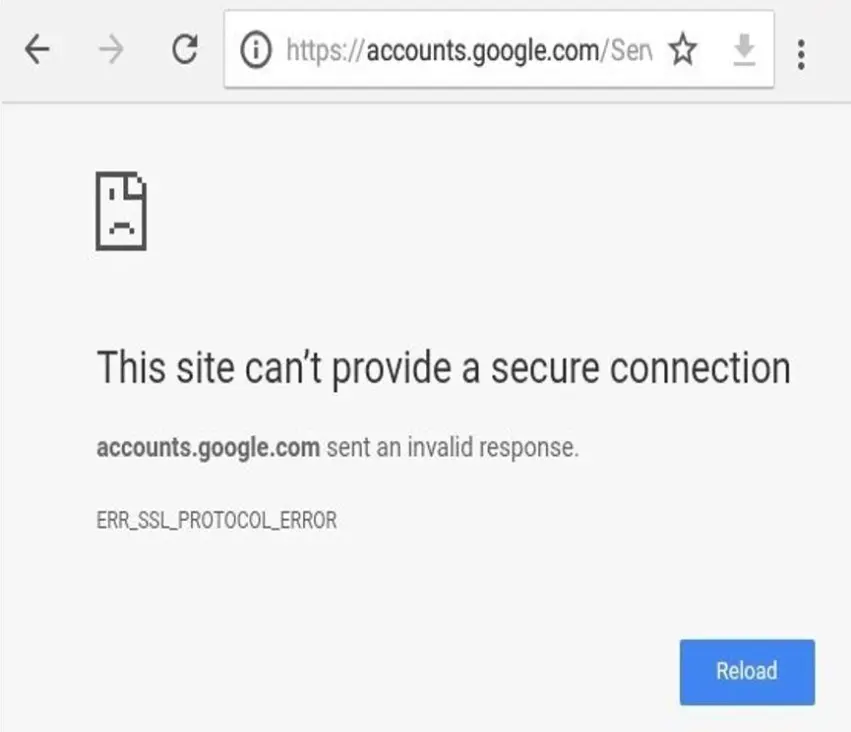
ERR_SSL_PROTOCOL_ERROR blocks you from a website entirely. Chrome shows an error page instead of the site, and you can’t proceed the way you can with some certificate warnings. The error means the browser could not establish a secure connection with the server.
The causes fall into two groups. On your side: a wrong clock, stale browser data, a VPN, or antivirus software. On the website’s side: a certificate or TLS misconfiguration, a bad redirect, or a CDN setting.
This guide starts with the fastest fixes, moves to platform-specific steps (Chrome, Windows, macOS, Android and iPhone), and then covers website owners, Cloudflare and localhost. It also shows you how to tell whether the problem is you or the site.
Quick-fix summary
- Check your connection and your device’s date and time.
- Restart the browser, then try Incognito mode.
- Clear cache and cookies.
- Try another browser or another network.
- Turn off any VPN or proxy briefly to test, then check antivirus and firewall settings.
- If the error appears on only one site and on every device, the fault is probably on the server.
What Is ERR_SSL_PROTOCOL_ERROR?
ERR_SSL_PROTOCOL_ERROR is a browser error shown when Chrome cannot complete the secure (HTTPS) connection to a website. The browser and server could not agree on how to encrypt the connection, so Chrome stops instead of loading an insecure page.
What Does ERR_SSL_PROTOCOL_ERROR Mean in Chrome?
In Chrome, it means the secure handshake failed before any page content could load. The error page usually says the site “can’t provide a secure connection.” It is a connection-level failure, not a problem with the page’s content.
How Does the SSL/TLS Handshake Work?
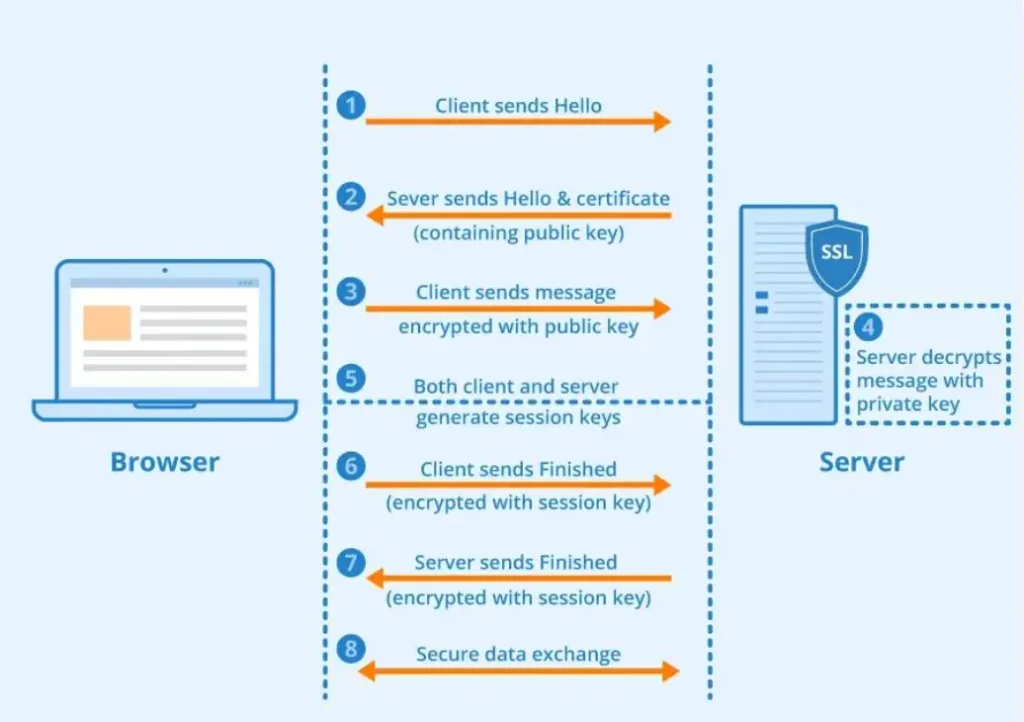
Before a page loads over HTTPS, the browser and server exchange a short series of messages. They agree on a protocol version and encryption method, the server presents its certificate, and both sides establish keys for the session. If any step fails, the handshake fails and Chrome reports an error such as this one. [NEEDS SOURCE for a more detailed step-by-step description]
Recommended visual: a simple diagram showing Browser → TLS handshake → Web server.
What Happens When a Secure HTTPS Connection Fails?
The browser refuses to load the page. No data is exchanged over the failed connection, so nothing on the page is displayed. You get an error page and no way to bypass it, which is why you have to find and fix the underlying cause.
What Is the Difference Between SSL and TLS?
SSL and TLS are both protocols for encrypting web connections. TLS is the newer protocol that replaced SSL. People still say “SSL certificate” and “SSL error” out of habit, even though modern connections use TLS. [NEEDS SOURCE]
What Causes ERR_SSL_PROTOCOL_ERROR?
The error comes from either the visitor’s device or network (client-side), or the website’s server and CDN configuration (server-side). Some causes can be on either side, such as DNS or redirect problems.
| Side | Typical causes |
|---|---|
| Client-side | Wrong date/time, browser cache and SSL state, VPN/antivirus/firewall interference, local network settings |
| Server-side | Expired or invalid certificate, incorrect installation, missing intermediate certificates, TLS version or cipher mismatch, bad redirects, CDN configuration |
| Either | DNS and network configuration, HTTP/3 and QUIC compatibility |
Recommended visual: a cause-and-effect diagram grouping client-side and server-side causes.
Expired or Invalid SSL Certificates
Every certificate has a validity period. If it has expired, or it is not valid for the domain, the connection can fail. This is a server-side problem that only the site owner can fix.
Incorrect SSL Certificate Installation
A certificate installed on the wrong port, in the wrong virtual host, or without its private key can break the handshake. This usually appears right after a certificate renewal or a server migration.
Missing Intermediate Certificates
A server should send the full certificate chain, not only the site certificate. If intermediate certificates are missing, some clients may be unable to verify the chain. The site can seem fine on one device and fail on another.
TLS Version or Cipher Suite Incompatibility
If the browser and server share no TLS version or cipher suite, they cannot negotiate a secure connection. This can happen when a server only supports outdated settings, or a security tool restricts what the browser may use.
Incorrect Date and Time Settings
Certificates are checked against the current date. If your device clock is wrong, a valid certificate can look expired or not yet valid.
Browser Cache and SSL State Problems
Stored data about earlier secure connections can become stale or corrupt. Clearing the cache or SSL state can remove it.
Firewall, Antivirus or VPN Interference
Security software and VPNs can intercept or alter HTTPS traffic. When they do it incorrectly, the browser sees a broken handshake.
DNS and Network Configuration Issues
If a domain resolves to the wrong server, the browser may connect to a host that cannot negotiate HTTPS for that domain. Corrupt local network settings can have a similar effect.
Incorrect HTTP-to-HTTPS Redirects
Redirect loops or redirects pointing at a port that doesn’t serve HTTPS can lead the browser into a failed secure connection.
Cloudflare or CDN Configuration Conflicts
A CDN sits between visitors and your origin server. A mismatch between the CDN’s encryption mode and what the origin supports can cause the error. See the Cloudflare section below.
HTTP/3 and QUIC Compatibility Problems
Cloudflare’s documentation covers HTTP/3 compatibility as a possible source of connection problems. Some networks or devices may not handle it well, so it is worth testing with it disabled.
How to Fix ERR_SSL_PROTOCOL_ERROR Quickly
Work through these ten steps in order. They go from the quickest and least invasive to those that change settings. Stop as soon as the site loads.
1. Check Your Internet Connection
Confirm that other websites load. An unstable connection can interrupt the handshake. If every HTTPS site fails, the cause is on your device or network, not the website.
2. Verify Your Device’s Date and Time
Make sure the date, time and time zone are correct, and turn on automatic time synchronization. Then reload the page.
3. Restart Your Browser
Close all Chrome windows completely and reopen it. This clears temporary connection state.
4. Open the Website in Incognito Mode
Open the site in an Incognito window. Extensions are normally disabled there and cached data isn’t used. If the site loads, the problem is likely an extension, cache or cookie.
5. Clear Browser Cache and Cookies
Clear cached images and files, and cookies for the affected site, then reload. Details are in the Chrome section below.
6. Try a Different Browser
Open the same URL in Firefox, Edge or Safari. If it works elsewhere but not in Chrome, focus on Chrome settings, extensions and HTTP/3 behavior.
7. Switch to Another Network
Try mobile data or a different Wi-Fi network. If the site works on the other network, your original network, router, ISP or DNS is a suspect.
8. Temporarily Test VPN or Proxy Interference
Disconnect your VPN or disable the proxy for a moment and reload. This is a test, not a fix. If it works, review the VPN or proxy configuration or try another server.
9. Check Antivirus and Firewall Settings
Some security tools scan HTTPS traffic. Check whether yours has an HTTPS or web-scanning feature and temporarily switch it off to test. Turn it back on afterward, and don’t leave your device unprotected.
10. Update Your Browser
Install the latest Chrome version. An outdated browser may lack support for newer TLS configurations used by the site.
Quick-fix checklist
| Step | What it tests | If it works, the likely cause is |
|---|---|---|
| Check connection | Basic connectivity | Network instability |
| Fix date and time | Certificate date validation | Wrong device clock |
| Incognito mode | Extensions, cache, cookies | Browser data or extension |
| Clear cache/cookies | Stale stored data | Corrupt cache |
| Different browser | Chrome-specific issue | Chrome settings or extensions |
| Different network | Local network | Router, ISP, DNS |
| VPN/proxy off | Tunnel interference | VPN or proxy |
| Antivirus/firewall | HTTPS scanning | Security software |
| Update browser | Protocol support | Outdated browser |
How to Fix ERR_SSL_PROTOCOL_ERROR in Google Chrome
If the quick fixes didn’t work, these Chrome-specific steps are next. Menu names can change between Chrome versions, so look for the equivalent option if a label differs.
Clear Chrome Browsing Data
Open Chrome Settings → Privacy and security → Delete browsing data. Select cached images and files and cookies, choose a time range, and delete. Restart Chrome and reload the site.
Recommended screenshot: Chrome’s Delete browsing data dialog.
Disable Conflicting Browser Extensions
Open chrome://extensions and turn off extensions, especially VPN, security, ad-blocking and privacy extensions. Re-enable them one at a time to find the one causing the problem.
Check Chrome Security and HTTPS Settings
Review Chrome’s Privacy and security settings for HTTPS-related options. Don’t turn off security features permanently to get a page to load.
Reset Chrome Settings
Resetting Chrome restores default settings and disables extensions. Use it after the less drastic steps fail. Back up your bookmarks first if you aren’t signed in to sync.
Check HSTS and HTTPS Redirect Behavior
Chrome remembers that some sites must use HTTPS and may redirect HTTP requests accordingly. If a site was previously reachable over HTTPS but now fails, check whether the server’s redirect and HTTPS setup are correct. Details for local development are in the Localhost section.
Investigate HTTP/3 and QUIC Compatibility
If a site fails only in Chrome and Cloudflare is involved, HTTP/3 is worth testing. Cloudflare’s documentation covers HTTP/3 compatibility. Site owners can test with HTTP/3 turned off; visitors can try another network or browser.
Editorial caution: Don’t rely on outdated Chrome flags as a permanent solution. Browser controls change between versions, and a flag that worked in an older release may no longer exist.
How to Fix ERR_SSL_PROTOCOL_ERROR on Windows 10 and Windows 11
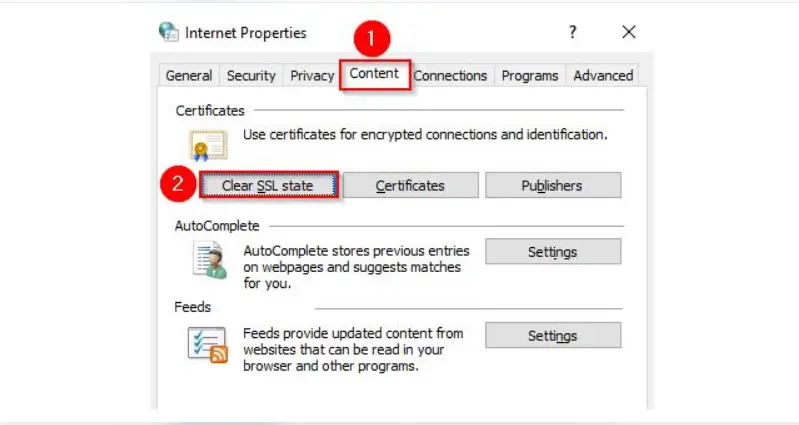
On Windows, the usual culprits are stale SSL state, the system clock, DNS, proxy settings and security software. Work through these in order.
Clear SSL State Through Internet Options
Open Internet Options (search for it in the Start menu), go to the Content tab, and click Clear SSL state. Then restart your browser. This clears cached certificate and SSL session information that Windows stores.
Check Windows Date and Time Synchronization
Open Settings → Time & language → Date & time. Turn on automatic time and time zone, and use the sync option to refresh the clock.
Reset DNS Cache
Open Command Prompt as administrator and run:
ipconfig /flushdnsThis clears Windows’ cached DNS lookups, so the next request resolves the domain again.
Review Proxy Settings
Open Settings → Network & internet → Proxy. If you didn’t set up a proxy, turn off automatic or manual proxy options as a test. A misconfigured proxy can interfere with HTTPS.
Check Windows Firewall
Check whether Windows Firewall or a third-party firewall blocks your browser. Allow the browser through the firewall if needed, and avoid switching the firewall off permanently.
Investigate Third-Party Security Services
Third-party security and networking software can interfere with secure connections. If you investigate background services (for example, with System Configuration), hide all Microsoft services first and change third-party services cautiously.
A Microsoft Q&A thread includes a user-reported case involving Killer networking services. This is one user’s report and not a universal fix. Don’t disable services you don’t recognize.
Update Network Drivers
Update your network adapter drivers through Device Manager or the manufacturer’s site. Outdated drivers can cause unusual network behavior.
Reset Network Configuration
As a last resort, run this in an administrator Command Prompt:
netsh winsock resetThis resets the Windows Sockets catalog to its default state, which can fix corrupted network stack settings. Restart your PC afterward, since the reset takes effect after a reboot. This reset can affect programs that add network components, so use it after simpler fixes.
How to Fix ERR_SSL_PROTOCOL_ERROR on macOS
On macOS, check the clock, software updates, VPN and proxy settings, and certificate trust before blaming the website.
Check Date and Time Settings
Open System Settings → General → Date & Time and turn on automatic date and time and time zone.
Update macOS and Your Browser
Install pending macOS updates and update your browser. Older software may not support the TLS settings the site uses.
Review VPN and Proxy Configuration
Disconnect your VPN and check your proxy settings under Network settings. Retest after each change.
Check Keychain Certificate Trust Settings
Open Keychain Access and look for certificates with custom trust settings, especially ones added by security software or corporate tools. A certificate that is set to “Never Trust” can break secure connections. Change trust settings only if you know why they were set.
Test Using Another Network
Try a different Wi-Fi network or a mobile hotspot. If the error disappears, the problem lies with your usual network.
How to Fix ERR_SSL_PROTOCOL_ERROR on Android and iPhone
On mobile, the usual causes are the clock, outdated apps, cached data and VPNs. The steps are quick and low risk.
Restart Your Device
A restart clears temporary network and app state. Try it first.
Update Chrome or Safari
Update Chrome from the Play Store or App Store. On iPhone, Safari updates come with iOS, so install any pending system update.
Clear Browser Data
In Chrome, open Settings → Privacy and security → Delete browsing data (Android and iOS). In Safari on iPhone, use Settings → Safari → Clear History and Website Data. Menu wording varies by version.
Disable VPN Temporarily for Testing
Turn off your VPN and reload. If the site now loads, try a different VPN server or contact your VPN provider.
Change Your Network Connection
Switch between Wi-Fi and mobile data. A change in result points toward your network or ISP.
Check Device Date and Time
Turn on automatic date and time in your device settings.
How to Fix ERR_SSL_PROTOCOL_ERROR on a Website You Own
If you manage the site, start with the server, certificate and TLS configuration. If the error affects many visitors on different devices and networks, the problem is almost certainly server-side.
Check SSL Certificate Expiration
Confirm the certificate has not expired. Check the expiry date in your hosting panel, with your certificate authority, or with a certificate-checking tool.
Verify the Domain Name on the Certificate
The certificate must cover the exact domain visitors use, including www and non-www versions if both are served.
Install the Complete Certificate Chain
Install the site certificate along with all required intermediate certificates, as your certificate provider instructs. Test from more than one device or tool, because a missing intermediate can be hidden by a browser that already has it cached.
Verify TLS Protocol Support
Check which TLS versions your server enables. A server that supports only outdated versions, or none that modern browsers accept, will cause handshake failures. Use SSL Labs Server Test to see supported protocols.
Review Cipher Suite Compatibility
Make sure the server offers at least one cipher suite that current browsers support. Avoid copying configurations from old guides without checking them. [NEEDS SOURCE for specific recommended cipher suites]
Check Port 443 and HTTPS Configuration
Confirm the server listens on port 443 and that an HTTPS virtual host is configured for the domain. A server that answers on 443 but speaks plain HTTP (or has no TLS configured) can trigger this error.
Investigate Reverse Proxy and Load Balancer Settings
If traffic passes through a reverse proxy or load balancer, check where TLS is terminated and whether every node has the right certificate and settings. One misconfigured node can cause intermittent errors.
Review Web Server Error Logs
Check your web server’s error log and your hosting provider’s logs for TLS and certificate messages around the time of the failure.
Check HTTP-to-HTTPS Redirect Rules
Verify redirects send visitors to a working HTTPS URL and don’t loop or point to the wrong host or port.
Recommended tools: SSL Labs Server Test, OpenSSL (for example, openssl s_client -connect yourdomain.com:443), and your hosting provider’s diagnostic tools.
How to Fix ERR_SSL_PROTOCOL_ERROR on Cloudflare
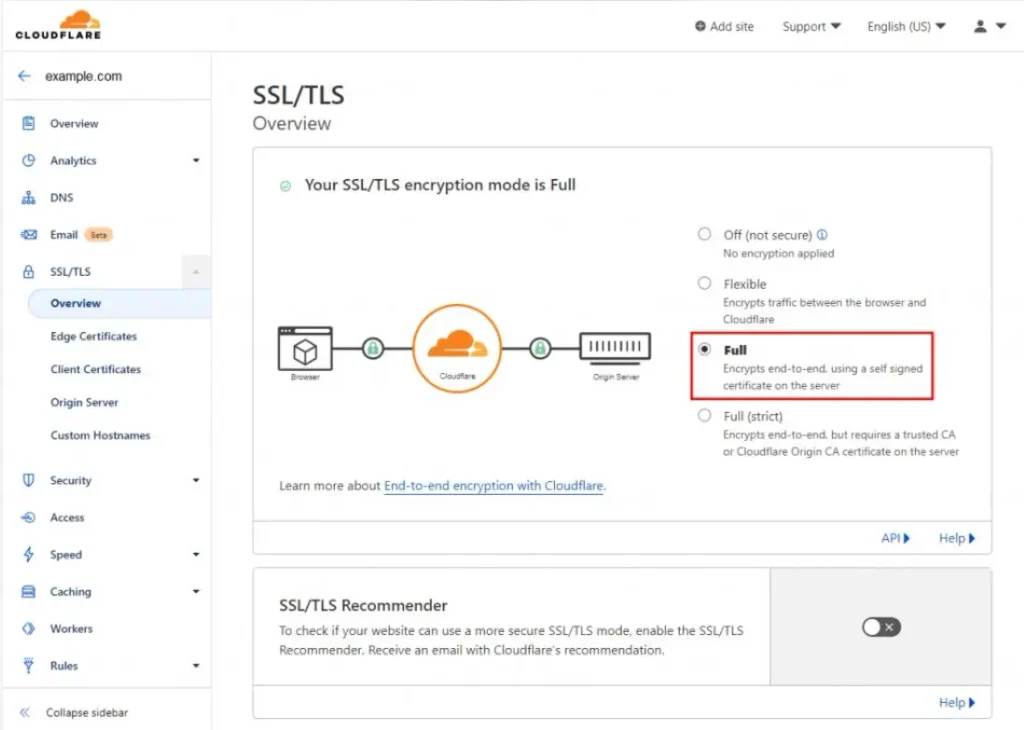
On Cloudflare, the error often comes from a mismatch between the SSL/TLS encryption mode and what your origin server supports, or from HTTP/3, TLS 1.3 or network interference. Start by checking the encryption mode, then verify the origin certificate.
Check Cloudflare SSL/TLS Encryption Mode
In the Cloudflare dashboard, open the SSL/TLS section for your domain and note the current encryption mode. Compare it against what your origin actually supports.
Understand Flexible, Full and Full (Strict) Modes
| Cloudflare mode | Connection behavior | What to verify |
|---|---|---|
| Off | No encryption to origin | Avoid for normal secure configurations |
| Flexible | Encrypted visitor-to-Cloudflare connection | Origin connection is HTTP |
| Full | HTTPS connection to origin | Origin must support HTTPS |
| Full (strict) | HTTPS with origin certificate validation | Origin certificate must be valid and trusted |
If the origin only serves HTTP, Full and Full (strict) modes won’t work. If your origin redirects HTTP to HTTPS while Cloudflare is in Flexible mode, you can end up with a redirect conflict (see below).
Verify the Origin Server Certificate
For Full (strict), the origin certificate must be valid and trusted. Check its expiry, domain coverage and chain.
Check Cloudflare Edge Certificates
Confirm that an edge certificate is active for your domain in the Cloudflare dashboard. Newly added domains may need time before the certificate is issued. [NEEDS SOURCE for typical timing]
Investigate HTTPS Redirect Conflicts
Redirects at the origin and at Cloudflare can conflict. For example, an origin forcing HTTPS while Cloudflare connects over HTTP can create a redirect loop. Review redirect rules in both places.
Test HTTP/3 and QUIC Compatibility
Temporarily disable HTTP/3 in Cloudflare and test again. Cloudflare’s documentation covers HTTP/3 compatibility.
Investigate TLS 1.3 Compatibility
Cloudflare’s documentation also discusses TLS 1.3 inspection issues. Some networks or security devices that inspect traffic may not handle TLS 1.3 correctly, which can cause errors for some visitors only.
Check ISP and Network Interference
If the error affects visitors on particular networks, the network may be interfering. Cloudflare’s documentation covers network interference. Ask affected visitors to test on a different network.
Collect Cloudflare Diagnostic Information
Before you contact support, note the exact error message, the affected URLs, affected networks, the time of failures, and your encryption mode and settings. Include results from different browsers and networks.
How to Fix ERR_SSL_PROTOCOL_ERROR on Localhost
On localhost, the usual cause is a mismatch between the protocol in your URL and what your development server actually serves. Check whether you are requesting HTTPS from a server that speaks only HTTP.
Why Chrome May Redirect Localhost to HTTPS
A supplied Reddit discussion gives a real-world example of Chrome automatically redirecting a localhost URL to HTTPS. If the local server is serving HTTP only, the HTTPS request fails with this error.
Check Your Local Development Server
Confirm whether your server is started with HTTPS enabled. Many development servers run on HTTP by default.
Verify HTTP and HTTPS URLs
Compare the two forms:
http://localhost:4200https://localhost:4200
If the first works and the second fails, the server is using HTTP.
Review HSTS Policies
If you previously served a localhost address over HTTPS, the browser may remember to use HTTPS. Clear that stored policy, or use a different port or hostname for HTTP-only testing. [NEEDS SOURCE for exact Chrome steps to clear HSTS entries]
Check Local Certificates
If you use HTTPS locally, confirm the certificate and key files are valid, loaded by the server, and trusted by your system or browser.
Troubleshoot Angular, Node.js and Other Development Environments
Check your framework’s start command and configuration for SSL options, and confirm the port you are visiting is the one the server is using. Framework-specific flags differ between versions, so check your tool’s documentation. [NEEDS SOURCE for framework-specific commands]
How to Identify Whether the Problem Is Your Browser or the Website
Run a few quick tests that change one variable at a time. If the site fails everywhere, suspect the server. If it fails only on one device, browser or network, suspect that variable.
Test the Website in Another Browser
Works elsewhere: Chrome profile, extension or setting. Fails everywhere: not browser-specific.
Test the Website on Another Device
Works on another device: your original device (software, clock, security tools).
Compare Wi-Fi and Mobile Data
Works on mobile data only: your Wi-Fi, router or ISP.
Check the SSL Certificate
Use an online certificate checker to confirm that the certificate is valid, unexpired and matches the domain.
Review the Website’s TLS Configuration
Run the domain through SSL Labs Server Test. Problems with protocols, chain or configuration point to the server.
| Result | Likely location of the problem |
|---|---|
| Fails only in one browser | Browser |
| Fails only on one device | That device |
| Fails only on one network | Network or ISP |
| Fails everywhere | Website, server or CDN |
Recommended visual: a diagnostic decision tree following the table above.
How to Prevent ERR_SSL_PROTOCOL_ERROR in the Future
Most preventable cases come from expired certificates, configuration changes without testing, and CDN or proxy mismatches. A short routine covers most of them.
Keep SSL Certificates Renewed
Renew certificates before they expire, and use automatic renewal where your provider offers it.
Monitor Certificate Expiration
Set up alerts for certificate expiry so that renewal problems are found early.
Maintain Updated TLS Configuration
Review supported TLS versions and cipher suites periodically and remove outdated settings.
Test HTTPS After Server Changes
After migrations, certificate changes or server updates, test HTTPS from different browsers, devices and networks.
Review CDN and Proxy Settings
Recheck encryption modes, redirect rules and HTTP/3 settings after changes at the CDN or proxy.
Monitor Server and Network Errors
Review server logs regularly for TLS and handshake errors. Keeping your own records (such as how often handshake errors occur, which causes you find most often, and how long diagnosis takes) will give you original data to improve this process.
Frequently Asked Questions About ERR_SSL_PROTOCOL_ERROR
Is ERR_SSL_PROTOCOL_ERROR Dangerous?
The error itself isn’t an attack. It means Chrome couldn’t set up a secure connection and blocked the page. Don’t try to bypass it or send sensitive information through other means. Find the cause first.
Can an Expired SSL Certificate Cause This Error?
Yes. An expired or otherwise invalid certificate can prevent a secure connection. Note that browsers may show a certificate-specific error instead in some cases. [NEEDS SOURCE]
Why Does the Website Work in Firefox but Not Chrome?
This points toward something specific to Chrome: stored data, an extension, a setting, or HTTP/3 behavior. Try Incognito mode, clear browsing data, disable extensions and update Chrome.
Can a VPN Cause ERR_SSL_PROTOCOL_ERROR?
Yes, it can. A VPN or proxy that interferes with HTTPS traffic can break the handshake. Disconnect it briefly to test, then try another server or contact the provider.
Why Does ERR_SSL_PROTOCOL_ERROR Appear on Every Website?
If every HTTPS site fails, look at your device and network: date and time, proxy, VPN, antivirus or firewall, DNS and network settings. A problem with one website’s server would not normally affect all sites.
How Do I Clear SSL State in Windows?
Open Internet Options, go to the Content tab, click Clear SSL state, then restart your browser.
Is ERR_SSL_PROTOCOL_ERROR the Same as NET::ERR_CERT_AUTHORITY_INVALID?
No. They are different errors. ERR_SSL_PROTOCOL_ERROR points to a failed secure connection, while NET::ERR_CERT_AUTHORITY_INVALID concerns a certificate the browser doesn’t trust. [NEEDS SOURCE for precise technical distinction]
Can DNS Cause SSL Protocol Errors?
It can contribute. If a domain resolves to the wrong server or stale records, the browser may connect to a host that can’t negotiate HTTPS properly. Flush your DNS cache and test on another network.
Should I Disable SSL Certificate Verification?
No. Disabling verification removes the protection HTTPS provides and doesn’t fix the underlying problem. Fix the certificate or configuration instead.
When Should I Contact My Hosting Provider?
Contact your host when the error appears for multiple visitors on different devices and networks, or when your own checks of the certificate, chain, redirects and TLS settings don’t find a cause. Give them the exact error, the affected URLs, the time of failures and what you have already tested.
Final Thoughts
ERR_SSL_PROTOCOL_ERROR means a secure connection could not be established. Common causes include wrong device time, stale browser data, VPN or security software interference, certificate and TLS configuration problems, redirects, and CDN settings such as Cloudflare’s encryption mode or HTTP/3.
The most useful first step is working out whether the problem is local or server-side. Try another browser, device and network. If it only fails in one place, fix that place. If it fails everywhere, check the server.
Troubleshoot securely: temporarily disable VPNs or security tools only to test, turn them back on, and never turn off certificate verification as a fix. If the problem affects multiple visitors to your site, contact your hosting provider.