If your phone is suddenly slow, draining battery fast, or throwing pop-up ads you never signed up for, you’re probably here for one reason: you need to remove malware from Android and you need to do it now.
The good news is that in most cases, you can clean an infected Android phone yourself in under 30 minutes, without losing your photos or paying for anything.
This guide walks through exactly how to remove malware from Android, step by step, starting with how to confirm you’re actually infected, then moving through removal, cleanup, and prevention so it doesn’t happen again.
Quick Answer: How to Remove Malware from Android
To remove malware from Android: boot into Safe Mode, find and uninstall the suspicious app, revoke its device administrator privileges first if needed, run Google Play Protect, then scan with a trusted antivirus app before restarting normally.
Here’s the 7-step summary:
- Disconnect from Wi-Fi and mobile data
- Boot your phone into Safe Mode
- Identify the suspicious app in Settings
- Remove its device administrator privileges
- Uninstall the malicious app
- Run Google Play Protect and a trusted antivirus scan
- Restart your phone normally and change your passwords
Estimated removal time: 15–30 minutes for most infections. Persistent malware or rootkit-level infections can take longer and may require a factory reset, which is covered later in this guide.
How to Tell If Your Android Has Malware
Not every slow phone is infected, but certain symptoms are strong indicators. Before you start removing anything, it helps to confirm what you’re actually dealing with.
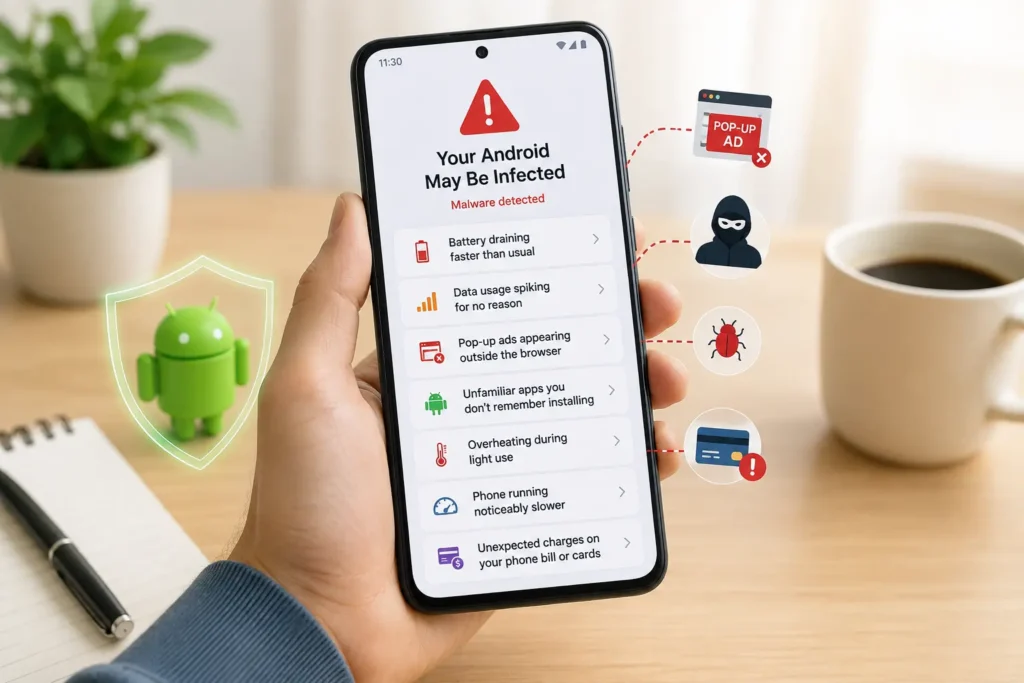
Common warning signs
Malware usually announces itself through behavior changes, even when it’s trying to hide. Watch for:
- Battery draining much faster than usual, even when idle
- Data usage spiking without an obvious cause
- Pop-up ads appearing outside of your browser
- Unfamiliar apps you don’t remember installing
- Overheating during light use
- Phone running noticeably slower than before
- Unexpected charges on your phone bill or linked cards
False alarms vs real infections
Not everything that looks suspicious is malware. A phone that’s simply old, has too many browser tabs open, or is running a large software update can show similar symptoms. The difference is persistence and pattern.
A real infection tends to produce symptoms that don’t go away after a restart, and the symptoms often show up together rather than in isolation. A single slow day after an update is normal. Ads appearing on your lock screen for a week straight is not.
Malware symptoms checklist
Use this checklist to decide whether it’s worth doing a full removal process:
- [ ] Battery life dropped sharply in the last few days
- [ ] Data usage is higher than your normal average
- [ ] You see ads outside of apps or your browser
- [ ] You don’t recognize one or more installed apps
- [ ] Apps are crashing or opening on their own
- [ ] Your phone bill shows charges you didn’t authorize
- [ ] Friends report receiving strange texts or messages from your number
If you checked two or more boxes, treat your device as potentially infected and continue with the steps below.
What Is Android Malware?
Android malware is malicious software designed to infiltrate Android devices to steal data, spy on activity, display unwanted ads, or extort money from the user. It typically arrives disguised as a legitimate app, a fake update, or a link, and runs in the background without the user’s knowledge.
Malware vs virus vs spyware
These terms get used interchangeably, but they’re not the same thing.
“Malware” is the umbrella term for any malicious software. A “virus” is technically a specific type of malware that replicates itself by attaching to other programs, true self-replicating viruses are rare on Android because of how the OS sandboxes apps. “Spyware” is a subtype of malware built specifically to monitor and collect data without the user’s consent.
In everyday conversation, most people say “virus” when they mean malware in general. This guide uses “malware” throughout because it’s the more accurate term for what typically infects Android devices.
Common malware types
Android malware generally falls into five categories, each with a different goal.
Adware
Adware floods your device with unwanted advertisements, often outside the app that installed it. It’s usually more annoying than dangerous, but it can also track browsing habits and open the door to more serious infections.
Spyware
Spyware quietly monitors activity, messages, calls, location, even camera and microphone access in severe cases. It’s built to stay hidden for as long as possible, which makes it one of the harder infections to detect without a scan.
Banking trojans
Banking trojans disguise themselves as legitimate apps and wait for the user to open a real banking app. They then overlay a fake login screen to steal credentials, or intercept the SMS codes used for two-factor authentication. This is one of the most financially damaging malware types on Android.
Ransomware
Ransomware locks the device or encrypts files, then demands payment to restore access. It’s less common on Android than on desktop systems, but it does exist and can be especially disruptive for small business owners who rely on their phone for work.
Rootkits
Rootkits burrow into the operating system itself, gaining privileges that let them hide from normal detection methods and survive typical removal attempts. They’re the most technically severe type of Android malware and often the reason a factory reset becomes necessary.
How Android Devices Get Infected
Understanding the infection method matters because it directly informs prevention. Most Android malware relies on the user taking an action, clicking, installing, or granting a permission, rather than exploiting the device silently.
Malicious APKs
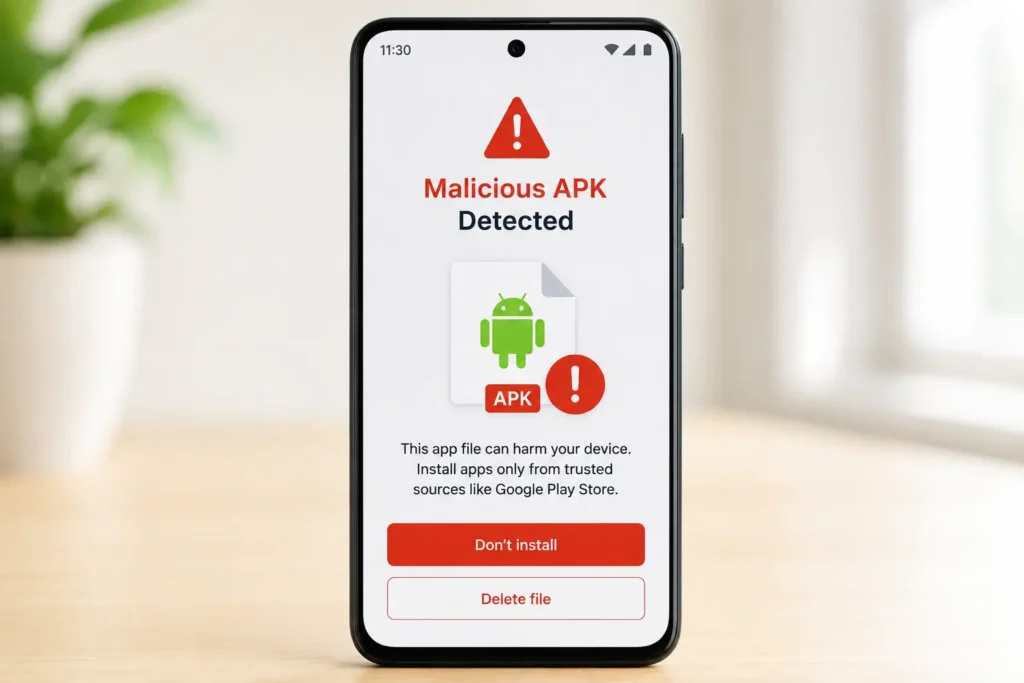
APK files are Android’s app installation format. Downloading one from outside the Play Store, a practice known as sideloading, skips Google’s built-in vetting process entirely. Malicious APKs are one of the single biggest sources of Android infections.
Fake Play Store apps
Even the official Play Store isn’t immune. Malicious developers occasionally slip fake apps past Google’s review process by disguising them as flashlight tools, QR scanners, or photo editors. These apps often behave normally for the first few days before activating their malicious code, which helps them avoid early detection.
Phishing links
A text message, email, or social media DM with a link to a “package tracking” page or a “your account has been locked” warning is a classic phishing setup. Clicking the link can trigger a fake update prompt or redirect to a malicious download.
Fake software updates
Pop-ups claiming “Your Android is out of date, update now” are a common malware delivery method, especially on browsers. Real Android updates come through Settings, never through a browser pop-up.
Malicious browser downloads
Visiting compromised or shady websites can trigger automatic downloads or convincing “download” buttons that don’t lead where they claim to. This is especially common on pirated streaming or file-sharing sites.
Accessibility abuse
Some malware requests Accessibility Service permissions, which are meant to help users with disabilities navigate their phone. In the wrong hands, this permission lets malware read what’s on screen, simulate taps, and bypass many built-in security prompts, which is why granting Accessibility access to an unfamiliar app is a serious red flag.
Before You Start
Before touching any settings, take three quick precautions. These steps limit the damage a malicious app can do while you work through removal.
Disconnect from Wi-Fi
Turn off Wi-Fi immediately. Many malware types rely on an active internet connection to send stolen data back to an attacker or to receive further instructions.
Turn off mobile data
Along with Wi-Fi, switch off mobile data or enable Airplane Mode. This cuts off all network access at once and is the fastest way to isolate the device.
Back up important files
Before making any changes, back up photos, documents, and contacts, ideally to a computer rather than a cloud service, since some spyware can also access connected cloud accounts. Skip backing up apps or APK files, since one of them may be the source of the infection.
How to Remove Malware from Android
This is the core process. Follow these seven steps in order, skipping ahead, especially past Safe Mode, makes malicious apps much harder to remove.
Step 1 – Boot into Safe Mode
Safe Mode starts Android with only the built-in system apps running, which stops most third-party malware from actively running or blocking your attempts to remove it.
- Press and hold the power button until the power menu appears
- Press and hold “Power off” until you see a prompt to reboot into Safe Mode
- Confirm, and wait for the phone to restart
You’ll see a “Safe Mode” watermark in the bottom corner of the screen once it’s active. Steps on some devices vary slightly by manufacturer, but this method works on most Android phones running Android 9 and later.
Step 2 – Find suspicious apps
Go to Settings > Apps and scroll through the full list, not just recently used apps. Look for:
- Apps you don’t remember installing
- Apps with generic or misspelled names
- Apps with no icon or a blank icon
- Apps using excessive battery or data (visible under Settings > Battery and Settings > Data usage)
Step 3 – Remove device administrator privileges
Many malicious apps grant themselves device administrator status specifically to block uninstallation. You need to revoke this before the app will let you remove it.
Go to Settings > Security > Device admin apps (the exact path varies by manufacturer, sometimes under Settings > Biometrics and security > Other security settings). Find the suspicious app and toggle its admin access off.
Step 4 – Uninstall malicious apps
With admin privileges removed, go back to Settings > Apps, tap the suspicious app, and select Uninstall. If the uninstall button is greyed out, the app may still have some elevated permission active, double check Step 3.
Step 5 – Run Google Play Protect
Google Play Protect is Android’s built-in malware scanner and runs automatically in the background, but you can trigger a manual scan too.
- Open the Play Store app
- Tap your profile icon, then Play Protect
- Tap Scan
- Follow prompts to remove anything flagged as harmful
Step 6 – Scan with a trusted antivirus app
Play Protect catches a lot, but running a second scan with a dedicated antivirus app adds a layer of detection Play Protect sometimes misses, particularly for newer malware families. Install one reputable app from the comparison table later in this guide, run a full scan, and follow its removal recommendations.
Step 7 – Restart normally
Once the app is uninstalled and both scans come back clean, restart your phone out of Safe Mode. Monitor it for 24–48 hours for any returning symptoms before considering the job fully done.
What If the Malware Won’t Go Away?
Sometimes the standard removal process isn’t enough. This usually happens with more sophisticated malware types, like rootkits, that are designed specifically to resist removal.
Apps that cannot be removed
If an app refuses to uninstall even after removing admin privileges in Safe Mode, it may have rooted part of the system or disguised itself as a core system app. At this point, manual removal is no longer reliable, and it’s time to move toward a factory reset.
Persistent malware
Persistent malware is malware that survives an uninstall attempt or reappears after a restart. This is a strong signal of a rootkit-level infection or a malicious app hidden within system-level files rather than the normal app list.
Factory reset
A factory reset wipes the device back to its original software state, removing nearly all malware types in the process, including persistent infections. It’s the most reliable removal method when standard steps fail, but it’s also the most disruptive, since it erases apps, settings, and any data not backed up beforehand.
Restore from backup safely
After a factory reset, restore your backup carefully:
- Restore contacts and photos first
- Reinstall apps manually from the Play Store rather than restoring an old app backup
- Avoid restoring a full system backup taken after the infection started, since it may reintroduce the malware
- Set up accounts and passwords fresh rather than auto-filling old saved credentials
Should You Factory Reset Your Phone?
A factory reset is effective but not always necessary. Use this decision guide to figure out whether it’s the right call for your situation.
Decision tree
| Situation | Recommended Action |
|---|---|
| Standard 7-step removal worked, symptoms gone | No reset needed |
| One stubborn app won’t uninstall, no other symptoms | Try Step 3 again in Safe Mode before resetting |
| Symptoms return after removal | Factory reset recommended |
| Antivirus flags a rootkit or system-level infection | Factory reset required |
| Device was used for banking/sensitive accounts and behaved erratically | Factory reset recommended, then change all passwords |
When it’s necessary
A factory reset becomes necessary when malware is rootkit-level, keeps returning after removal, or has compromised system files rather than just an installed app. It’s also the safer choice any time you’re not fully confident the device is clean, especially before using banking apps again.
When it’s not
If the 7-step removal process worked and your device has been symptom-free for 24–48 hours, a factory reset isn’t necessary. Wiping a clean phone unnecessarily just costs you time and the hassle of restoring everything.
What to Do After Removing Malware
Removing the malware is only half the job. Several accounts and settings need attention afterward, since malware — especially spyware and banking trojans — often exposes credentials before it’s caught.
Change passwords
Change passwords for your Google account, banking apps, email, and any app that stores payment information. Do this from a separate, trusted device if possible, in case any credential-stealing malware was active before removal.
Secure your Google account
Check Google Account > Security > Recent security activity for any unfamiliar sign-ins. Remove access for any devices or apps you don’t recognize.
Review app permissions
Go through Settings > Privacy > Permission manager and revoke permissions that don’t make sense for the app, a flashlight app never needs access to your contacts or SMS messages.
Check banking apps
Log into banking and payment apps to check for unauthorized transactions. If you find any, contact your bank immediately and mention that your phone was recently infected with malware, since this affects how they investigate the fraud.
Enable two-factor authentication
Two-factor authentication (2FA) adds a second verification step beyond your password, which stops most stolen-credential attacks even if a password was compromised. Use an authenticator app rather than SMS-based codes where possible, since SMS codes can be intercepted by some banking trojans.
Update Android
Go to Settings > System > System update and install any pending updates. Updates frequently patch the security vulnerabilities that malware relies on to gain elevated access.
Best Android Malware Removal Apps
Not all antivirus apps offer the same protection. Here’s how the major options compare.
| Tool | Free Version | Real-Time Protection | Best For |
|---|---|---|---|
| Google Play Protect | Yes (built-in) | Yes | Baseline protection on every Android device |
| Malwarebytes | Yes, limited | Premium only | Removing stubborn adware and PUPs |
| Bitdefender | Yes, limited | Premium only | Strong malware detection rates |
| Norton | Trial only | Yes | All-in-one security with VPN and dark web monitoring |
| Avast | Yes | Limited in free tier | Budget-conscious users wanting broad coverage |
| AVG | Yes | Limited in free tier | Users who want a simple, lightweight scanner |
Google Play Protect should always be enabled as your baseline, since it’s built into every Android device and scans apps automatically. A dedicated antivirus app is a useful second layer, particularly during an active infection or if you frequently sideload apps.
Can Malware Steal Your Personal Data?
Yes. Android malware can steal banking credentials, saved passwords, photos, private messages, and real-time location data, depending on the type of malware and the permissions it managed to obtain.
Banking credentials
Banking trojans specifically target login credentials by overlaying fake screens on top of real banking apps, capturing whatever the user types before passing it to the attacker.
Passwords
Spyware and some trojans can access saved passwords in browsers or password-adjacent apps, particularly if accessibility permissions were granted.
Photos
Spyware with storage access can copy and exfiltrate photos, which is a serious privacy risk beyond just financial harm.
Messages
SMS-reading malware can intercept two-factor authentication codes sent by text, which is one of the reasons app-based 2FA is safer than SMS-based 2FA.
Location
Apps with location permissions and hidden malicious code can track and transmit a device’s real-time location without the user’s knowledge, which is a particular concern in stalkerware cases.
How to Prevent Android Malware
Removal matters, but prevention is far less disruptive. These habits address the infection methods covered earlier in this guide.
Install apps safely
Stick to the Google Play Store for app installs. It isn’t perfect, but Play Protect’s vetting process filters out the overwhelming majority of malicious apps before they ever reach users.
Avoid unknown APKs
Don’t sideload APK files from websites, forums, or messaging apps unless you fully trust the source and understand the risk. This single habit prevents one of the most common infection paths covered earlier.
Keep Android updated
Install system updates promptly. As mentioned earlier, updates patch the vulnerabilities malware relies on, so delaying them extends your exposure window.
Review permissions regularly
Every few months, check Settings > Privacy > Permission manager and revoke anything that no longer makes sense, especially for apps you rarely use anymore.
Enable Play Protect
Confirm Play Protect is turned on under Play Store > Profile icon > Play Protect > Settings. It’s on by default, but it’s worth verifying, especially after a factory reset.
Avoid phishing links
Don’t click links in unexpected texts or emails, even if they appear to come from a known company. When in doubt, go directly to the company’s app or website instead of using the link provided.
Common Android Malware Families
Security researchers track specific malware families because many infections share the same underlying code, even when disguised as different apps.
| Malware | Target | Risk | Detection |
|---|---|---|---|
| Joker | SMS and billing services | Unauthorized premium subscriptions | Moderate — often disguised as utility apps |
| SharkBot | Banking apps | Credential theft via overlay attacks | Difficult — actively evades antivirus |
| Anatsa | Banking apps | Account takeover fraud | Difficult — uses dropper apps to install |
| FluBot | SMS and contacts | Spreads itself via text message links | Moderate — spreads fast but is well documented |
| Hydra | Banking apps | Credential and 2FA code theft | Difficult — targets specific banking apps |
| Xenomorph | Banking and crypto apps | Overlay-based credential theft | Difficult — frequently updated by developers |
| Cerberus | Banking apps | Remote device control, credential theft | Difficult — rootkit-like persistence |
| Octo | Banking apps | Full remote access and screen recording | Very difficult — one of the more advanced trojans |
Most of these families target banking apps specifically, which reinforces why checking financial accounts after any suspected infection, as covered earlier, is a non-negotiable step.
Android Malware Removal Flowchart
Use this visual path to quickly identify where you are in the process, based on your symptoms.
Symptoms present → Run the malware symptoms checklist → Two or more symptoms confirmed → Disconnect from Wi-Fi and mobile data → Boot into Safe Mode → Find and uninstall the suspicious app → Removal successful?
- Yes → Run Play Protect and antivirus scan → Restart normally → Change passwords and secure accounts
- No, app won’t uninstall → Recheck device admin privileges → Retry uninstall → Still won’t uninstall? → Factory reset → Restore backup safely → Change passwords and secure accounts
Frequently Asked Questions
Can Android phones get viruses? Android phones can get malware, though true self-replicating viruses are rare due to Android’s app sandboxing. Most infections come from malicious apps, not viruses in the strict technical sense.
How do I know if my Android has malware? Common signs include fast battery drain, spiking data usage, unfamiliar apps, unexpected pop-up ads, and overheating during light use. Two or more symptoms together is a strong indicator.
Does a factory reset remove all malware? Yes, a factory reset removes nearly all malware types, including persistent and rootkit-level infections, since it wipes the device back to its original software state.
Can malware survive a factory reset? It’s extremely rare, but possible if malware has infected the device’s firmware directly rather than just the installed apps. This is uncommon on consumer Android devices.
Is Google Play Protect enough on its own? Play Protect provides solid baseline protection and is built into every Android device, but pairing it with a dedicated antivirus app adds a useful second layer of detection.
Can I remove malware without a factory reset? Yes, in most cases. The 7-step removal process covered in this guide resolves the majority of infections without needing to wipe the device.
Do I need to pay for antivirus software? Not necessarily. Google Play Protect is free and built in, and several third-party antivirus apps offer capable free tiers, though premium versions add real-time protection.
Can malware access my camera or microphone? Yes, if it has been granted camera or microphone permissions, typically through disguised permission requests during installation.
Why does malware ask for accessibility permissions? Accessibility permissions let malware read the screen and simulate taps, which can be abused to bypass security prompts. Legitimate apps rarely need this permission unless they’re built for accessibility purposes.
Can I get malware just from visiting a website? Simply visiting a compromised website is unlikely to infect a modern Android device without an additional action, like clicking a download prompt or granting an install permission.
Should I turn off my phone completely if I suspect malware? Disconnecting from Wi-Fi and mobile data is more effective than powering off completely, since you’ll need the device on to boot into Safe Mode and remove the infection.
Can malware come from a text message? Yes, phishing texts with malicious links are one of the most common infection methods, particularly for malware families like FluBot that spread via SMS.
Will antivirus apps slow down my phone? Real-time scanning uses some background resources, but the impact on modern devices is generally minor compared to the performance hit malware itself causes.
How often should I scan my phone for malware? A monthly scan is a reasonable baseline for most users, with an immediate scan any time new symptoms appear.
Final Checklist Before Using Your Phone Again
Before returning to normal use, confirm every item below:
- [ ] Malware removed and uninstall confirmed
- [ ] Security scan completed with Play Protect and antivirus
- [ ] Passwords changed for Google, banking, and email accounts
- [ ] Backups verified and restored safely
- [ ] System updated to the latest Android version
- [ ] Play Protect enabled and running
- [ ] Suspicious permissions revoked
Malware on Android is unpleasant, but it’s rarely unfixable. Most infections resolve with the standard removal process: isolate the device, boot into Safe Mode, remove the malicious app, and scan with Play Protect and a trusted antivirus.
When an infection proves more stubborn, a factory reset remains a reliable fallback. The habits that prevent reinfection are the same ones that catch most malware early, install apps only from the Play Store, keep Android updated, and treat unexpected links and pop-ups with suspicion.
Following through on all of it, not just the removal steps, is what actually keeps your phone secure going forward.