You open a website, and instead of the page loading, you see a message like “webpage not available.” It can feel confusing, especially when you don’t know if the issue is from your side or the website itself.
In simple terms, “webpage not available” means your browser is unable to connect to the website’s server. This can happen for many reasons, from a weak internet connection to DNS errors or even server downtime.
What makes it more frustrating is that this error often appears suddenly, even on websites that were working perfectly just a few minutes ago. One moment everything is fine, and the next moment, the page stops loading.
Studies and troubleshooting reports show that most webpage loading failures are caused by connection-related issues, such as unstable internet or DNS problems.
This guide is built for:
- Everyday users who just want the page to load
- Website owners trying to understand what went wrong
- Anyone looking for clear, step-by-step fixes
By the end of this guide, you’ll have:
- A clear understanding of why this error happens
- All possible causes explained in simple terms
- Practical solutions you can apply immediately
Let’s start by understanding what this error actually means in detail.
What Does “Webpage Not Available” Mean?
When you see the message “webpage not available,” it simply means your browser tried to open a website but failed to connect to the server where the site is hosted.
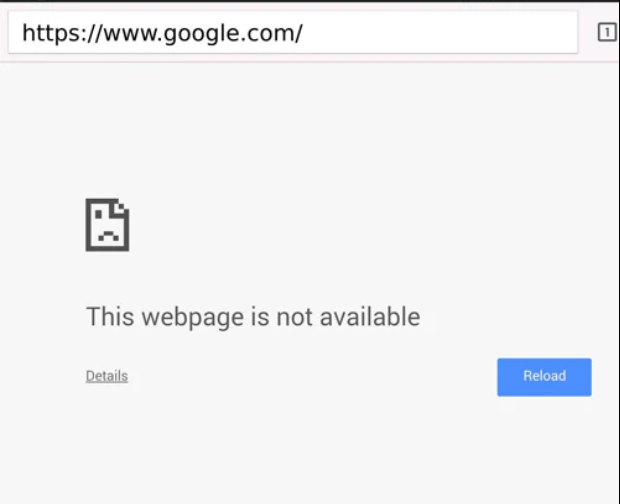
Think of it like this:
- You request a page by typing a URL
- Your browser sends a request to the website’s server
- The server should respond and load the page
If that connection fails at any point, you get the “webpage not available” error.
Simple Explanation
In plain terms:
Your device and the website are unable to “talk” to each other.
This doesn’t always mean the website is broken. The issue could be:
- On your device
- In your network
- Or on the website’s server
Browser Cannot Connect to Server
Every website lives on a server. When you open a site, your browser tries to:
- Find the server (using DNS)
- Connect to it
- Load the page
If any of these steps fail, the browser shows an error instead of the page.
Where You’ll See This Error
This issue appears across all major browsers, but the wording may be slightly different:
- Google Chrome
- “This site can’t be reached”
- “Webpage not available”
- Microsoft Edge
- “Hmmm… can’t reach this page”
- Mozilla Firefox
- “Unable to connect”
Different Variations of This Error (Important for SEO)
When you see “webpage not available,” the message may not always appear in the exact same way. Different browsers use different wording, but the root problem is usually the same, connection failure.
Understanding these variations helps you quickly identify the issue and fix it faster.
Common Error Messages
1. “This site can’t be reached”
- Very common in Google Chrome
- Means the browser tried to connect but failed
- Usually caused by:
- Internet issues
- DNS problems
- Server not responding
2. “DNS_PROBE_FINISHED_NXDOMAIN”
- Indicates a DNS failure
- Your system cannot find the website’s IP address
- Common causes:
- Wrong domain name
- DNS server issues
- Expired or inactive domain
In simple terms: the website address cannot be found
3. “ERR_CONNECTION_TIMED_OUT”
- The browser waited for a response, but the server didn’t reply in time
- Often caused by:
- Slow internet
- Server overload
- Firewall blocking connection
Meaning: the connection took too long and failed
4. “ERR_CONNECTION_REFUSED”
- The server actively refused the connection request
- Common reasons:
- Website server is down
- Port is blocked
- Security settings rejecting access
Meaning: the server is reachable but not allowing access
5. “Hmmm… can’t reach this page”
- Common in Microsoft Edge
- A general connection error message
- Could be due to:
- Network issues
- Incorrect URL
- Website downtime
Main Causes of “Webpage Not Available” (Core Section)
Before jumping into fixes, it’s important to understand why this error happens. In most cases, the issue is not random, it usually falls into one of the categories below.
1. Internet Connection Issues
The most common reason is a problem with your internet connection.
- Weak or unstable WiFi
- Mobile data fluctuations
- Router issues
- ISP (Internet Service Provider) outages
Even a small drop in connection can stop your browser from reaching the website.
2. Wrong URL or Typo
This is one of the most overlooked causes.
- Misspelled domain name
- Missing “.com”, “.in”, etc.
- Extra characters in the URL
If the address is incorrect, your browser simply won’t find the website.
3. DNS Problems
DNS (Domain Name System) helps your browser locate websites.
- DNS server not responding
- Incorrect DNS settings
- Domain not resolving
If DNS fails, your browser cannot convert the website name into an IP address.
4. Browser Cache & Cookies
Browsers store data to load websites faster, but sometimes this causes issues.
- Corrupted cache files
- Outdated cookies
- Conflicting stored data
This can prevent the page from loading properly.
5. Server Downtime
Sometimes, the problem is not on your side.
- Website server is down
- Server overloaded
- Maintenance or updates
In this case, no one can access the website until it’s back online.
6. Firewall / Antivirus Blocking
Security tools can sometimes block safe websites.
- Firewall restrictions
- Antivirus false alerts
- Network security policies
These tools may stop your browser from connecting to certain sites.
7. Proxy / VPN Issues
Using a VPN or proxy can interfere with connections.
- Misconfigured VPN
- Slow or blocked proxy server
- Location-based restrictions
This can cause websites to become unreachable.
8. Device or OS Issues
Sometimes the issue is related to your device itself.
- Outdated operating system
- Incorrect network settings
- Software bugs
These problems can affect how your device connects to the internet.
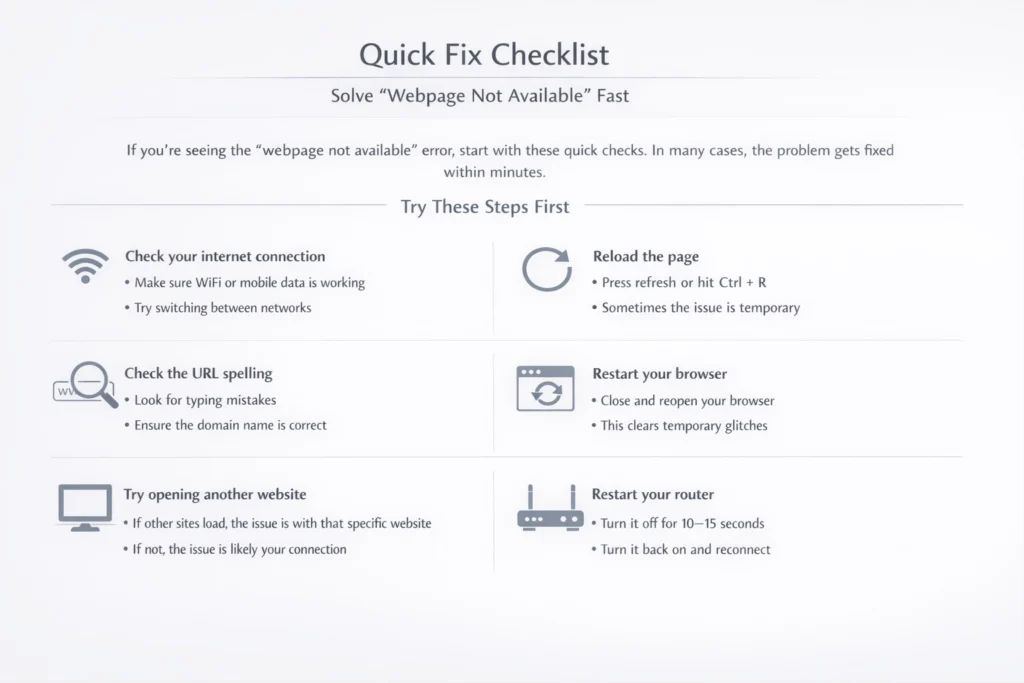
Quick Fix Checklist (Solve “Webpage Not Available” Fast)
If you’re seeing the “webpage not available” error, start with these quick checks. In many cases, the problem gets fixed within minutes.
Try These Steps First
- Check your internet connection
- Make sure WiFi or mobile data is working
- Try switching between networks
- Reload the page
- Press refresh or hit
Ctrl + R - Sometimes the issue is temporary
- Press refresh or hit
- Check the URL spelling
- Look for typing mistakes
- Ensure the domain name is correct
- Restart your browser
- Close and reopen your browser
- This clears temporary glitches
- Try opening another website
- If other sites load, the issue is with that specific website
- If not, the issue is likely your connection
- Restart your router
- Turn it off for 10–15 seconds
- Turn it back on and reconnect
How to Fix “Webpage Not Available” (Step-by-Step Guide)
If the quick fixes didn’t work, follow this step-by-step guide. Start from basic steps and move toward advanced solutions.
Basic Fixes (Beginner Level)
These are simple and often solve the problem instantly.
1. Check Internet Connection
- Make sure your WiFi or mobile data is active
- Try opening another site to confirm connectivity
- Switch between WiFi and mobile data
2. Restart Your Device
- Turn off your phone or computer
- Wait a few seconds and turn it back on
This clears temporary system glitches
3. Try Incognito Mode
- Open a private/incognito window in your browser
- Visit the same website
If it works, the issue is likely related to cache, cookies, or extensions
Browser-Level Fixes
If the problem is browser-related, these steps will help.
1. Clear Cache & Cookies
- Go to browser settings
- Clear browsing data (cache + cookies)
Removes corrupted or outdated stored files
2. Disable Extensions
- Turn off all extensions
- Re-enable them one by one
Some extensions can block websites
3. Update Your Browser
- Make sure you’re using the latest version of
- Google Chrome
- Mozilla Firefox
- Microsoft Edge
Updates fix bugs and improve compatibility
Network-Level Fixes
These steps address connection and DNS issues.
1. Restart Your Router
- Turn off the router
- Wait 10–15 seconds
- Turn it back on
Refreshes your network connection
2. Change DNS (Google DNS)
- Use public DNS:
- 8.8.8.8
- 8.8.4.4
Faster and more reliable DNS resolution
3. Flush DNS
- Clears stored DNS records
On Windows:
ipconfig /flushdns
Helps resolve domain-related issues
Advanced Fixes (Technical Users)
Use these if the problem still persists.
1. Disable Proxy
- Go to network settings
- Turn off proxy if enabled
Incorrect proxy settings can block access
2. Reset Network Settings
- Reset all network configurations
- Reconnect to WiFi
Fixes deep network issues
3. Check Firewall Rules
- Review firewall or antivirus settings
- Allow your browser or website
Security tools may block connections unintentionally
Fix “Webpage Not Available” in Google Chrome
If you’re using Google Chrome, this error is quite common. The good part is, Chrome provides several built-in ways to fix it quickly.
Chrome-Specific Fixes
Follow these steps one by one:
1. Clear Chrome Cache
Cached files can sometimes become outdated or corrupted.
Steps:
- Open Chrome
- Press
Ctrl + Shift + Delete - Select:
- Cached images and files
- Cookies
- Click Clear data
This removes stored data that may be blocking the page
2. Reset Chrome Settings
If Chrome settings are misconfigured, resetting can fix the issue.
Steps:
- Go to Settings
- Click Reset settings
- Select Restore settings to their original defaults
This resets:
- Homepage
- Extensions
- Search engine settings
3. Disable Chrome Extensions
Some extensions interfere with website loading.
Steps:
- Go to:
chrome://extensions/ - Turn off all extensions
- Restart Chrome
- Re-enable extensions one by one
Helps identify if an extension is causing the problem
4. Fix DNS Errors in Chrome
Chrome relies heavily on DNS for loading websites.
Try this:
- Restart your internet connection
- Change DNS to:
- 8.8.8.8
- 8.8.4.4
This can resolve errors like:
- DNS_PROBE_FINISHED_NXDOMAIN
- This site can’t be reached
Pro Tip
If the page works in Incognito mode but not in normal mode, the issue is almost always:
- Cache
- Cookies
- Or extensions
Fix “Webpage Not Available” on Mobile Devices (Android & iPhone)
If you’re facing the “webpage not available” error on your phone, the issue is often related to network settings, app data, or system configuration. The good news is — it’s usually easy to fix.
Android Fixes
Most Android users browse using Google Chrome, so these steps focus on common Android issues.
1. Clear Chrome App Cache
Cached data on mobile can become corrupted.
Steps:
- Go to Settings → Apps → Chrome
- Tap Storage
- Click Clear Cache
This removes temporary files without deleting important data
2. Switch Network
Sometimes the issue is with your connection.
- Switch from WiFi to mobile data
- Or connect to a different WiFi network
Helps confirm whether the issue is network-related
3. Reset Network Settings
If nothing works, reset your network.
Steps:
- Go to Settings → System → Reset options
- Tap Reset WiFi, mobile & Bluetooth
This clears all saved networks and fixes connection issues
iPhone Fixes
If you’re using an iPhone with Safari or Chrome, try the following:
1. Reset Network Settings
Steps:
- Go to Settings → General → Transfer or Reset iPhone
- Tap Reset → Reset Network Settings
This fixes most connectivity-related issues
2. Disable VPN
If you’re using a VPN:
- Turn it off temporarily
- Try opening the website again
VPNs can block or reroute traffic incorrectly
3. Update iOS
Outdated software can cause browser issues.
Steps:
- Go to Settings → General → Software Update
- Install the latest update
Updates fix bugs and improve network performance
Pro Tip
If the website works on another device but not your phone, the issue is definitely device-specific, focus on cache, network, or settings.
Fix “Webpage Not Available” on Windows & Mac
If you’re using a desktop or laptop, the issue may be related to system-level network settings. These fixes go a bit deeper and are very effective when basic solutions don’t work.
Windows Fix
For users on Microsoft Windows, try the following:
1. Flush DNS Using Command Prompt
This clears outdated or incorrect DNS records.
Steps:
- Press
Windows + R - Type
cmdand press Enter - Run this command:
ipconfig /flushdns
You’ll see a confirmation message once it’s doneset Network Settings
If DNS flush doesn’t help, reset your network.
Steps:
- Go to Settings → Network & Internet
- Click Advanced network settings
- Select Network reset
This will:
- Remove saved networks
- Reset adapters
- Fix deep connectivity issues
Mac Fix
For users on macOS, follow these steps:
1. Renew DHCP Lease
This refreshes your IP address from the router.
Steps:
- Go to System Settings → Network
- Select your WiFi connection
- Click Details → TCP/IP
- Click Renew DHCP Lease
Helps resolve IP and connection conflicts
2. Clear DNS Cache
This removes stored DNS entries that may be outdated.
Steps:
- Open Terminal
- Run the following command:
sudo dscacheutil -flushcache; sudo killall -HUP mDNSResponder
Enter your password when prompted
What If the Website Is Down?
Sometimes, the “webpage not available” error has nothing to do with your device or internet. The issue can be on the website’s server itself.
In such cases, no matter what you try, the page won’t load until the website is back online.
How to Check Website Status
Before trying more fixes, it’s smart to confirm whether the website is actually down.
1. Use Website Status Tools
You can check real-time status using tools like:
- DownDetector
- Online “Is it down right now” tools
These platforms show:
- Live outage reports
- User complaints
- Server downtime trends
2. Use Ping Tools
Ping tools test whether a website server is reachable.
- They send a request to the server
- If there’s no response, the server may be down
You can use:
- Online ping checkers
- Built-in system tools (Command Prompt / Terminal)
3. Try Opening the Site on Another Device
- Use a different phone or computer
- Or switch networks (WiFi → mobile data)
If it doesn’t load anywhere, the website is likely down
Important Note
Sometimes the issue is server-side, which means:
- The website is under maintenance
- The server is overloaded
- Hosting issues are causing downtime
In these cases:
You cannot fix it from your side, you just need to wait
DNS Errors Explained (High SEO Value Section)
Many times, the “webpage not available” error is directly linked to DNS or network failures. Understanding these specific error codes helps you fix the issue faster instead of guessing.
DNS_PROBE_FINISHED_NXDOMAIN
Meaning
This error means your browser cannot find the website’s IP address. In simple words, the domain name you entered does not resolve to any server.
Causes
- Incorrect or misspelled domain name
- DNS server not responding
- Expired or inactive domain
- Wrong DNS settings on your device
Fix
Try these solutions:
- Double-check the website URL
- Restart your router
- Change DNS to:
- 8.8.8.8
- 8.8.4.4
- Flush DNS cache (on Windows/Mac)
- Disable VPN or proxy
ERR_CONNECTION_TIMED_OUT
Meaning
This error appears when your browser sends a request, but the server takes too long to respond.
Common Reasons
- Slow or unstable internet
- Server overload
- Firewall blocking the request
Quick Fix
- Check internet speed
- Restart your router
- Disable firewall temporarily (for testing)
- Try accessing the site later
ERR_CONNECTION_REFUSED
Meaning
This error means the server is reachable but is refusing the connection.
Common Reasons
- Website server is down or misconfigured
- Port is blocked
- Security settings rejecting access
Quick Fix
- Check if the website is down
- Disable VPN or proxy
- Check firewall settings
- Try a different network
How to Prevent “Webpage Not Available” Error (Pro Tips)
Fixing the error is one thing, but preventing it from happening again saves you time and frustration. These simple habits can help you avoid most connection-related issues.
1. Keep Your Browser Updated
Using an outdated browser can lead to loading issues and compatibility problems.
- Regularly update:
- Google Chrome
- Mozilla Firefox
- Microsoft Edge
Updates fix bugs, improve security, and ensure better website compatibility
2. Use a Reliable DNS Service
Your DNS plays a key role in loading websites.
- Switch to trusted DNS providers like:
- Google DNS → 8.8.8.8 / 8.8.4.4
A reliable DNS reduces errors like:
- DNS_PROBE_FINISHED_NXDOMAIN
- Website not loading
3. Avoid Suspicious Extensions
Browser extensions can sometimes interfere with connections.
- Install only trusted extensions
- Remove unused or unknown add-ons
- Regularly review extension permissions
Too many extensions can slow down or block websites
4. Monitor Internet Stability
A stable internet connection is essential.
- Avoid weak WiFi signals
- Restart your router occasionally
- Upgrade your plan if needed
Most “webpage not available” errors are linked to unstable connections
Troubleshooting Flowchart (Quick Decision Guide)
When you see “webpage not available,” you don’t need to try everything blindly. Use this simple flow to quickly identify where the problem is and what to do next.
Step-by-Step Troubleshooting Logic
Follow this path:
- Check if your internet is working
- Try opening another websiteIf it doesn’t load → Issue = Internet
- Restart router
- Switch network (WiFi ↔ mobile data)
- If internet is working, check the website
- Try opening the same site on another deviceIf it still doesn’t load → Issue = Website (Server-side)
- Wait for the site to come back online
- Check status using tools like DownDetector
- If the site works on other devices
→ Issue = Your browser or device
Solution:- Clear cache & cookies
- Disable extensions
- Try incognito mode
typos Using unstable VPN Not restarting router
Common Mistakes to Avoid
While trying to fix the “webpage not available” error, many users make small mistakes that delay the solution. Avoiding these can save you a lot of time.
1. Ignoring URL Typos
One of the most common issues is a simple typing mistake.
- Wrong spelling of the domain
- Missing extensions like
.com,.in, etc. - Extra characters in the URL
Always double-check the address before trying advanced fixes
2. Using an Unstable VPN
VPNs can sometimes create more problems than they solve.
- Slow or overloaded VPN servers
- Incorrect location routing
- Blocked IP addresses
If a website isn’t loading, try disabling your VPN and reload the page
3. Not Restarting the Router
Many users skip this simple step, even though it solves a lot of issues.
- Routers can develop temporary glitches
- Network connections may become unstable
Restarting your router refreshes the connection and often fixes the problem instantly
FAQs: Webpage Not Available (People Also Ask)
What does “webpage not available” mean?
It means your browser cannot connect to the website’s server.
In simple terms:
- Your request didn’t reach the website
- Or the website didn’t respond
This can happen due to:
- Internet issues
- DNS problems
- Server downtime
Why does Chrome say “webpage not available”?
If you’re using Google Chrome, this message appears when Chrome fails to load a website.
Common reasons include:
- Weak or no internet connection
- DNS errors
- Blocked requests (firewall or extensions)
- Website server issues
How do I fix “webpage not available” error?
Start with these steps:
- Check your internet connection
- Reload the page
- Clear browser cache and cookies
- Restart your router
- Change DNS (8.8.8.8 / 8.8.4.4)
These fixes solve most cases quickly
Is the problem from my side or the website?
You can easily check:
- If no websites are loading → problem is on your side
- If only one website is not loading → problem is likely with the website
You can confirm using tools like
DownDetector
What is DNS_PROBE_FINISHED_NXDOMAIN?
It’s a DNS-related error.
It means:
- Your browser cannot find the website’s IP address
Common causes:
- Wrong URL
- DNS server issues
- Domain not active
Fix it by:
- Checking the URL
- Changing DNS
- Flushing DNS cache